

Skip sending when there is no new content
A recurring newsletter that shows SharePoint content, such as this week’s news, can find nothing new. Sending conditions stop JungleMail from sending an email that would be empty: they are rules such as “don’t send if the news section is empty”, checked each time the newsletter is sent.
Without a sending condition, a section that finds no items is left out and the rest of the email goes out. That suits a newsletter whose other content stands on its own, such as a message from the leadership team. When the SharePoint content is the reason for the newsletter, as in a weekly digest of news and events, add a sending condition, so that a quiet week sends nothing rather than an email with little in it.
Before you begin
Section titled “Before you begin”- The email needs at least one section or block with SharePoint content and a source (Add SharePoint content). Until it has one, Actions > Sending conditions is grayed out and says This email has no dynamic sections or blocks.
Add a sending condition
Section titled “Add a sending condition”You set sending conditions on the dynamic section or block, in the newsletter wizard’s Content step.
-
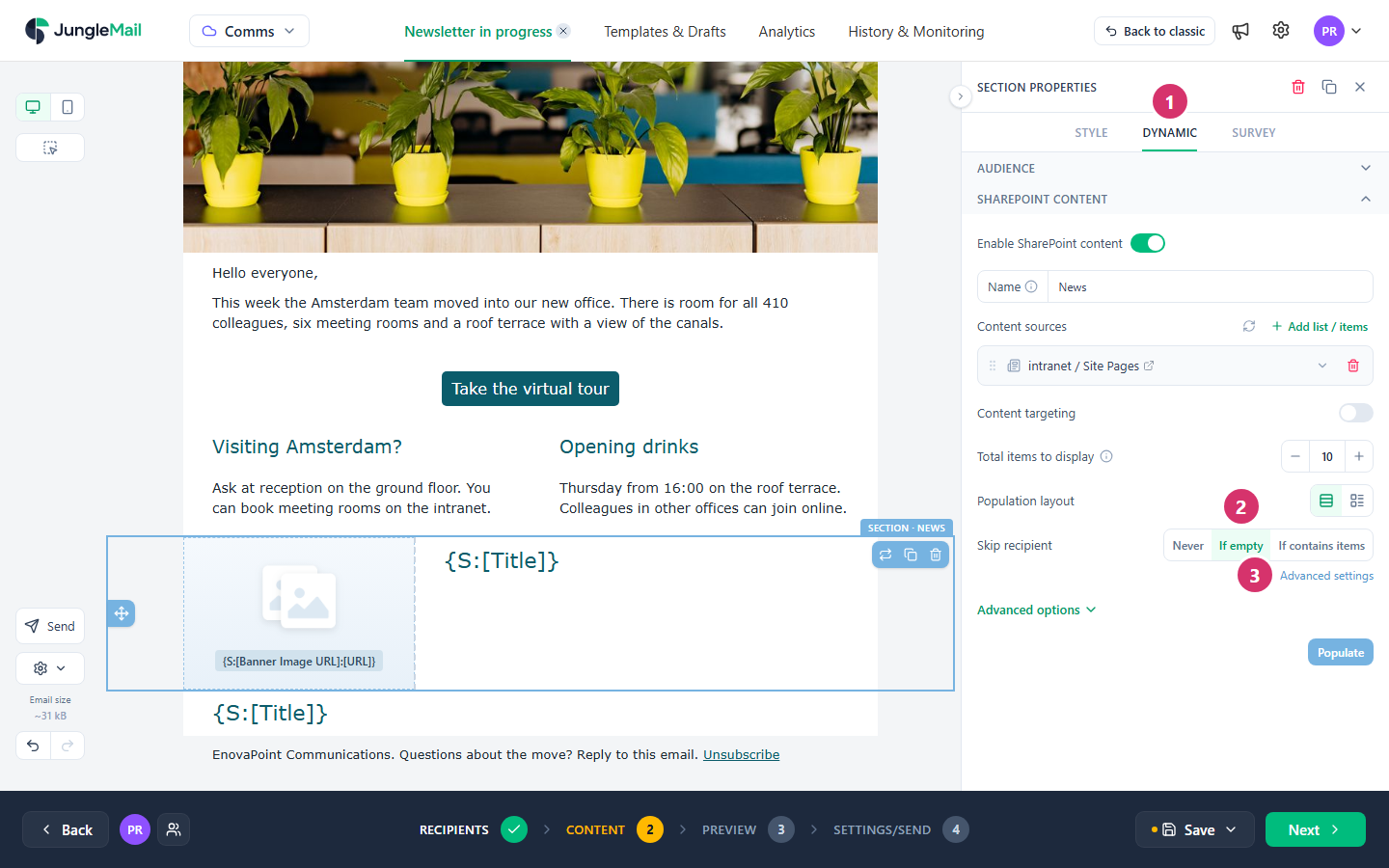
Select the dynamic section or block and select Dynamic.
-
In Skip recipient, choose If empty: no email when the content finds no items. If contains items does the opposite, for content that should only go out when there is nothing to report.
-
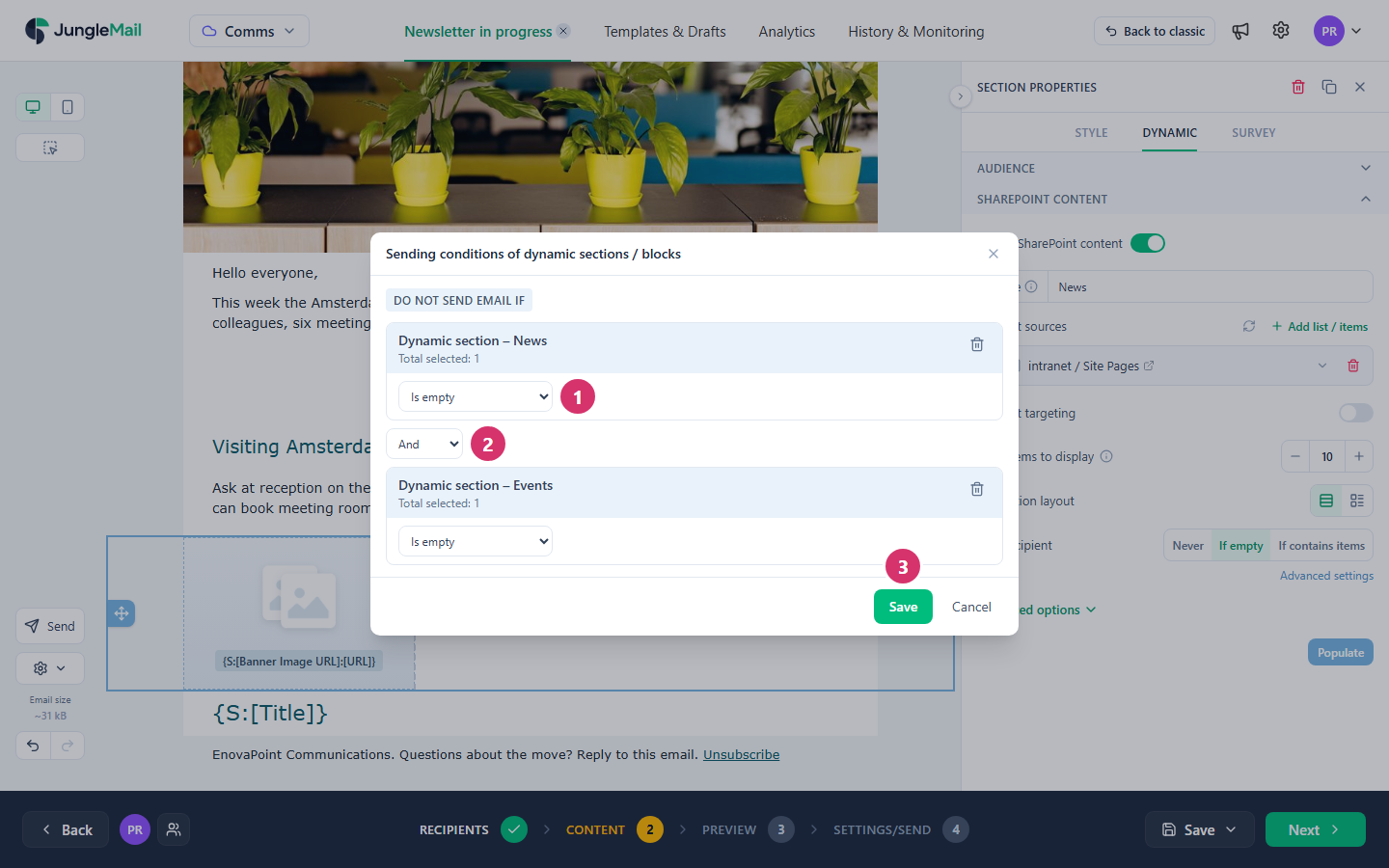
To check several sections or blocks together, select Advanced settings under the row, or Actions (the gear) > Sending conditions. Sending conditions of dynamic sections / blocks opens:
- Under DO NOT SEND EMAIL IF, each rule names a dynamic section or block and Is empty or Contains items. The rules show each one’s Name from its Dynamic tab, so give your sections names such as News and Events.
- Assign another dynamic section / block adds a rule, and And or Or joins it to the others. For a newsletter of news and events, choose And: News Is empty And Events Is empty skips only the weeks with neither, while Or skips every week that lacks one of them.
-
Select Save.
What happens when the newsletter is sent
Section titled “What happens when the newsletter is sent”- When the content is the same for everyone, JungleMail checks the conditions once. If they are met, the whole newsletter is skipped, and its status in History & Monitoring is Completed (skipped).
- When the content differs from one recipient to another, for example because a section is shown to some recipients only or a filter uses the recipient’s details, JungleMail checks the conditions for each recipient and skips only the emails that would be empty. For such a recipient, the Preview step says This recipient will be skipped: This email will be skipped due to email sending conditions applied to dynamic sections or blocks.
Combined with a recurring schedule, this sends the newsletter only in the weeks that have news (Set up a recurring newsletter).
- Remove the heading with the content. In a week with events but no news, the News section is left out, but a heading section above it stays. Choose Remove section above if empty in the news section’s Additional options, under Advanced options (Add SharePoint content).
- Read Completed (skipped) as a quiet week. It means the conditions worked, not that sending failed, and a skipped newsletter is not archived to SharePoint. Tell whoever watches History & Monitoring to expect it (A newsletter was skipped, failed or rejected).
- Check personalized content for a few recipients. When the content depends on the recipient, go through recipients of different offices or departments in the Preview step, to see who would be skipped (Preview and test a newsletter).