

Links, click map and clickstream
Three tabs of a newsletter’s report in JungleMail 365 look at its links. Top Links ranks them, Click Map shows the clicks on the newsletter itself, and Clickstream shows the order in which readers clicked. They count the clicks JungleMail tracked, so they are empty for a newsletter sent with Track clicked links off (How open and click tracking works).
To open them, select Analytics in the top menu, the newsletter’s name, and then the tab. Start with Click Map when you want to know where to put links in your next newsletter, and with Top Links when you only need to know which one worked.
Top Links
Section titled “Top Links”Top Links lists the links with the most unique clicks, up to ten, each with its Total and Unique clicks. Links are shown by their address, not by their text in the email. Above the list:
- Click Rate: the share of the emails sent in which a link was clicked.
- Total Clicks: every click on every link.
- Unique Clickers: the recipients who clicked at least one link.
- Top Performer: the link with the most clicks.
Search the list by address, and sort it by Total clicks or Unique. The CSV export of this tab lists each recipient with the links they clicked (Export results to CSV or Word).
Click Map
Section titled “Click Map”Click Map shows the newsletter as it was sent, with a badge on each link. The click map is part of the Pro and Enterprise plans.
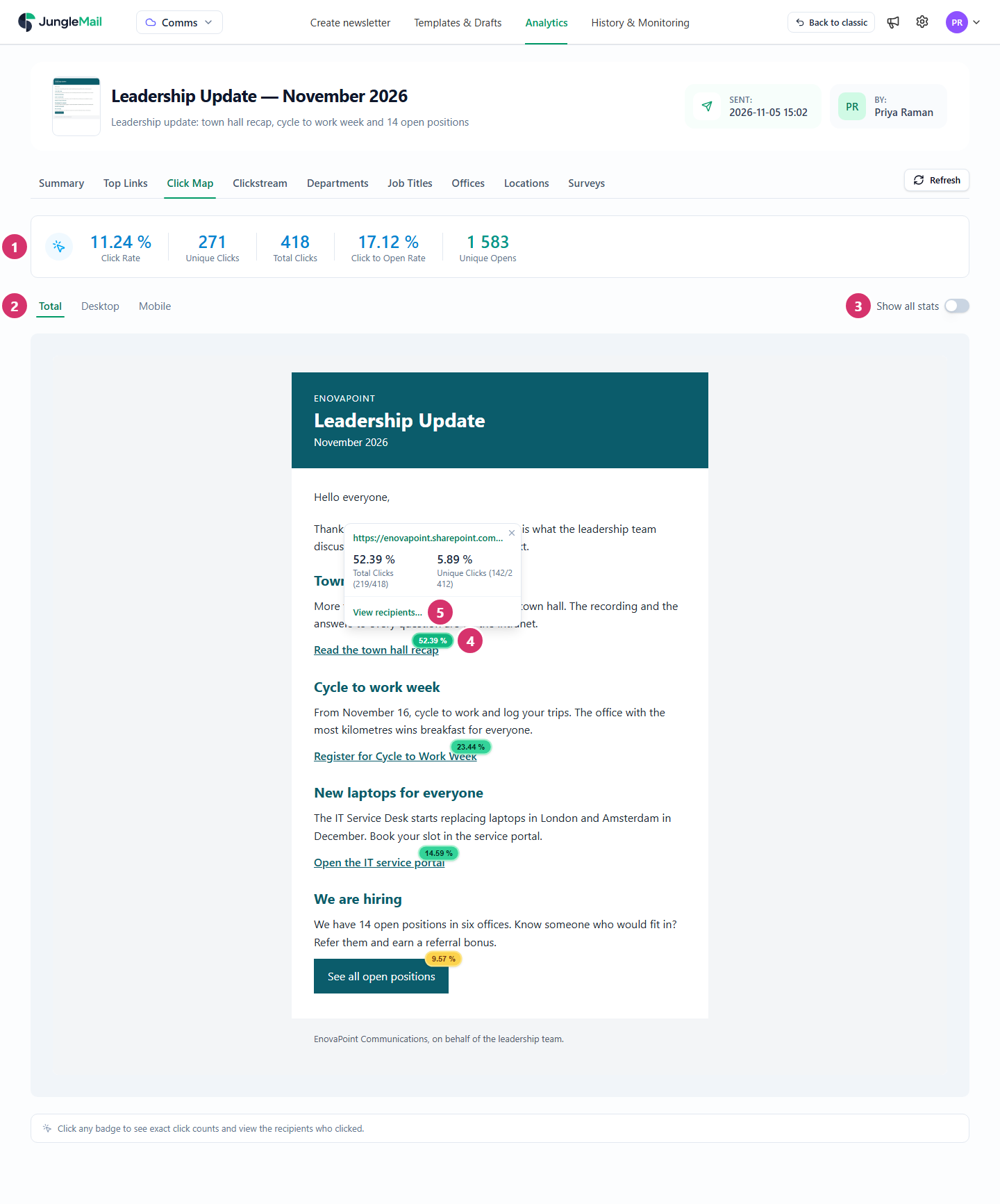
- The newsletter’s click figures: Click Rate, Unique Clicks, Total Clicks, Click to Open Rate, which is the unique clicks divided by the unique opens, and Unique Opens.
- Total, Desktop and Mobile: all clicks, or only those made on one kind of device. Total Clicks and the badges change with the choice.
- Show all stats: also show the badges of links that nobody clicked.
- Each badge shows the link’s share of all the clicks in the newsletter. The more clicks, the stronger the color, from gray and yellow to green. Select a badge or its link to see its total and unique clicks.
- View recipients opens Link click details: who clicked the link, how many times and when first. Export to CSV downloads the list.
Answers to a survey in the newsletter get purple badges with their share of the votes, and View voters lists who chose them, unless the survey is anonymous (Survey results). A newsletter in several languages shows one language at a time; choose it above the figures.
Clickstream
Section titled “Clickstream”Clickstream shows the paths readers took through the links: each card is one sequence of clicks, with the number of recipients who followed exactly that path and how many steps it has. The ten most followed paths are shown, most followed first. A path holds up to the first five links a recipient clicked.
A path that ends at a page you want people to reach tells you which part of the newsletter led them there. If most paths are a single step, readers came for one article rather than browsing.
What this means for you
Section titled “What this means for you”- Put the link you most want clicked where the click map shows the most clicks, usually near the top. When the badges fade toward the end of the newsletter, move the story that matters most up, or shorten what comes before it.
- Read the click-to-open rate to judge the content. It leaves out the recipients who never opened, so it shows how well the content worked for those who did. A low click rate with a steady click-to-open rate points to the subject or the send time (Write the subject and preview text); a falling click-to-open rate points to the content and its links.
- Compare Desktop and Mobile. A link that does well on desktops but not on phones may be hard to tap: make it a button, or give it more room (Preview and test a newsletter).
- Use clear, separate links rather than one link repeated. The click map then tells you which mention worked. Link text that says where it goes, such as “Register for Cycle to Work Week”, also helps readers decide (Make your emails accessible).
- Give a goal its own link and watch Clickstream. When a link leads to the page you want people to reach, such as a registration form, the paths that end there show which stories sent readers on to it.