

Send to recipients in a file
The File recipient source sends a newsletter to the addresses in a file you upload: a CSV or TXT file, or an Excel workbook. It suits lists kept outside Microsoft 365, such as the people who registered for an event. Every column of the file can fill in a merge tag, so each reader sees their own details.
A file is a snapshot: the newsletter keeps it as you uploaded it. For people your organization keeps up to date elsewhere, such as an office or a team, choose a group or a SharePoint list instead, so that nobody has to upload a new file before each newsletter (Recipients).
Prepare the file
Section titled “Prepare the file”JungleMail 365 reads a file like this one: the column names in the first row, and one person per row.
| First Name | Last Name | Session | |
|---|---|---|---|
| tom.becker@enovapoint.com | Tom | Becker | In person |
| lucas.moreau@enovapoint.com | Lucas | Moreau | Online |
| kwame.mensah@enovapoint.com | Kwame | Mensah | In person |
- File types: CSV and TXT files, and Excel workbooks: .xlsx, .xlsm, .xltx and .xltm. Save an older .xls workbook as .xlsx first.
- Excel workbooks: JungleMail reads the first worksheet only.
- The address column: JungleMail finds it by itself. It is the first column, from the left, with a valid email address in the first row. If the first row has none, JungleMail takes that row as the column names, and the second row must have an address. Put the recipients’ addresses in the first column, so that JungleMail doesn’t take another column of addresses, such as a manager’s, for them.
- Column names: taken from the first row. A column without a name is named by its letter, such as Column E, and a name used twice gets a number, such as Office (1). A file whose first row is already an address has no names: its columns are Column A, Column B and so on.
- Several addresses in one cell each get an email of their own.
- CSV and TXT files: the values can be separated by commas, semicolons, tabs or vertical bars (
|). JungleMail tells which from the first row, so put the column names there, not a title. A first rowsep=;names the separator outright. Save the file as UTF-8, such as CSV UTF-8 (Comma delimited) in Excel, so that names with accents arrive as they are. - Size: all the files of one newsletter together can be up to 10 MB, unless your organization has a different limit.
Upload it
Section titled “Upload it”In the newsletter wizard, go to the Recipients step.
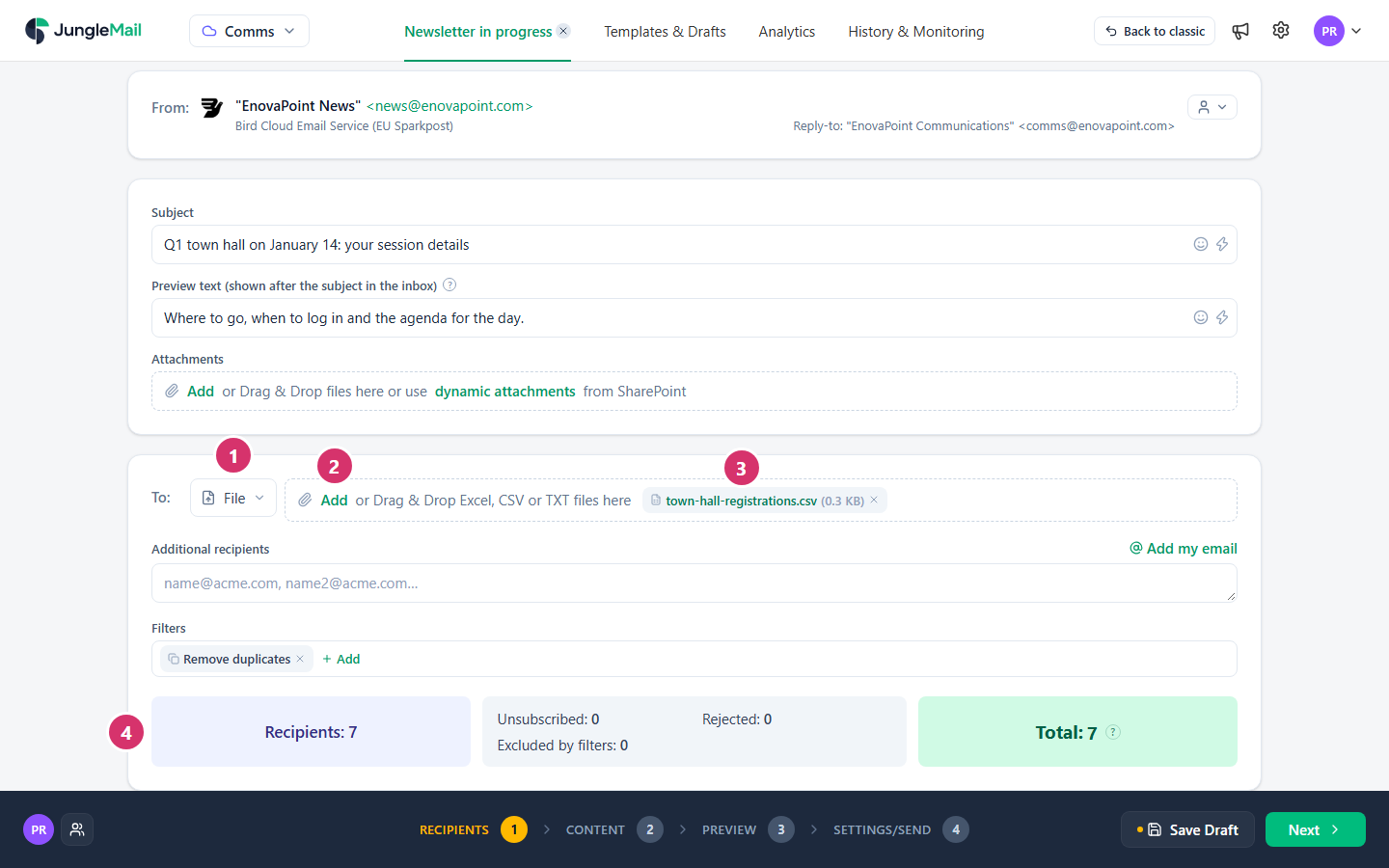
- Open the list next to To and select File.
- Select Add and choose the file, or drag it onto the box. To send to the people in several files, add each one rather than combining them by hand: their recipients are put together, and Remove duplicates sends one email to someone who is in two of them.
- The file appears in the box with its size. Select its name to download it, or the × beside it to remove it.
- Check the counts below: Recipients is everyone in your files, and Total is everyone who will receive the newsletter.
If a file with the same name is already there, JungleMail asks whether to replace it: Replace It or Don’t Upload.
The file stays with the newsletter: it is in the draft when you save, and in every copy of the newsletter. A change you make to the file on your computer doesn’t reach JungleMail; upload it again.
Use the file’s columns in the email
Section titled “Use the file’s columns in the email”Each column is a merge tag with the column’s name, such as {First Name} or {Session}. In the subject, select
Quick actions > Placeholders & Formulas to see them, listed with JungleMail’s own, such as JungleMail Recipient
Name. In the email builder, insert them with Insert merge tag
(Personalize with merge tags).
Some column names do more:
- Department, Job Title, Office, Company and Country give the newsletter’s results by department, job title, office, company and country, where your site has them turned on (Results by department, job title, office and company).
- Time Zone, or Country with State or province, tells Time zone delivery each reader’s local time (Send or schedule a newsletter).
- In a multilingual newsletter, any column, such as Preferred Language or Office, can decide which language each reader gets, through the language’s delivery condition (Send a newsletter in several languages).
If the file is refused
Section titled “If the file is refused”| Message | What to do |
|---|---|
| Recipients file extension .xls is not allowed. | Save the file in one of the types above |
| Empty recipients file is not allowed. | Check that you chose the right file, and that it was saved with its contents |
| Maximum allowed … recipients files size exceeded. | Remove columns you don’t need, or split the people over two newsletters |
| Unable to resolve recipients. Unable to determine email address column in recipient file … File should contain valid email address in the first or second row. | Put the column names in the first row and an address in the second, with no title above them |
- Upload the latest list on the day you send. Registrations keep coming in after you first upload the file. Export the list again, keep the file’s name, and choose Replace It, so that the old list doesn’t stay beside the new one. A copy of the newsletter brings its file too, so replace it there as well (Find and reuse past newsletters).
- Keep only the columns the email uses. The file travels with the newsletter, into its draft and every copy, and anyone who can see the newsletter in JungleMail, a Viewer or Report Viewer too, can download it from Recipient files in its preview. Leave out details such as phone numbers that the email doesn’t need; a smaller file also stays under the size limit.
- Check before you send to a file of outside addresses. Each address your organization hasn’t sent to this quarter adds one unique recipient to its count (How unique recipients are counted), and your organization may require an unsubscribe link in newsletters to people outside it (Add an unsubscribe link).