

Select and style several blocks at once
Selection mode picks several parts of the email at once, so you can change them in one go: give every title the same color, copy three sections, delete a whole part of the email, or make blocks follow the design again. Use it for a group of blocks that should look different from the rest. For a change to every block of a kind, such as every title, change the Design tab instead (Style your email with themes and design settings).
Pick the parts
Section titled “Pick the parts”In the Content step, select Select blocks and sections on the left. A bar appears below the email.
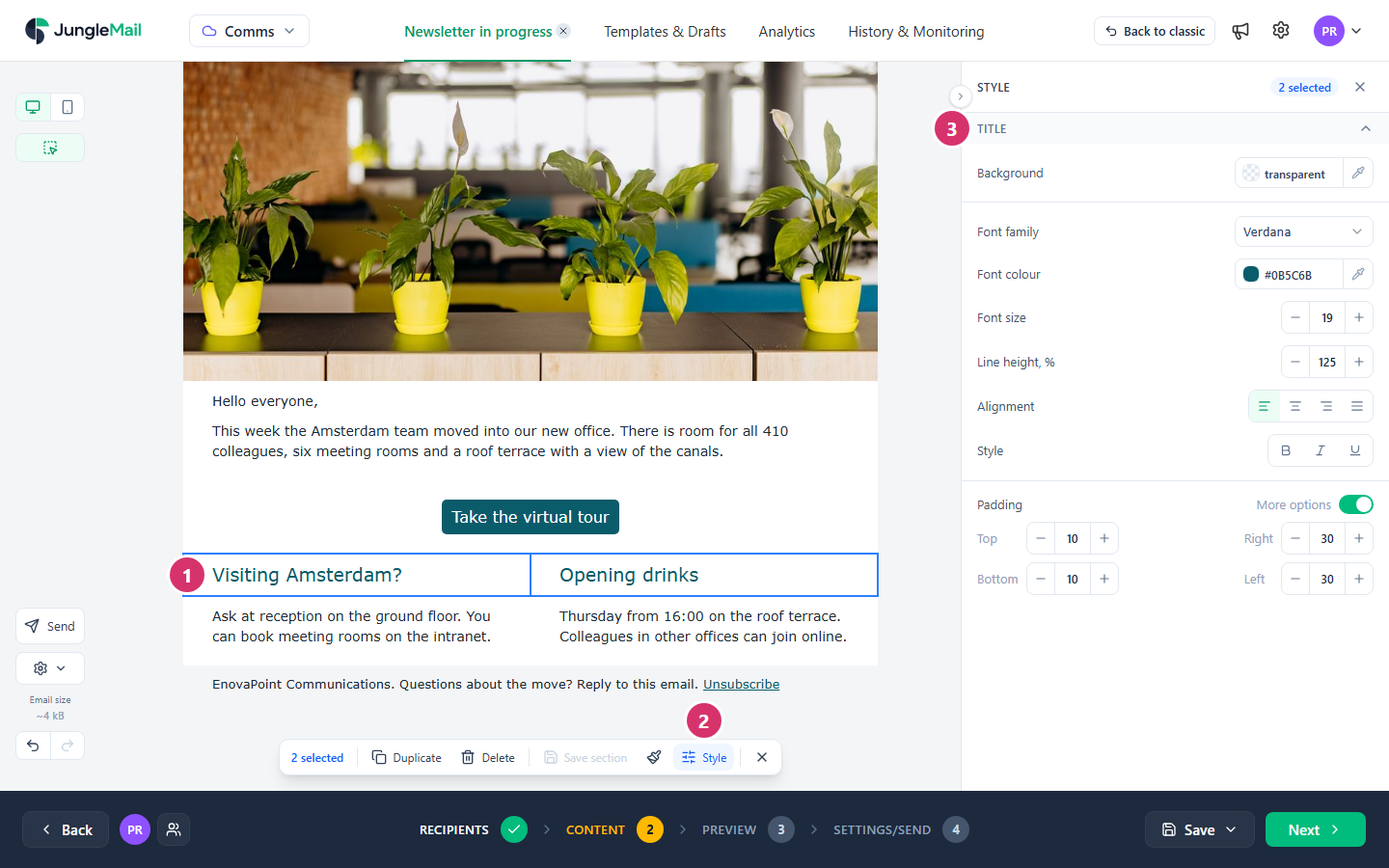
- Select each block or section to pick it; select it again to unpick it. You can also drag a box over the email to pick everything inside. Picking a section picks its blocks with it.
- Select Style in the bar.
- Change the settings in Style. The panel shows the settings of the kinds of block you picked, such as Title and Text, and Section settings for sections. Where the picked parts differ, a setting says Mixed until you choose a value for all of them.
Everything you change while Style is open is one step for Undo. Discard changes at the top takes it all back. In Mobile view, Side padding sets the space on the left and right of every picked block on phones.
Other things to do with the picks
Section titled “Other things to do with the picks”| In the bar | What it does |
|---|---|
| Duplicate | Copies the picked parts, and puts the copies together after the last one |
| Delete | Deletes them |
| Move up, Move down | Moves picked sections up or down the email |
| Save section | Saves the picked sections as one saved section (Save and reuse sections) |
| Inherit styles from design (the brush) | Removes the picked parts’ own style, so that they follow the email’s design again |
| Ask AI | Asks the AI assistant about the picked parts only, where AI is turned on |
To pick every section, select Actions (the gear) > Select all sections. To leave selection mode, select the × at the end of the bar, or press Esc.
- Style here only what should stay different. Settings changed in Style become the picked blocks’ own style, so they no longer change with the Design tab or a theme. To change all titles, change Title on the Design tab.
- Clean up an email before you apply a theme. Pick every section with Select all sections, then select Inherit styles from design: every block follows the design again, and the theme then restyles all of it. Do this with an email copied from an older newsletter or pasted from Word.
- Pick sections to move, copy or save a story. Move up, Move down and Save section work on sections, and picking a section brings all its blocks along. To repeat an event card, such as one per office for London, Toronto and Sydney, style one, pick its section and select Duplicate, then change the words.
- Check Mobile view after styling many blocks. A larger font or padding that fits on a computer can crowd a phone’s narrow screen; Side padding in Mobile view adjusts the picked blocks for phones only (Show content on desktop or mobile only).