

Add images
Pictures come from the gallery: the pictures uploaded to your JungleMail site, free stock photos, and icons. Put a picture that stands on its own, such as a banner or a story’s photo, in an Image block, which can span the width of a phone’s screen; a small picture that text flows around goes in the text of a Text block.
Add a picture
Section titled “Add a picture”In the newsletter wizard’s Content step, select Gallery.
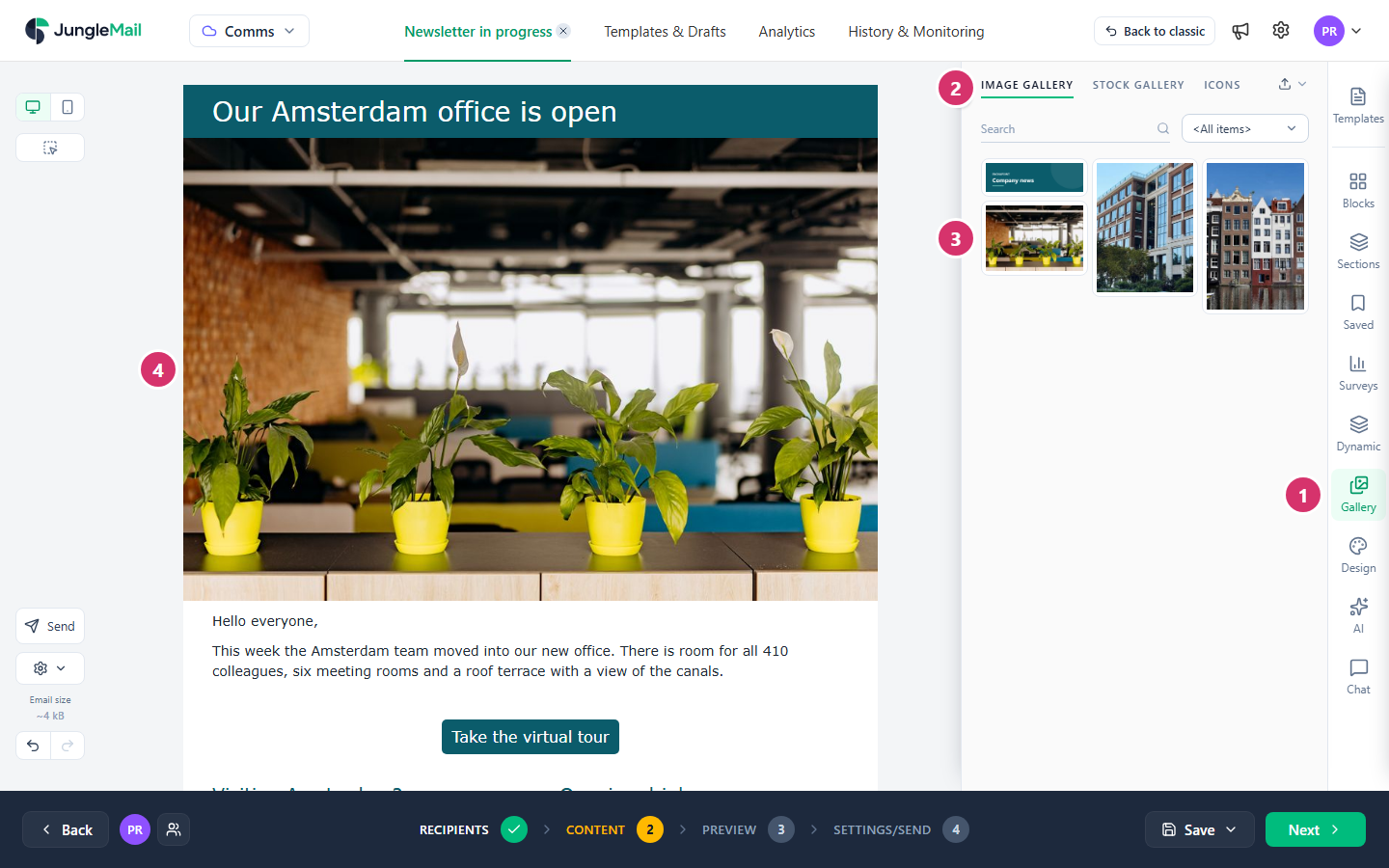
- Select Gallery.
- Image gallery shows your site’s pictures. The search box and the categories list (<All items>) narrow them down. To add your own, select Upload (the arrow at the top right) > Upload from disk, or drop the files on the gallery. Upload > Import from URL copies a picture from a web address into the gallery.
- Drag a picture onto the email, where it should go. Or select it: it goes into the first empty Image block, or into a new one in the first empty column.
- Select the Image block to finish it in Image properties:
- Alternate text: what the picture shows, for people who can’t see it and for email programs that don’t load pictures; for a linked picture, where it leads, such as “Register for Cycle to Work Week” (Make your emails accessible). A site administrator can have JungleMail check that every picture has one (Fonts, colors and other branding settings).
- Link: the page the picture opens.
- Auto width: on, the picture fills the column if it is wide enough and keeps its own size if it is smaller. Off, Width, % sets its width. Leave it on unless the picture should be narrower than its column.
- Alignment and Padding: where it sits in the column.
An empty Image block has a Browse images button that opens the gallery for that block, and, where AI is turned on for your site, Create with AI (Edit an image). Replace image on a block with a picture opens the gallery too, and Image URL takes the web address of a picture instead.
Pictures in the gallery stay there for everyone on your JungleMail site. For a picture you reuse, such as your logo, select Edit details in its menu (⋮) and give it a title and Alternate text: the text is filled in whenever the picture is put into an email. A picture marked with a globe is a shared image from your organization’s Company Gallery; you can use it but not change or delete it (Share images with every site).
You can upload JPG, PNG, GIF, WebP and SVG files, up to 10 at a time. A JPG, PNG or WebP file can be up to 10 MB, and a GIF or SVG file up to 2 MB.
Use a stock photo or an icon
Section titled “Use a stock photo or an icon”- Stock gallery searches free photos from Pexels: type in Search millions of photos, then drag or select a photo as above. A photo’s menu has Save to gallery, which keeps a copy among your site’s pictures, and Photographer info.
- Icons offers icons from several libraries. Choose the Icon library, a size, a Colour and a Shape behind the icon, then select the icon. Use icons sparingly: they are written into the email itself, so each one adds to its size (Keep your email under Gmail’s clipping limit).
Put a picture in a Text block
Section titled “Put a picture in a Text block”Pictures can sit inside text, for example beside a paragraph:
- Select the Text block and place the cursor where the picture should go.
- Select Insert image in the toolbar, and choose a picture.
- Select the picture to change it: Float left or Float right lets the text flow beside it, the width box sets its size, and Alternate text describes it. You can also drag its corners to resize it.
Pictures you paste into a block are uploaded to the gallery first, and then placed.
- Use pictures at least as wide as the space they fill. Auto width never stretches a picture, so one narrower than its column leaves empty space beside it. A picture across the whole email needs the email’s Content width, on the Design tab (Style your email with themes and design settings).
- Upload high-quality pictures. The gallery compresses and optimizes each picture you upload, and Auto width shrinks a wide one to the space its column leaves, padding included. A picture smaller than that space can’t be made sharper later.
- Check your logo in dark mode. Most email programs change an email’s colors when the reader’s device is set to dark mode (Troubleshoot Email Rendering in Customer Insights - Journeys), so a dark logo on a transparent background can all but disappear. Use a version with a background of its own or a light outline, and look at it with Dark mode preview in the Preview step.
- Put the message of an animated GIF in its first frame. Classic Outlook shows only the first frame when animations are turned off, in Outlook or in Windows (The animated graphic in my e-mail message doesn’t work).