

Use the rich text and HTML editors
Besides the Drag & Drop Builder, the Content step has two editors for emails that are not built from blocks:
- The Rich Text Editor works like a word processor: one page of text, pictures and tables, with a formatting toolbar at the top.
- The HTML Editor shows the email’s HTML code, for emails designed elsewhere or code you write yourself.
Build most newsletters in the Drag & Drop Builder: only there do you get sections that stack on a phone, themes, surveys, SharePoint content and several people editing at once. Choose the HTML Editor when the email arrives as finished HTML, for example a design made by an agency, and the Rich Text Editor for a short message that should read like a letter, such as a note from a director. Choose before you start writing: switching editors starts the email over.
Switch to another editor
Section titled “Switch to another editor”- In the Content step, select Templates.
- Select Start from Scratch / Switch to, and choose Rich Text Editor or HTML Editor. The editor in use has a check mark.
- If the email already has content, JungleMail asks whether to replace it: switching starts from a blank email, or from your site’s default template for that editor if it has one, and Undo can’t bring the old one back. Select Overwrite to switch.
To switch back, choose Drag & Drop Builder in the same menu; that also starts from a blank email.
Write in the Rich Text Editor
Section titled “Write in the Rich Text Editor”The toolbar at the top has the same formatting as a Text block, plus Line height and the text direction buttons Left to right and Right to left (Format text and add links):
- Merge tags inserts recipients’ details, and typing
{does the same (Personalize with merge tags). - Insert image puts a picture from the gallery at the cursor; selecting a picture on the Gallery tab does too.
- Source code shows the whole email’s HTML.
- The Saved tab keeps parts of the email to reuse: select them and select Save a selected content.
Write in the HTML Editor
Section titled “Write in the HTML Editor”The HTML Editor shows the whole email as code, with line numbers and colors for tags. Paste or type the complete
document, from <html> to </html>; if a part is missing, the editor warns you that email is sent as a full document.
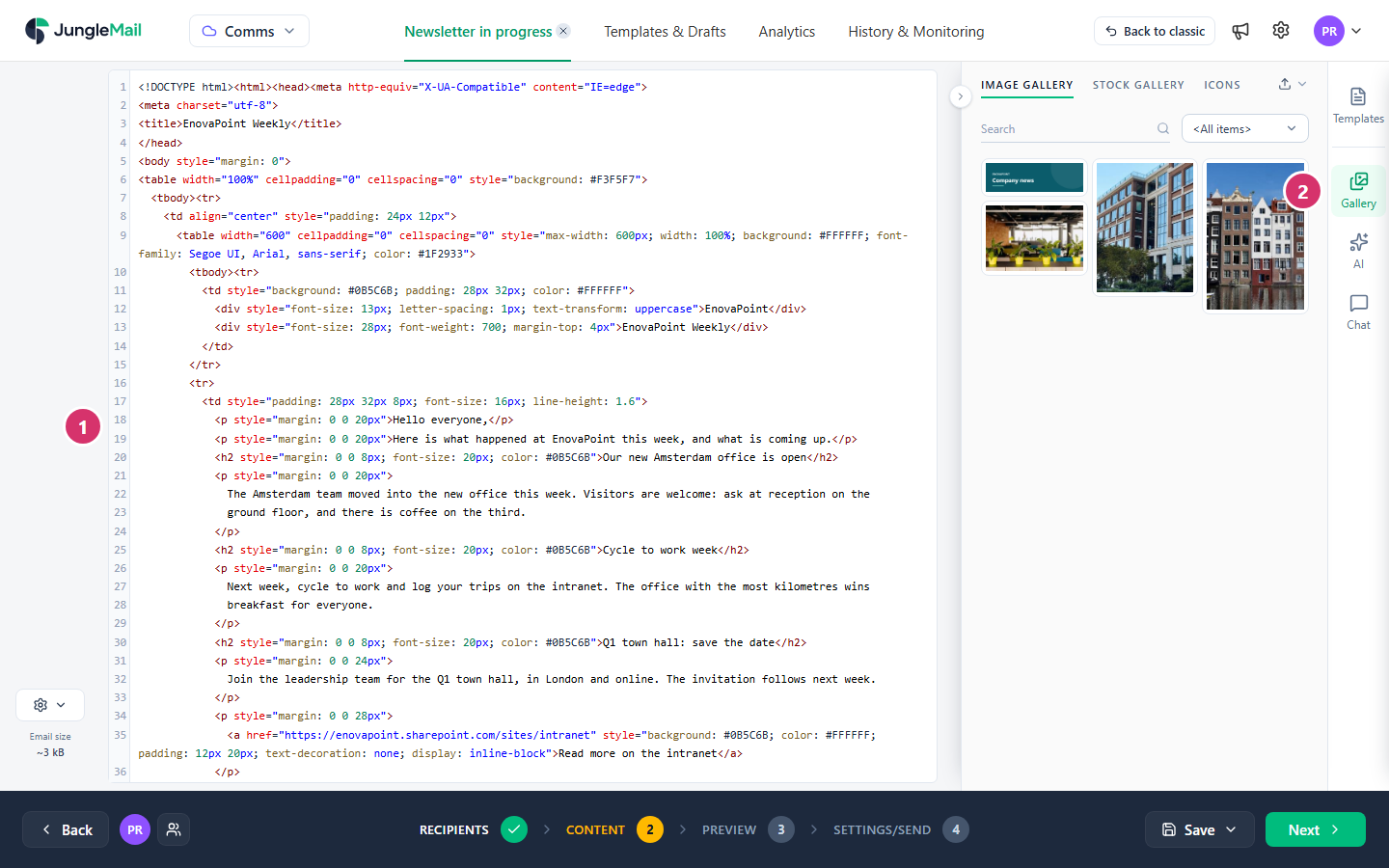
- Edit the code. Check the result in the Preview step.
- Selecting a picture on Gallery inserts its web address at the cursor, ready for an
<img src="…">.
Templates, above Gallery, has Start from Scratch / Switch to, and Import there loads an .html file.
The HTML Editor has no merge tag button: type the tags yourself, such as {First name}. To find a tag’s exact text,
look it up in Merge tags in another editor, or in the Merge tags reference. The
unsubscribe link, for example, is <a href="{[UnsubscribeURL]}">Unsubscribe</a>.
Check HTML made elsewhere
Section titled “Check HTML made elsewhere”Email programs are not web browsers, and code made for a web page, or exported from another tool, often looks different once it arrives. Before you send HTML you didn’t write for email, check it for these; the first three come from Microsoft’s Troubleshoot Email Rendering in Customer Insights - Journeys, whose advice on custom HTML applies to any email:
- Layout in tables, styles inline. Classic Outlook draws email with a Word-based engine that ignores much of CSS,
including margins and padding on most elements. Lay the email out in tables, put spacing on the table cells, and
write styles in each element’s
styleattribute. - Every tag closed. Some email programs, classic Outlook and Yahoo Mail among them, can show an email with broken HTML as a black area.
- A width of 600 to 800 pixels. A wider email makes readers scroll sideways, or is cut off.
- Pictures from the gallery. A picture address that points to your computer, or to the tool the design came from, doesn’t reach your readers. Upload the pictures to Gallery and replace each address with the gallery’s.
- Background images and web fonts with a fallback. Many email programs show neither, so give each a background color and a common font to fall back on (Email client support).
- The size. Exported HTML can carry much more code than the email needs, and Gmail clips an email over 102 kB (Keep your email under Gmail’s clipping limit).
Work on it with colleagues
Section titled “Work on it with colleagues”In the Rich Text Editor and the HTML Editor, one person types at a time. Colleagues who open the newsletter meanwhile see View only – someone else is editing, and can take over (Work on a newsletter together).
- Save an imported design as a template. The next issue then starts from it, with the code already checked, instead of from a fresh paste (Create a template).
- Send a test and open it in classic Outlook and on a phone. Hand-written code is where email programs differ most, and the Preview step can’t show what Outlook’s engine or a phone’s mail app makes of it (Preview and test a newsletter).
- Check typed merge tags in the Preview step. Choose a recipient and make sure each tag shows their details, not the tag itself or a gap.
- Clean up text pasted into the Rich Text Editor. Text from Word or a web page brings hidden formatting that adds to the email’s size; select it and use Remove formatting, then format it with the toolbar.
- For a regular newsletter, rebuild the design as a Drag & Drop template. Rebuilt once from blocks, it lets any editor change the content without touching code, follows your theme, and lets several people work on it at once (Create a template).