

Share templates with every site
A template shared from the Global site appears on every JungleMail 365 site: on the Templates tab with a globe, and under Company Gallery. Sites start newsletters from it, preview it and copy it, but only the Global site changes it. That makes shared templates the place for your organization’s branded designs, such as a company newsletter and an announcement. Templates for one team’s own newsletters can stay on that team’s site.
Every shared template starts out unpublished, in the Global site’s Pending review. It gets there in one of two ways: a site administrator sends one of their site’s templates, or you make one on the Global site. Once you publish it, every site has it.
Before you begin
Section titled “Before you begin”- Your organization has a Global site, and you have the Administrator or Template Manager role there; a global administrator needs one of them too (The Global site). In JungleMail, switch to it in the site switcher at the top left.
- Shared templates are part of the Enterprise plan.
- A site lists shared templates while Show global templates is on in its settings, under Branding > Templates (Fonts, colors and other branding settings).
Send a template from a site
Section titled “Send a template from a site”A site administrator sends a template from their site for review. On the site, go to Templates & Drafts > Templates and point to the template.
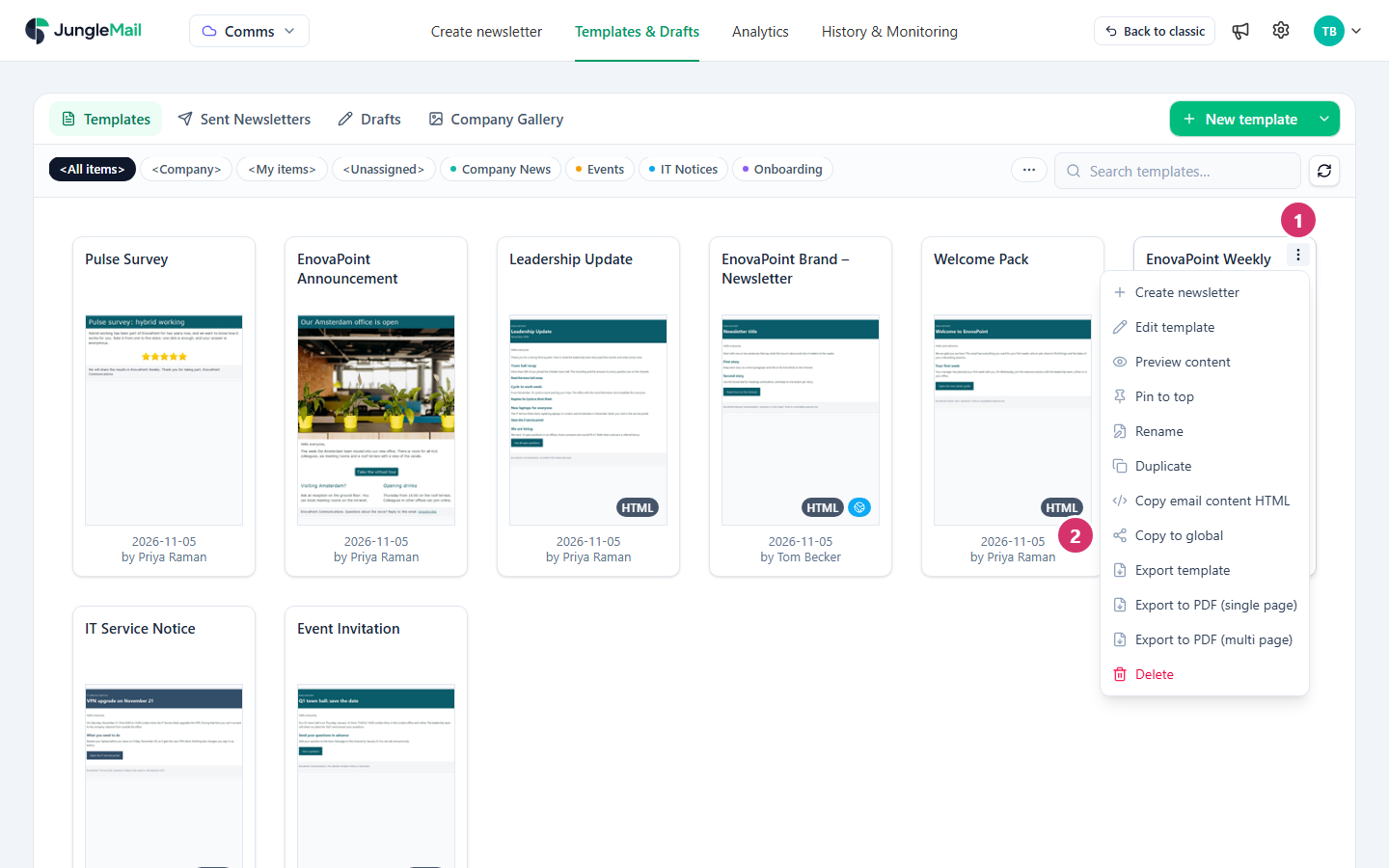
- Select More actions (⋮) at the template’s top right.
- Select Copy to global.
JungleMail says Template copied to the Global site. An administrator there must publish it before it becomes available. The copy waits in the Global site’s Pending review; the template on the site stays as it is.
Make a template on the Global site
Section titled “Make a template on the Global site”- On the Global site, select Company Gallery in the top menu, then Pending review.
- Select New template, then where to start: Start with drag & drop builder, Start with rich text, Start with HTML or Import from file….
- In New global template, type the Template name and select Create.
- Design the template in the template editor, then select Save and Close (Create a template).
The new template waits in Pending review until you publish it.
Review and publish a template
Section titled “Review and publish a template”On the Global site, select Company Gallery in the top menu.
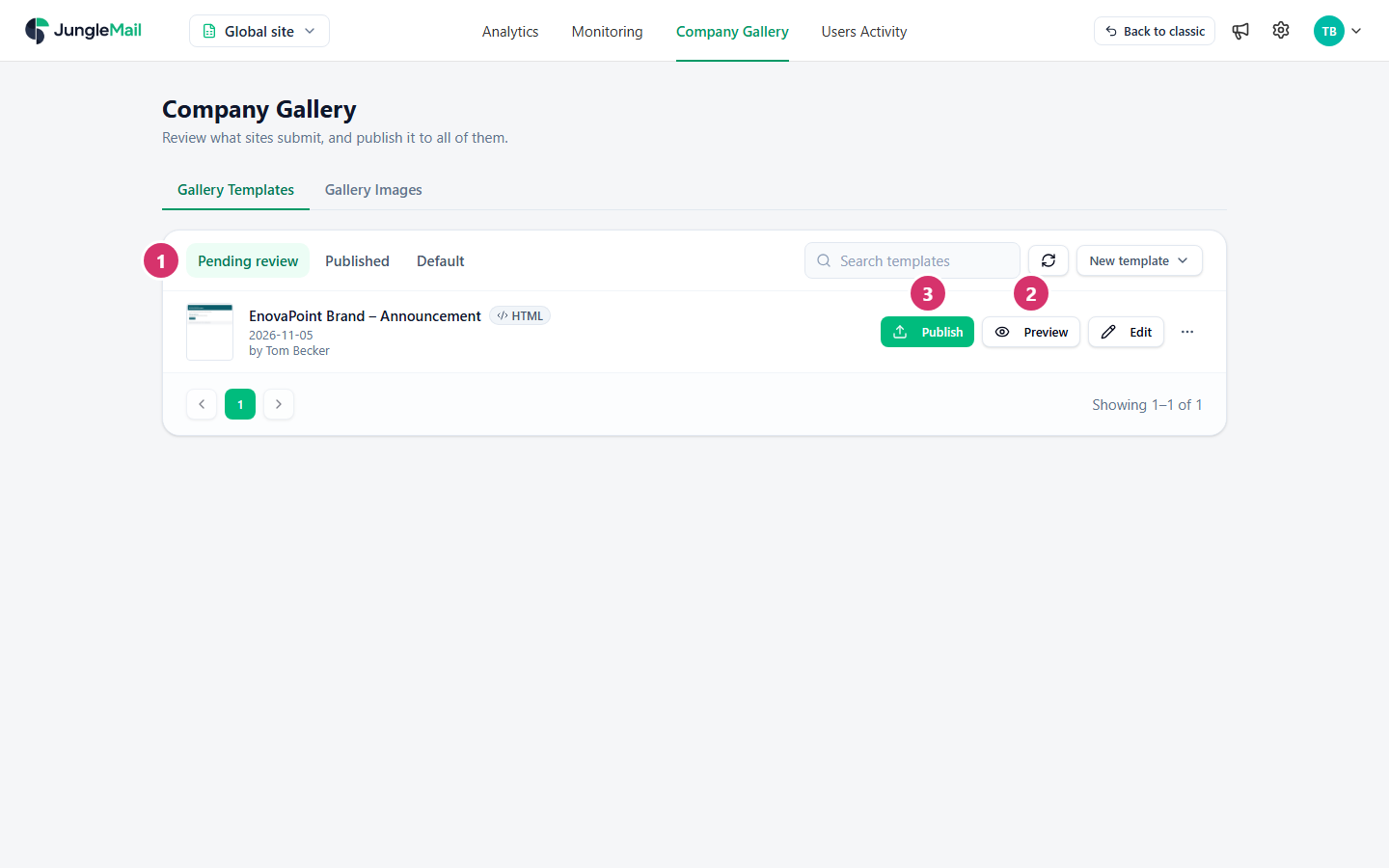
- Under Gallery Templates, select Pending review.
- Select Preview to check the template. Every site will start from it, so look for an unsubscribe link in the footer and for anything that belongs to one site or one issue, such as a team’s name or a date. If it needs changes, select Edit, make them in the template editor, then select Save and Close.
- Select Publish, then Publish in Publish to all sites?.
The template moves to Published, and every site has it from then on. While someone has the template open in the editor, it is marked Being edited and Publish can’t be selected until they are done.
Change or withdraw a shared template
Section titled “Change or withdraw a shared template”On the Published tab, a template’s More actions (⋯) holds:
- Unpublish: removes the template from every site after you confirm, and puts it back in Pending review. Newsletters already made from it are not affected. To change a published template, unpublish it, edit it there and publish it again, in one sitting: until you publish it again, no site can start a newsletter from it.
- Pin to top and Unpin: the template’s place at the top of the Published list here. The order on the sites doesn’t change.
- Rename, Export template, Copy HTML, Export to PDF (single page) and Export to PDF (multiple pages).
- Delete: removes the template from every site for good, after you confirm. If it may be needed again, unpublish it instead.
The Default tab holds the templates new newsletters start from, which each site chooses (Set the default template).
- Give the review to whoever looks after your brand. The Template Manager role on the Global site lets someone such as Sofia Alvarez, EnovaPoint’s brand designer, review and publish templates without being a global administrator (The Global site).
- Use only merge tags that every recipient source has, such as
{First name}. Sites send shared templates to groups, lists and files alike, and a merge tag that the recipients’ source doesn’t have stays in the email as typed (Merge tags). - Once a site’s template is published, have the site delete its own copy. Copy to global leaves the original on the site, which then lists both, and its editors may keep starting from the copy that your changes on the Global site never reach.