

Results by department, job title, office and company
JungleMail 365 can split a newsletter’s results by the recipients’ department, job title, office and company, so you can see which parts of the organization read and click it. Each breakdown has its own tab in the newsletter’s report: Departments, Job Titles, Offices and Companies. Start with Departments and Offices: their rows are large enough to compare, while job titles often split recipients into groups of one or two.
Where the values come from
Section titled “Where the values come from”When a newsletter is sent, JungleMail notes each recipient’s department, job title, office and company, for every breakdown that a site administrator has turned on (Set up analytics segments and locations). It takes them from the recipient’s profile in Microsoft Entra ID or Exchange. For recipients from a file, a SharePoint list or JungleMail subscribers, it reads the first column or field it finds with one of these names:
| Breakdown | Column names |
|---|---|
| Department | Department, Division, Subdivision, Cost Center Code |
| Job title | Job Title, JobTitle, Job, Position, Employee Business Title, and Title except in a SharePoint list |
| Office | Office, Office Location, OfficeLocation, Business Segment |
| Company | Company, Company Name, CompanyName |
A breakdown covers the newsletters sent after it was turned on. Recipients without a value are counted under <Blank>, or as the administrator has chosen. An administrator can also gather values into groups, such as several job titles under one name; a group then appears as one row.
Read a breakdown
Section titled “Read a breakdown”Open the newsletter’s report from Analytics, then the tab of the breakdown.
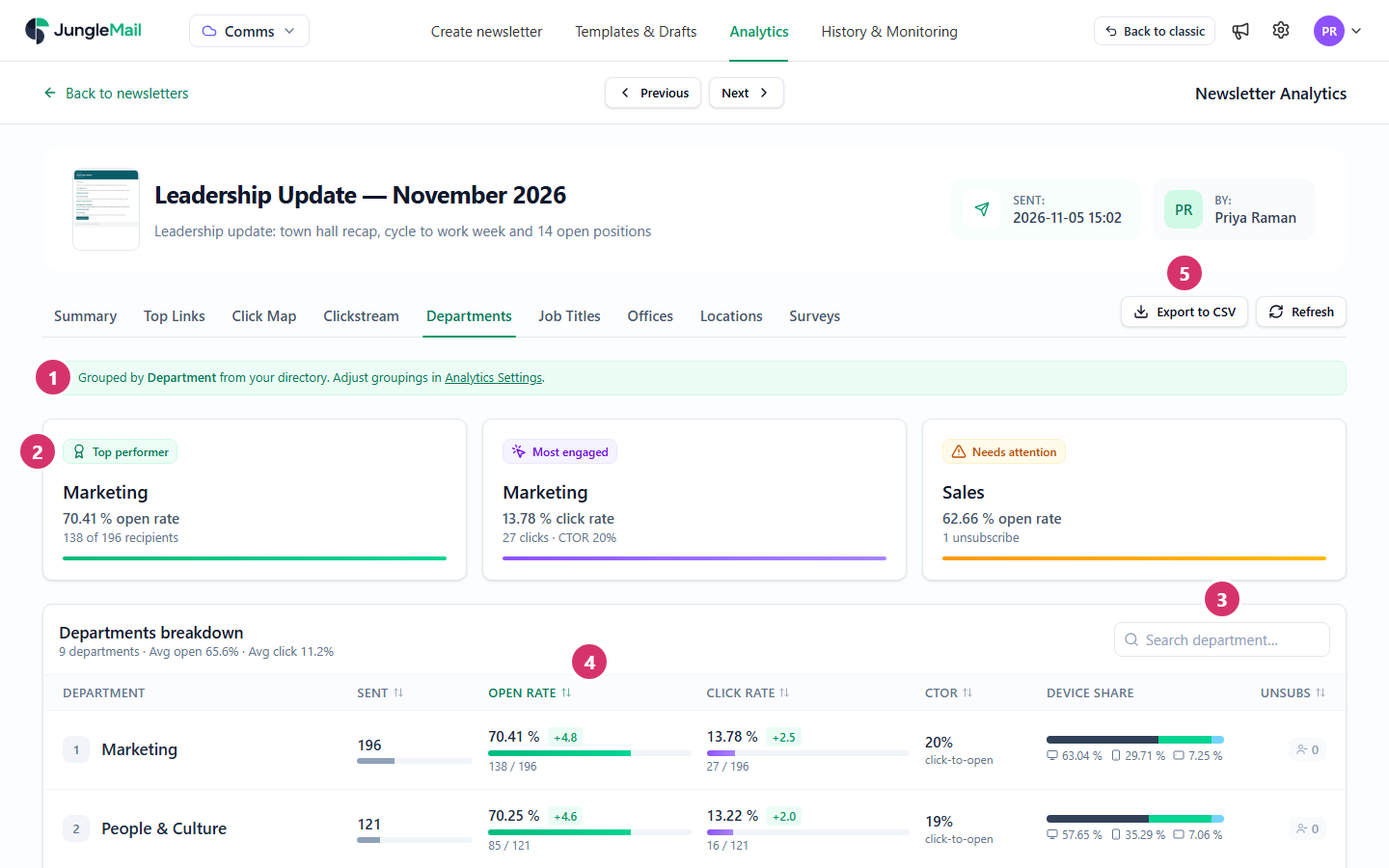
- The note says which field the rows come from, with a link to the grouping settings for administrators.
- Three highlights: Top performer, the row with the highest open rate; Most engaged, the row with the highest click rate; and Needs attention, the row with the lowest open rate, with its unsubscribes.
- Search the rows by name.
- Sort the table by Sent, Open rate, Click rate, CTOR or Unsubs by selecting the column’s heading.
- Export to CSV downloads the table (Export results to CSV or Word).
Each row shows the emails sent to that group, then its rates:
- Open rate and Click rate, with the difference from the average of all rows in percentage points: green above the average, red below it. The averages are in the line under the table’s title.
- CTOR, the click-to-open rate: the emails with a click divided by the emails opened.
- Device share: the share of opens on a desktop, a phone and a tablet.
- Unsubs: the unsubscribes.
When a tab is missing or empty
Section titled “When a tab is missing or empty”- The tab isn’t there: an administrator hasn’t chosen to show that breakdown in Analytics.
- Not enabled: the breakdown is shown but not collected. An administrator turns it on in Analytics Settings.
- No … data is available for this newsletter: the newsletter was sent before the breakdown was turned on, or its recipients have no values.
- Upgrade required: breakdowns are part of the Pro and Enterprise plans.
- Sort by Sent before you compare. In a row of five people, one more reader moves the open rate by 20 points; an office of several hundred, such as EnovaPoint’s London office, moves slowly. Draw conclusions from the large rows, and look at a small row over several newsletters.
- Check a low row’s clicks before you change the content. A group that reads in an email program that blocks pictures shows a lower open rate, for reasons that have nothing to do with the newsletter. Its click rate tells you more (How open and click tracking works).
- Give a group content of its own. When a department rarely clicks the company-wide stories, show it a section written for it rather than sending it another newsletter (Show a section to some recipients).
- Ask for groups when the rows are spelling variants. Sales, Sales EMEA and Sales - UK as three rows hide how Sales reads; a site administrator can gather them into one (Set up analytics segments and locations).