

Write the subject and preview text
The subject and the preview text are all that recipients see of a newsletter before they decide whether to open it. The preview text, also called the preheader, follows the subject in most email clients. Write both: the subject says what the newsletter is about, and the preview text gives one more reason to open it.
Write them
Section titled “Write them”In the newsletter wizard, go to the Recipients step.
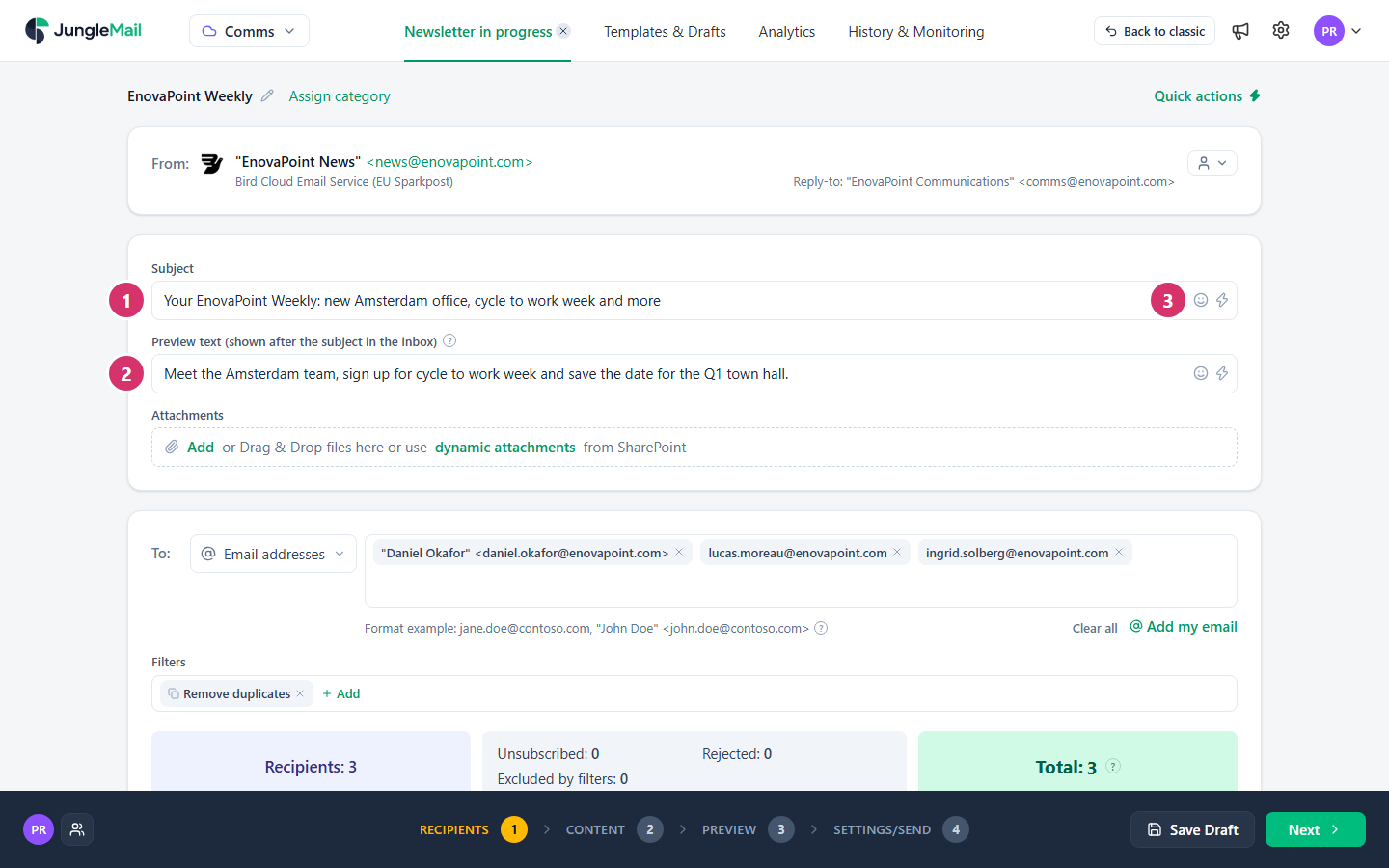
- In Subject, type the subject, up to 255 characters. Put the words that matter first: phones and narrow reading panes show only the beginning.
- In Preview text (shown after the subject in the inbox), type a sentence that adds to the subject rather than repeating it. Don’t leave it empty: most email clients then show the first words of the newsletter in its place, which are rarely the ones you would choose.
- To add an emoji or a merge tag, use the buttons at the right of the field. The smiley adds an emoji. The lightning
bolt, Quick actions, offers shortcuts; for the subject, these are:
- the subjects of your previous newsletters, to reuse one and keep a regular newsletter recognizable;
- Copy from Title, which puts the newsletter’s name in the subject;
- Current Month |MMMM|, which inserts the formula
{FormatDate(Now, "MMMM")}: the name of the month the newsletter is sent in, so that a recurring newsletter names the right month every time (Formulas and functions); - Suggest better version, which suggests another wording for what you typed, where AI is turned on for your site;
- Placeholders & Formulas, which inserts merge tags, such as the recipient’s first name.
A merge tag with the reader’s first name makes the preview text personal. See Personalize with merge tags.
- Say what is inside. “Town hall moved to Thursday at 14:00” tells people why to open; “EnovaPoint update” does not. For a regular newsletter, keep its name and add the main story: EnovaPoint Weekly: the new parental leave policy.
- Let the preview text finish the thought. After the subject “Benefits enrollment closes Friday”, a preview text such as “It takes five minutes; here is what to check” answers the reader’s next question instead of repeating the first.
- Write words, not shouting. A subject in capitals or with several exclamation marks reads like spam. An emoji can draw the eye, but never use one in place of a word: screen readers read out its name, such as “party popper”.
- Check merge tags for a few recipients. The Preview step shows the subject and preview text as each recipient gets them, so you can make sure nobody receives an empty or odd greeting (Preview and test a newsletter).
- See it in a real inbox. Send yourself a test and look at the subject and preview text in Outlook and on your phone before you send.