

Add attachments
You can attach files to a newsletter, such as an agenda or a form, in the newsletter wizard’s Recipients step. Every recipient gets the same files. To give each recipient their own document from SharePoint, such as a personal payslip or certificate, use dynamic attachments instead (see below). Attachments are part of the Pro and Enterprise plans.
Attach a file when readers need a copy of their own, such as a form to fill in. For anything else, put the file on SharePoint or OneDrive and link to it in the newsletter: a large attachment makes every copy of the newsletter large, while a link keeps the email small, always opens the latest version, and lets JungleMail 365 count who selects it (How open and click tracking works).
Attach files
Section titled “Attach files”In the newsletter wizard, go to the Recipients step. Attachments is below the preview text.
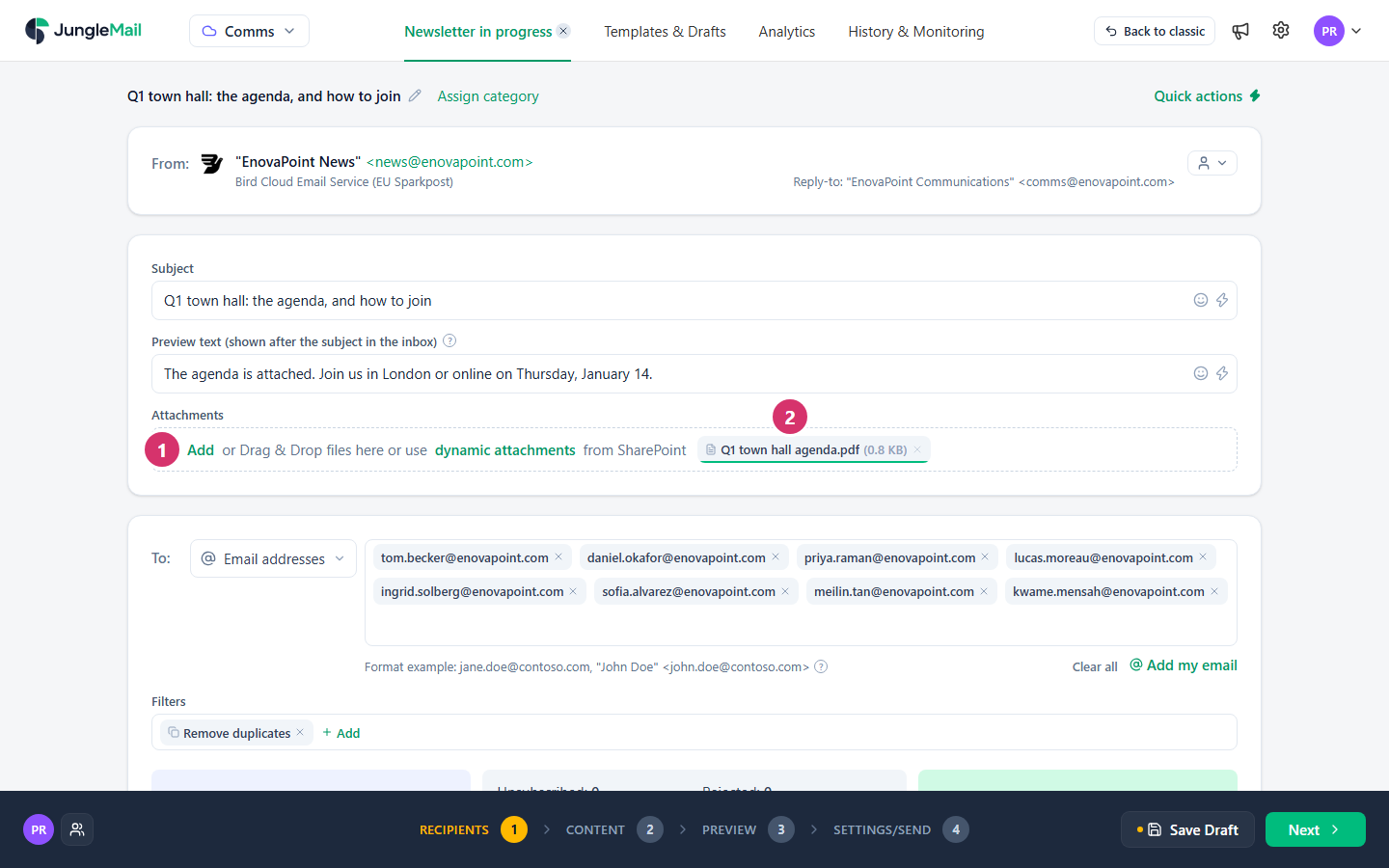
- Under Attachments, select Add and choose the files, or drag them from your computer onto the box.
- Each file is listed with its size. To remove one, select the × beside it.
If a file with the same name is already attached, JungleMail asks whether to replace it: Replace It or Don’t Upload. A file that is too large is refused, with the size limit in the message (Limits and file sizes).
The Preview step lists the newsletter’s attachments, so you can check them before sending.
Attach each recipient their own document
Section titled “Attach each recipient their own document”Dynamic attachments pick each recipient’s documents from a SharePoint library when the newsletter is sent. They are part of the Enterprise plan, and need the site’s SharePoint connection (Connect SharePoint).
Under Attachments, select dynamic attachments. The Add Dynamic Attachments dialog opens.
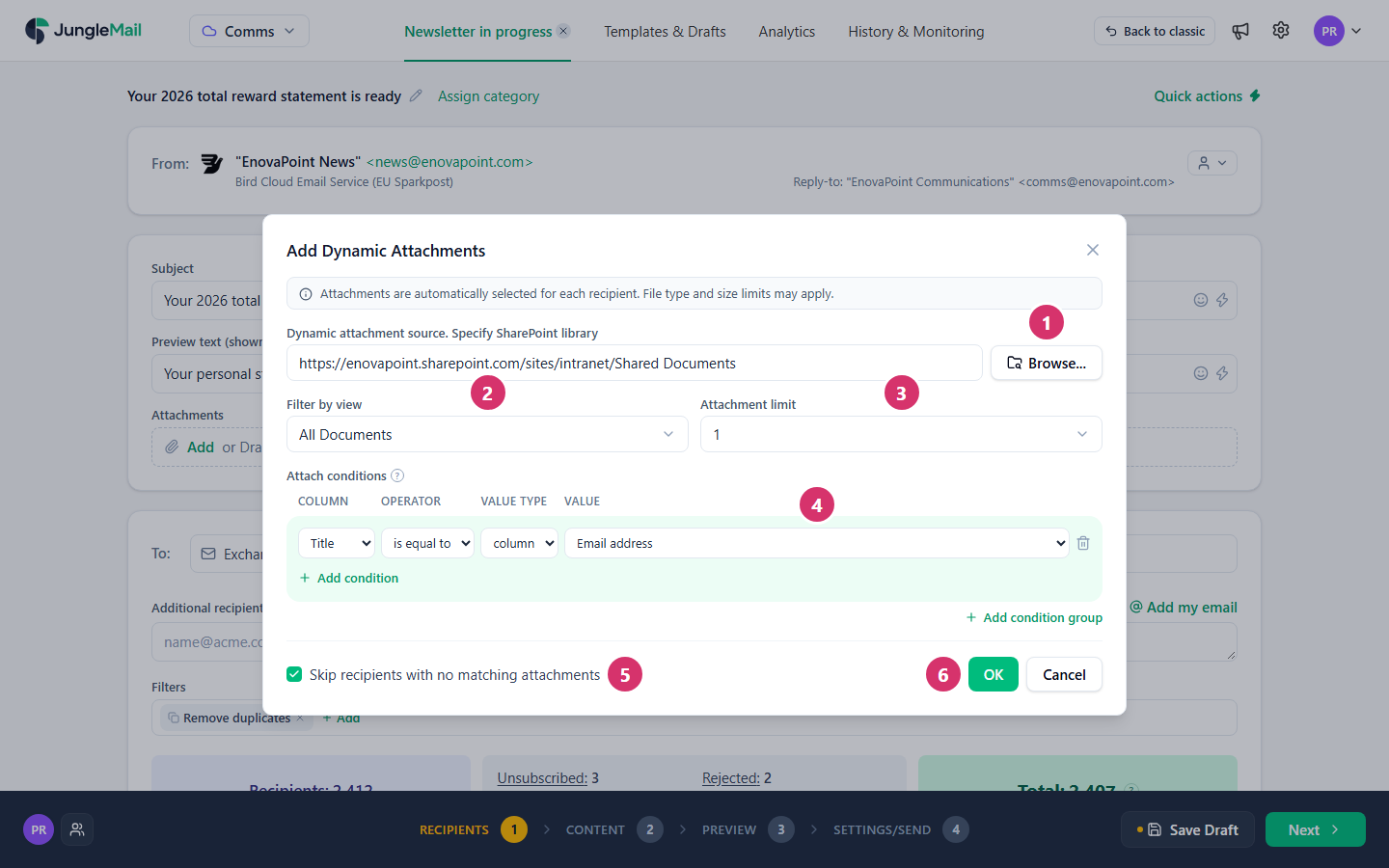
- Select Browse… and choose the SharePoint library, such as Documents, or paste its address into the box.
- To use only some of its documents, choose a view under Filter by view. A view that shows only current documents, such as this year’s certificates, keeps older ones out.
- In Attachment limit, choose how many matching documents each recipient gets at most, from 1 to 10: 1 unless you change it. Keep 1 when each person should get one document, and raise it when they can have several, such as a certificate for each course.
- Under Attach conditions, select Add condition and compare a column of the documents with a property of the recipient: choose the column, such as Title, and the operator, such as is equal to, then column and the property, such as Email address. Here, each recipient gets the document whose title is their email address. Match on something unique to each person, such as the email address: two people can share a name.
- Choose whether to Skip recipients with no matching attachments, so that they don’t get the newsletter. Turn it on when the document is the reason for the email, such as a payslip, so that nobody gets the email without it.
- Select OK. The rule is listed under Dynamic Attachments; to add another, select add more. A newsletter can have up to 5.
The Preview step shows each recipient’s documents as you go through the recipients. Check a few, including someone who should get none.
- Attach an event as an .ics file. A calendar file lets readers add the event, such as the Q1 town hall, to their
calendar from the email;
.icsis among the file types JungleMail accepts (Limits and file sizes). - Check the attachments of a copy. Copy newsletter copies the attached files with everything else, so last month’s agenda comes along until you remove it (Find and reuse past newsletters).
- Preview yourself before you send a test of personal documents. A test email is made for the recipient shown in the preview, so it can carry that person’s document. First select yourself as the recipient, or someone whose document you may see, then select Send (Preview and test a newsletter).