

Get help from support
EnovaPoint’s support team answers questions about JungleMail 365 at support@enovapoint.com. Write to support when something doesn’t work or you need an answer, and use the feedback form for ideas and bugs you want the JungleMail team to know about (below). Before you write, look in Troubleshooting for what you see: each article there says how to fix it and who can. The more of the details below your message has, the sooner support can answer it without asking you again.
Contact support
Section titled “Contact support”Write to support@enovapoint.com, or use the form on EnovaPoint’s support page, www.enovapoint.com/support. JungleMail opens that page for you: select Settings, the cog at the top right, and then Support.

- Support opens the support page and its contact form.
- About shows the Deployment, UI Version and Last update (UTC) of your JungleMail, which support may ask for.
In your message, include:
- your organization and the JungleMail site you were working in: its name is at the top left, such as Comms;
- what you did, what you expected and what happened instead, and when, with your time zone;
- the name of the newsletter, template or page it concerns;
- the details of the error message, if JungleMail showed one (below);
- a screenshot of what you see, if it helps.
When JungleMail shows an error
Section titled “When JungleMail shows an error”When JungleMail can’t complete something you asked for, it shows Something went wrong with a short message, often We couldn’t complete your request. Please try again. Under it are the details support needs:
- Error ID: identifies the failure in JungleMail’s logs, so support can find exactly what went wrong.
- Time, Status and Request: when it happened, the server’s answer and what was asked of it.
Select Copy details to copy all of it, together with the address of the page you were on; the button then shows Copied. Paste the details into your message to support. When several errors happen at once, JungleMail shows them one at a time and says how many more are waiting, such as +2 more errors waiting.
When JungleMail refuses something and says why, such as a PDF that would be too large to export, the message is titled Action could not be completed and has no details to copy: the reason is what to act on. Without a connection, JungleMail says You’re offline. Check your internet connection and try again.
If part of a page stops working instead, JungleMail shows This part of the page stopped working. Reloading usually fixes it. with Reload the page and Copy details. Copy the details before you reload, in case it happens again.
Send feedback
Section titled “Send feedback”For an idea, a feature you miss or a bug you want the JungleMail team to know about, use the feedback form. Select your initials at the top right, and then Send feedback.
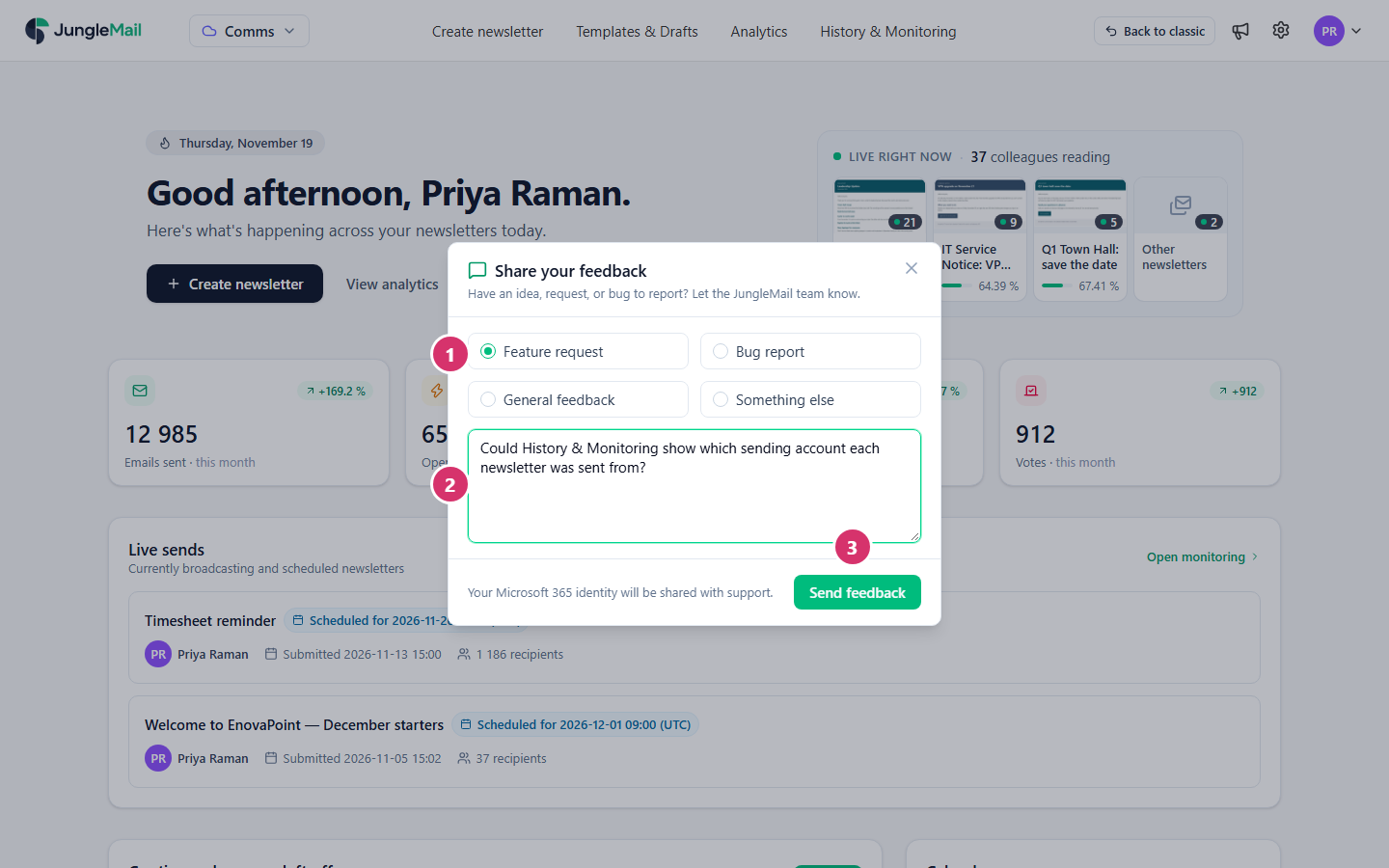
- Choose Feature request, Bug report, General feedback or Something else.
- Describe your idea or the problem, in up to 512 characters.
- Select Send feedback. Your feedback goes to the JungleMail team with your Microsoft 365 identity, so they know who sent it.
The JungleMail team replies to feedback, but not as quickly as support: send anything urgent to support (above).
- For a newsletter that didn’t go out, send its processing log. Open the newsletter in History & Monitoring: the Processing log on its Report tab says step by step what JungleMail did and what went wrong (A newsletter was skipped, failed or rejected).
- For newsletters in junk email, send the message headers of one. Exchange Online records in them why it scored the message as it did (Newsletters land in junk or show “External”).
- Send anything urgent to support. The feedback form tells the JungleMail team about an idea or a bug; a problem that stops your work goes to support, by email or with the form on the support page.