

Audit copies and data retention
Two tabs of a site’s settings help you keep records, and clear old ones out. Audit adds people who receive a copy of every newsletter the site sends, or of every newsletter’s report. Data Retention decides when items in the Recycle Bin, and old newsletters, are deleted for good.
Before you begin
Section titled “Before you begin”- You need the Administrator role on the site, or a role with Manage Settings.
- While Inherit from global settings is on, the site uses the global settings, so that a global administrator can set one policy for every site. Turning it off switches every tab to the site’s own settings at once (Global settings and inheritance).
Send copies to an audit mailbox
Section titled “Send copies to an audit mailbox”Go to Settings > Settings > Audit.
- Additional email recipients (optional) receive a copy of every newsletter the site sends. They are added to every newsletter: its author sees them, but cannot remove them, and each copy counts in the newsletter’s results like any other recipient’s. Use a shared mailbox rather than a person’s: the copies are kept when people change jobs, and several people can read them.
- Additional report recipients (optional) receive the report of every completed newsletter, such as the head of communications, who then sees every newsletter’s results without opening Analytics.
Separate addresses with commas or semicolons, with a name in quotes if you like, and select Save:
"EnovaPoint Communications" <comms@enovapoint.com>; daniel.okafor@enovapoint.comJungleMail only delivers the copies; how long they stay depends on the audit mailbox. Ask your Microsoft 365 administrator to put a retention policy on it for the period your records rules set (Learn about retention policies & labels to retain or delete).
Decide how long items are kept
Section titled “Decide how long items are kept”On the Data Retention tab:
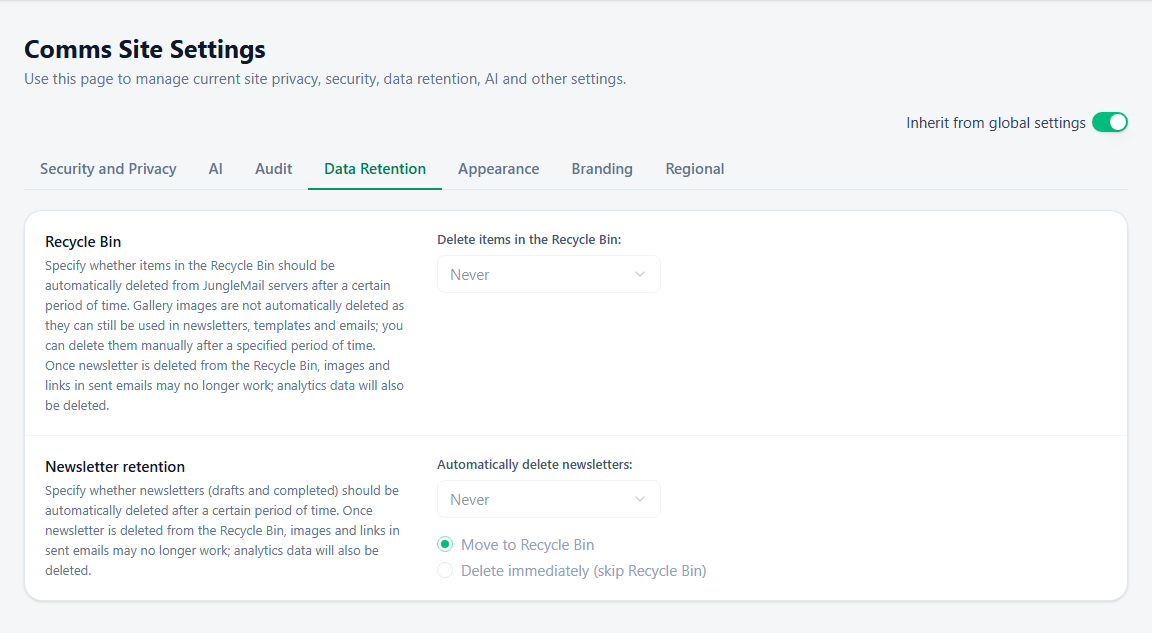
- Delete items in the Recycle Bin: Never, or after 30, 60, 90 or 120 days. A newsletter deleted by accident can be restored only until then (Restore deleted items). Gallery images are never deleted this way, because emails and templates may still use them.
- Automatically delete newsletters: Never, or after 6 to 60 months, counted for drafts from their last change and for sent newsletters from when they finished sending. Scheduled and recurring newsletters keep running; only their past sends are deleted. Keep Never unless your organization has a rule on how long such records are kept. If it does, and the rule allows it, keep 24 months or more: the Trends tab compares last year with this year (Compare periods with Trends). Tell editors before you turn it on, and keep a draft you reuse as a template instead, since drafts are deleted too (Create a template).
- Keep Move to Recycle Bin for those newsletters, which leaves time to restore one someone still needs, rather than Delete immediately (skip Recycle Bin), unless newsletters must be gone by the date the rule sets.
Then select Save.