

Archive newsletters to SharePoint
With the archive on, JungleMail 365 saves a copy of each newsletter a site sends in a SharePoint list or library that you authorize: as a list item, a modern page or an HTML document, depending on the list. Archived pages can be promoted as SharePoint news, so the newsletter is on your intranet as well as in people’s inboxes.
For most sites, one archive list that everyone who receives the newsletters can read is enough. Add a second list, with narrower SharePoint permissions, only when the site also sends newsletters that not everyone may read.
Before you begin
Section titled “Before you begin”- You need the Administrator role on the site, or a role with Manage Archive settings.
- The archive is part of the Pro and Enterprise plans.
- Authorizing a list needs an account that can write to it. With the classic SharePoint Add-in, only site collection administrators can authorize archive lists.
Prepare the list in SharePoint
Section titled “Prepare the list in SharePoint”Choose or create the list or library the newsletters go to, for example on enovapoint.sharepoint.com/sites/intranet:
| Where | Each newsletter becomes |
|---|---|
| A Site Pages library | A modern page, which can be promoted as news. Needs the JungleMail 365 Modern Pack (Install the JungleMail Modern Pack) |
| A document library | An HTML document |
| A list | A list item |
JungleMail fills the list’s columns that have particular names, such as the subject, the sender and the date (Archive list columns).
Match the list’s permissions to the newsletters’ readers: anyone who can open the list reads every newsletter in it, and a recipient who can’t gets SharePoint’s access request instead of the comments (Customize permissions for a SharePoint list or library).
Turn on the archive
Section titled “Turn on the archive”Go to Settings > Archive and turn on Newsletter Archive.
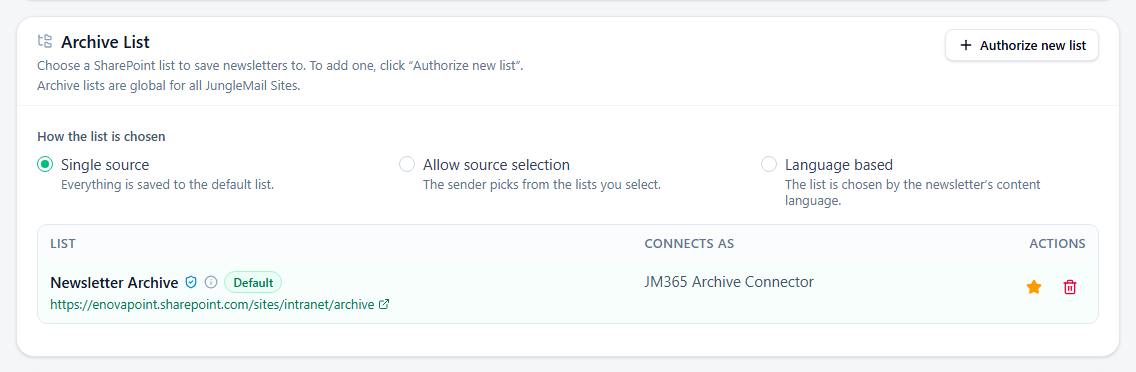
- Under Archive List, select Authorize new list, enter the SharePoint site URL, choose how JungleMail signs in to SharePoint, as for the SharePoint connection (Connect SharePoint), and select Authorize & enable. With a service account, sign in with an account kept for this purpose, such as EnovaPoint’s JM365 Archive Connector, rather than your own, so that the archive doesn’t depend on one person’s access. Every list on that site that the account can add items to joins the Archive List, and every JungleMail site in your organization can choose it.
- Under How the list is chosen, keep Single source, where everything goes to the default list, the one with the star. Choose Allow source selection when some newsletters belong in a list that fewer people can open: the sender picks one of the lists you select. Choose Language based when the site sends newsletters in several languages, and give each list its Content language (Send a newsletter in several languages).
- Under Saving to Archive:
- Archive folder name: name it after the site, such as
Comms, when other JungleMail sites can use the same list. Left empty, newsletters go to the top of the list. - Allow users to turn “Archive to SharePoint” on or off per newsletter: select it for an intranet archive, so that trial sends and newsletters for a few people stay out of it; clear it when the archive must be a complete record of what the site sent.
- Promote archived newsletters via the News web part, for a Site Pages library: select it only when the site’s newsletters are news for everyone on the intranet.
- Archive folder name: name it after the site, such as
- Select Save.
After the first send, open the list and check the copy, its columns and, for a news page, its banner image: test emails aren’t archived, so this is the first chance to see it.
Archive a newsletter
Section titled “Archive a newsletter”Senders decide in the newsletter wizard’s Settings/Send step, with Archive to SharePoint, if you allow it, and choose the list in Save to with Allow source selection (Delivery, tracking and report options). If the step says Please note that the newsletter will not be saved due to the error, the newsletter is still sent, but not archived: check the list’s authorization on the Archive page.
What the archived copy holds
Section titled “What the archived copy holds”The archive keeps one copy for everyone, so merge tags that differ from one recipient to the next, such as a first name, are not filled in. Sections shown only to some recipients are all included, unless their Exclude from newsletter archive is on: ask editors to leave it on for a section meant only for managers or one office (Show a section to some recipients). A newsletter skipped because its SharePoint content had nothing new is not archived.
Let readers comment
Section titled “Let readers comment”With the archive on, the email builder offers the Comments block, which takes readers to the comments under the archived newsletter in SharePoint (Add a comments block), as long as Show the “Comments” block in the email builder is selected under Comments Block, at the bottom of the page. Comments work only when the archive goes to a Site Pages library.