

Restrict recipient sources, groups and domains
The Security and Privacy settings decide where newsletters can go: which recipient sources authors can choose from, which Microsoft Entra ID and Exchange groups they can send to, and which email addresses can receive newsletters at all. Set them in the global settings, and they apply to every site that inherits the global settings. A site that doesn’t inherit has its own, on its own Settings page.
Restrict email domains when your newsletters must stay inside your organization and a few named partners: it catches an outside address in any recipient source. Limit groups when your directory has many groups that were never meant for newsletters, so that editors find only the ones that were, such as EnovaPoint’s All Employees and office groups.
Before you begin
Section titled “Before you begin”- To change the global settings, you need to be a global administrator. To change one site’s own settings, you need a role with Manage Settings on that site, and the site mustn’t be locked (Global settings and inheritance).
- Limiting groups is part of the Enterprise plan, and needs the site’s connection to Microsoft Entra ID or Microsoft Exchange (Connect Microsoft Entra ID, Connect Microsoft Exchange).
Choose the recipient sources and groups
Section titled “Choose the recipient sources and groups”Go to Settings > Global Management > Settings, stay on Security and Privacy, and scroll to Allowed recipient sources.
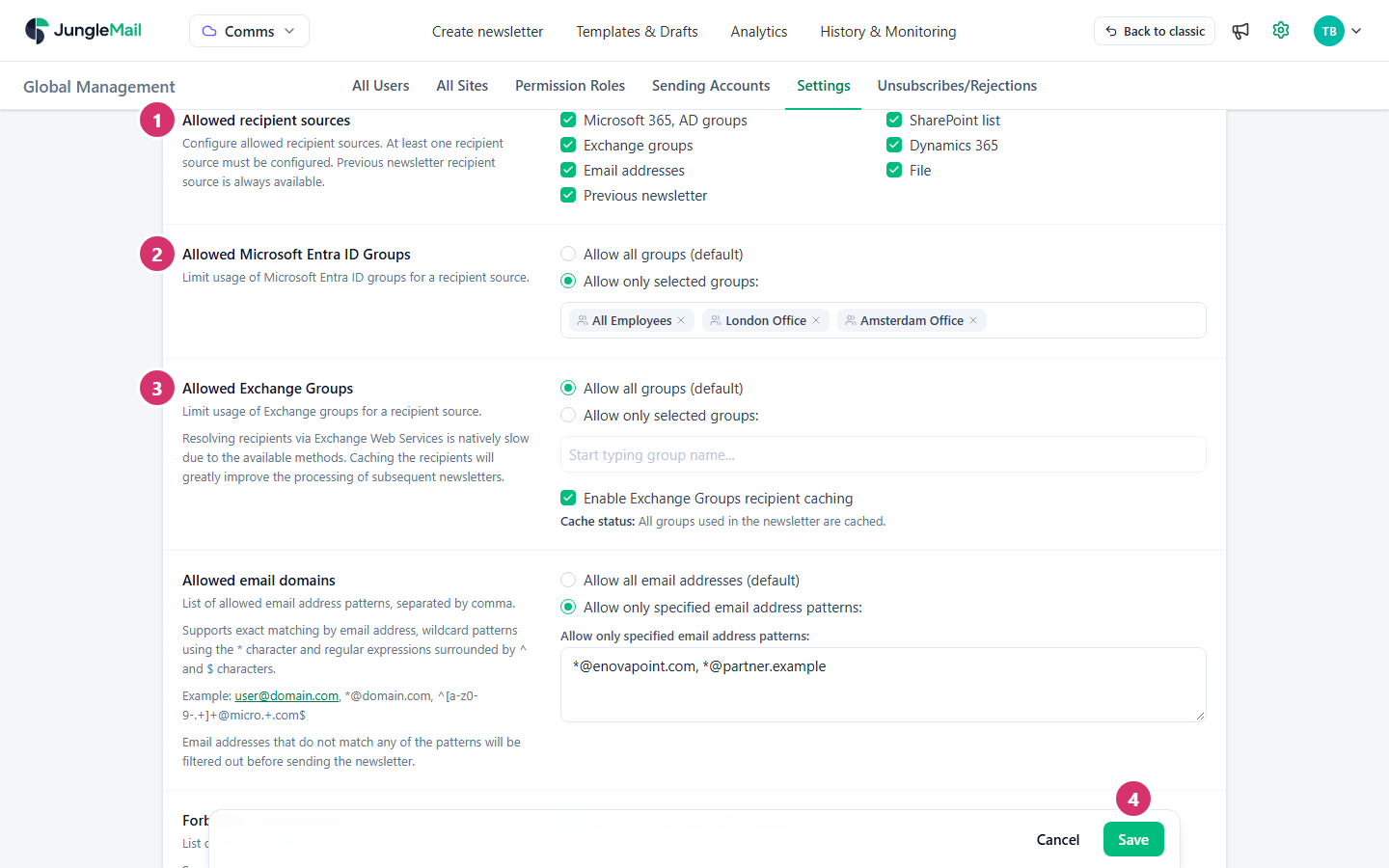
- Under Allowed recipient sources, tick the sources authors can choose in the newsletter wizard’s To field and clear the others. At least one source must stay ticked.
- To let authors send only to some Microsoft Entra ID groups, select Allow only selected groups under Allowed Microsoft Entra ID Groups, then start typing a group’s name and choose it. Add each group the same way.
- To do the same for Exchange groups, use Allowed Exchange Groups. There, Enable Exchange Groups recipient caching keeps the groups’ members so that later newsletters to them are prepared faster; Cache status says what is cached. Turn it on if editors send to large dynamic distribution groups, such as All Employees. New members aren’t missed, and support sets when the cache is refreshed (Connect Microsoft Exchange).
- Select Save at the bottom of the page.
The group settings appear only while their recipient source is ticked. Without the connection they need, they show Microsoft Entra ID Connection is not enabled. or Microsoft Exchange Connection is not enabled. with Go to Connections…, and their groups can’t be chosen.
Allow or forbid email domains
Section titled “Allow or forbid email domains”On the same tab, scroll to Allowed email domains.
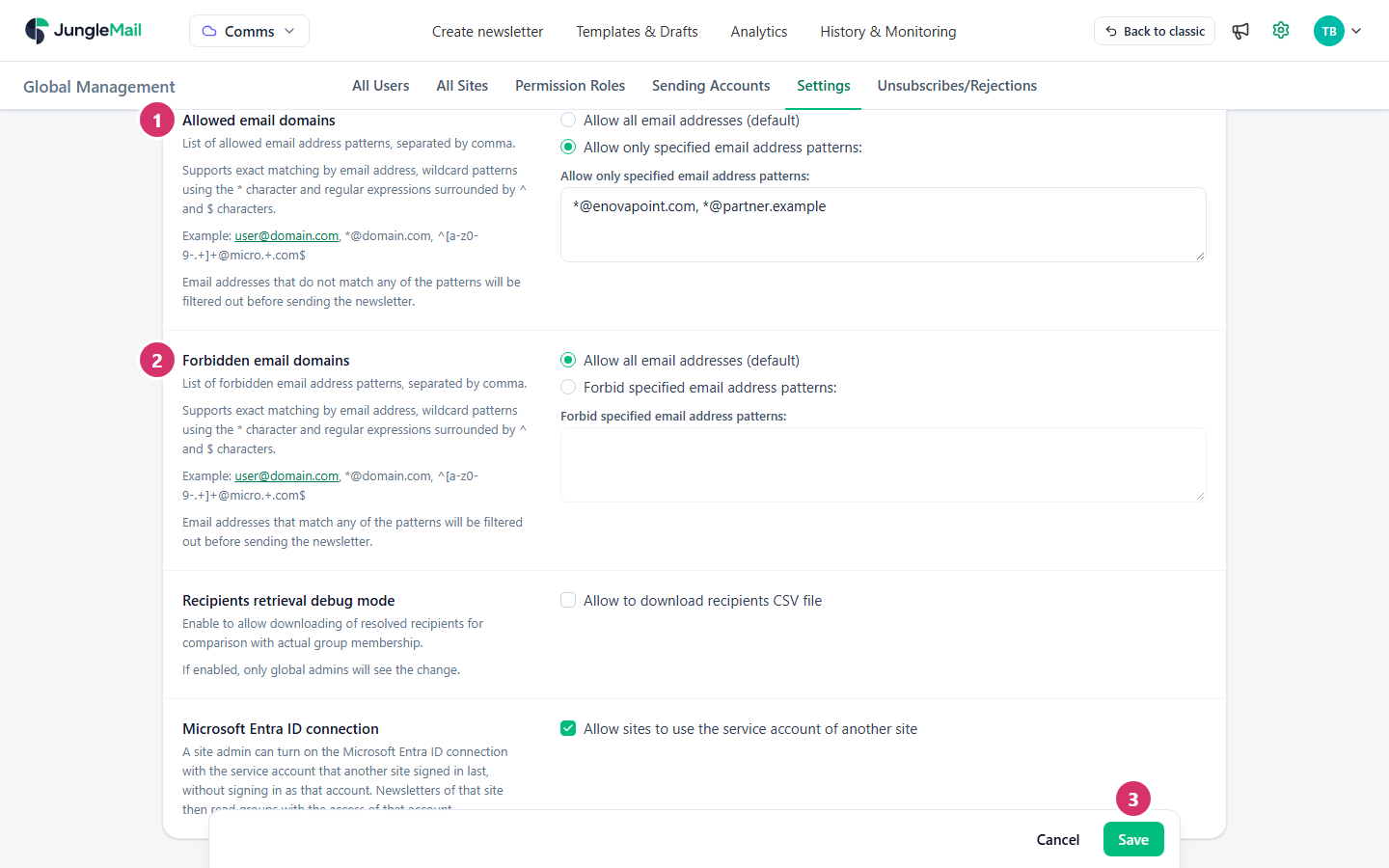
- To send only to some addresses, select Allow only specified email address patterns under Allowed email
domains, and type the patterns in the box below it, separated by commas. EnovaPoint, for example, allows its own
addresses and its partner’s:
*@enovapoint.com, *@partner.example. - To keep newsletters away from some addresses, select Forbid specified email address patterns under Forbidden email domains, and type those patterns.
- Select Save at the bottom of the page.
A pattern can be:
| Pattern | Matches |
|---|---|
alex.morgan@partner.example |
That one address |
*@partner.example |
Every address at that domain |
^[a-z0-9.-]+@enovapoint\.com$ |
Every address the regular expression between ^ and $ matches |
Before a newsletter is sent, JungleMail leaves out every address that matches no allowed pattern, and every address that matches a forbidden one. The newsletter still goes to everyone else.
- List every domain your people’s addresses use. An address that matches no allowed pattern is left out without an error, so a forgotten domain quietly drops people from every newsletter. Tell editors where to look: in the newsletter wizard’s Recipients step, Filters then shows Allowed domains only (Some recipients are missing).
- Prefer
*@domainpatterns to regular expressions.*@enovapoint.comis easy to read and to check; keep a regular expression for a rule a wildcard can’t express. - Combine group limits with allowed domains. Allowing only selected groups doesn’t stop an editor from choosing a SharePoint list, a file or typed addresses. Allowed domains apply to every source, and clearing a source in Allowed recipient sources removes it altogether.
- Use allowed domains to protect your plan’s count too. Every outside address a newsletter reaches adds to the quarter’s unique recipients, while sending to your own people again adds nothing, so a file or list full of outside addresses can use up your plan (How unique recipients are counted).