

Connect Microsoft Entra ID
The Microsoft Entra ID connection lets the editors of a site choose Microsoft 365 groups, security groups, mail-enabled security groups and distribution groups as recipients. JungleMail 365 looks up every member of the group when the newsletter is sent, through Microsoft Graph. You also use it to pick the groups whose members may use the site.
Connect it first on any site that sends to employees: groups are the recipient source most internal newsletters need, and your IT team keeps them up to date (Recipients).
Before you begin
Section titled “Before you begin”- You need the Administrator role on the site, or a role with Manage Connections.
- An Entra admin grants consent once for your organization: a Global Administrator or Privileged Role Administrator for Application permissions; for delegated permissions, a Cloud Application Administrator or Application Administrator can too. If that isn’t you, send them the consent link from the setup (Grant consent to JungleMail).
- Microsoft’s sign-in opens in a new window, so allow pop-ups for JungleMail in your browser.
Choose the permissions
Section titled “Choose the permissions”| Type | JungleMail reads groups | What it takes |
|---|---|---|
| Application permissions | As its own application, for the whole organization | An Entra admin’s consent. Nobody signs in |
| Delegated permissions, service account | As one account of your organization, made for JungleMail, with its access | An Entra admin’s consent, then you connect the account |
| Delegated permissions, personal accounts | As each editor, who sees only the groups their own account may see | An Entra admin’s consent, then each editor authorizes their own account the first time they pick groups |
Keep Application permissions, the type a new setup starts with, unless your organization doesn’t allow them: nobody has to stay signed in, and the connection doesn’t depend on anyone’s account (Grant consent to JungleMail).
Otherwise, choose the service account when one account should read the groups for everyone, and choose one that stays: when it is reset, blocked or closed, newsletters to groups pause until someone connects it again. Choose personal accounts when each editor should see only what their own account may see; a scheduled newsletter then reads the groups with the account of the person who submitted it, and pauses if that account can no longer sign in.
Read organizational contacts, on by default, includes the organizational contacts that are members of a group; turned off, they are left out of every group. The setup offers only the types your organization can use. If it says No type of permissions is available for your organization., EnovaPoint support can turn one on.
Connect it
Section titled “Connect it”Go to Settings > Connections, select Microsoft Entra ID, then Connect….
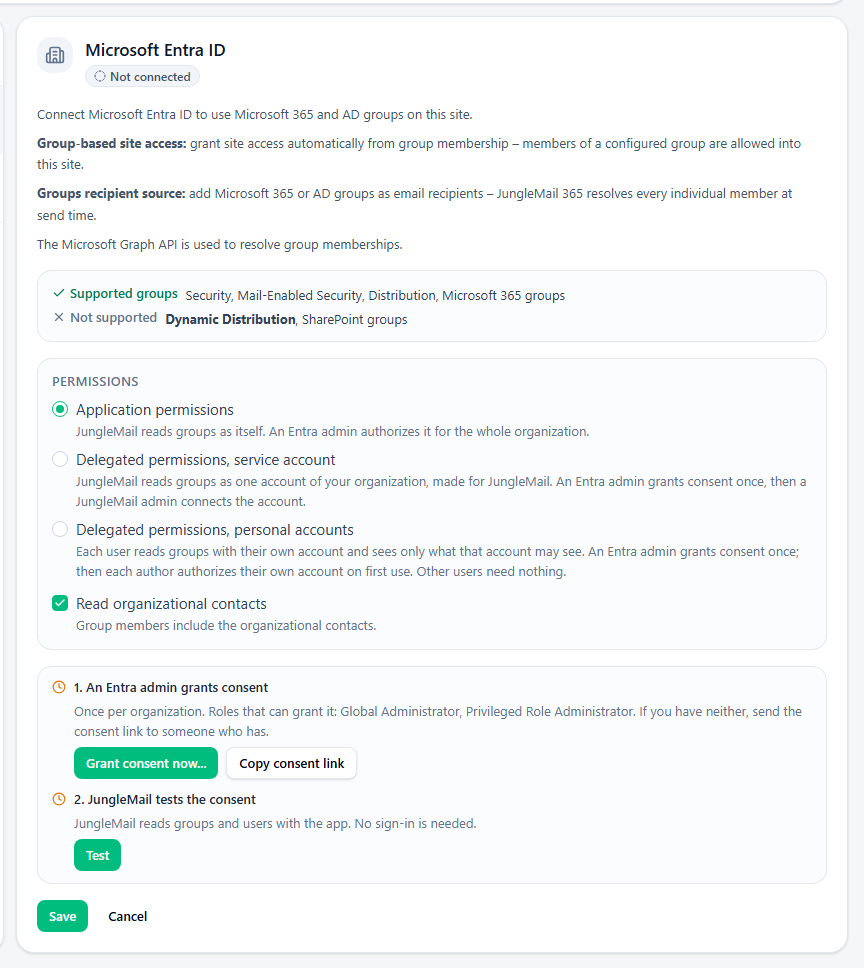
- Under Permissions, choose the type.
- In An Entra admin grants consent, select Grant consent now… and accept in Microsoft’s window, if you are an Entra admin. Otherwise select Copy consent link and send the link to one: they open it and accept, without signing in to JungleMail. When your organization has granted it before, the step says Already done.
- With Application permissions, there is nothing to sign in. With the service account, select Connect service account… and sign in as the account made for JungleMail, not as yourself; Reuse existing account connects the one another site of your organization already uses, while the global setting Allow sites to use the service account of another site is on (Global settings and inheritance). With personal accounts, select Authorize my account… and sign in with your own account.
- Select Save. JungleMail tests the connection and saves it only if the test passes; it then shows Connected.
Groups in another tenant
Section titled “Groups in another tenant”JungleMail reads the groups of your organization’s own Microsoft 365 tenant. To use the groups of another tenant, such as a separate directory, ask EnovaPoint support to allow that tenant for your organization; an admin of that tenant then grants the consent. This works with Application permissions and a service account; personal accounts read your own tenant only. A consent from a tenant that isn’t allowed ends with Consent was granted in Microsoft 365 tenant … which is not allowed for your organization.
What editors can do now
Section titled “What editors can do now”- In the newsletter wizard, Microsoft 365, AD groups under To lists your groups (Send to Microsoft 365 and Entra ID groups). With personal accounts, each editor first selects Authorize my account… there.
- Dynamic distribution groups and SharePoint groups are not supported. For dynamic distribution groups, also connect Microsoft Exchange.
- To let only some groups be chosen, set Allowed Microsoft Entra ID Groups, on the Enterprise plan (Security and privacy settings). It suits a site that serves one audience, such as a People & Culture site that should send only to the office groups.
- To let the members of a group into the site, use Add Users > Add groups on the Users page (Manage site users).
Check, change or disconnect it
Section titled “Check, change or disconnect it”- Test checks that JungleMail can still read groups and users.
- Change opens the setup again, to choose another type or connect another account. Use it also when the connection shows Needs authorization, for example after the consent was removed or the service account’s password was reset; Not available, when your organization can no longer use its type; or Enabled (legacy), which still reads through Azure AD Graph, which Microsoft is retiring: grant consent again.
- Disconnect, at the top right, turns the connection off, after you confirm. Editors can no longer choose groups, and newsletters that send to groups pause until it is connected again. A service account is also removed from the site. The members of groups you let into the site keep their access: remove them, or the group, on the Users page (Manage site users).