

Connect Microsoft Exchange
The Microsoft Exchange connection lets the editors of a site choose Exchange groups as recipients, including dynamic distribution groups, which the Microsoft Entra ID connection cannot resolve. JungleMail 365 reads the groups’ members through Exchange Web Services (EWS), on behalf of the account that authorizes the connection.
Connect it when editors send to dynamic distribution groups, such as EnovaPoint’s All Employees and New Starters. For every other kind of group, the Microsoft Entra ID connection lists the members of a large group faster, so set that one up as well and keep Exchange for the dynamic groups (Send to Exchange and dynamic distribution groups).
Before you begin
Section titled “Before you begin”- You need the Administrator role on the site, or a role with Manage Connections.
- Choose the account to authorize with: JungleMail reads group members and contacts as that account. Choose one that stays, such as an account your IT team keeps for JungleMail, rather than a colleague who may move on, and tell your IT team which it is: when the account leaves your organization, the connection stops reading groups.
- If your organization lets only administrators consent to apps, the account sees Approval required when it signs in. Ask an administrator to approve JungleMail’s request first (“Approval required” when connecting a service).
- Microsoft’s sign-in opens in a new window, so allow pop-ups for JungleMail in your browser.
Connect it
Section titled “Connect it”Go to Settings > Connections, select Microsoft Exchange, then Connect….
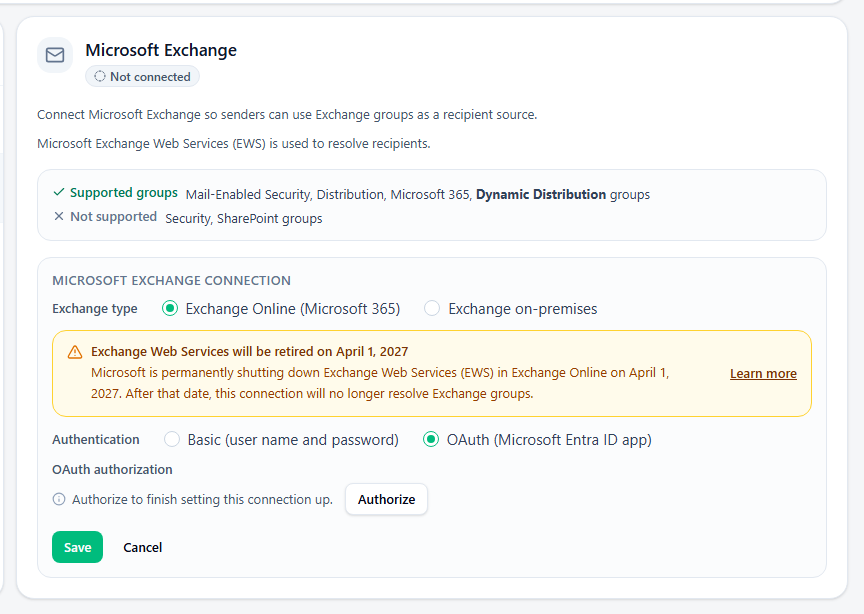
Keep Exchange Online (Microsoft 365) and OAuth (Microsoft Entra ID app): Microsoft has retired Basic (user name and password) for Exchange Online. Under OAuth authorization, select Authorize and sign in with the account you chose; if Microsoft offers your own account and it isn’t that one, choose Use another account. JungleMail saves the connection as soon as you have signed in, and Connects as names the account.
For an Exchange server of your own, choose Exchange on-premises, enter the account’s Email address, Domain, User name and Password, and select Save. JungleMail finds the server from the email address, with Autodiscover. It keeps that password, so choose an account whose password your IT team doesn’t change without telling you.
What editors can do now
Section titled “What editors can do now”- In the newsletter wizard, Exchange groups under To finds your groups by name or address (Send to Exchange and dynamic distribution groups).
- Supported: Microsoft 365 groups, distribution groups, mail-enabled security groups and dynamic distribution groups. Not supported: security groups that are not mail-enabled, and SharePoint groups.
- Large groups resolve slowly through Exchange Web Services. Turn on Enable Exchange Groups recipient caching when editors send to a group the size of All Employees, 2,412 people: later newsletters go faster, and still reach new members. Ask JungleMail support to refresh the cache at quiet times of the week, so that it doesn’t overload Exchange. Allowed Exchange Groups, on the Enterprise plan, limits which groups editors may choose (Security and privacy settings).
Change it or turn it off
Section titled “Change it or turn it off”- Change opens the settings again. To move the connection to another account, such as before the person who authorized it leaves, select Re-authorize and sign in with an account that stays. Then open a newsletter to a dynamic group and check that Total is the size you expect, such as 2,412 for All Employees: JungleMail reads groups as the account. With Exchange on-premises, enter the Password again before you select Save.
- Disconnect, at the top right, turns the connection off, after you confirm. Editors can no longer choose Exchange groups, and scheduled or running newsletters that send to them may fail.
A connection that still uses basic authentication shows Connected (basic auth): change it to OAuth.