

Connections
Connections link a JungleMail site to the Microsoft 365 services and the CRM that JungleMail 365 reads recipients and content from. Each is set up for one site, under Settings > Connections, by someone with the Administrator role on the site or a role with Manage Connections. Most need a Microsoft 365 administrator once, to grant consent.
Start with Microsoft Entra ID: groups are the recipients of most internal newsletters, and it reads them fastest (Recipients). Add SharePoint when editors send to SharePoint lists or put list content in their emails, Microsoft Exchange only when they send to dynamic distribution groups, and Dynamics 365 CRM when they send to customers your organization keeps there.
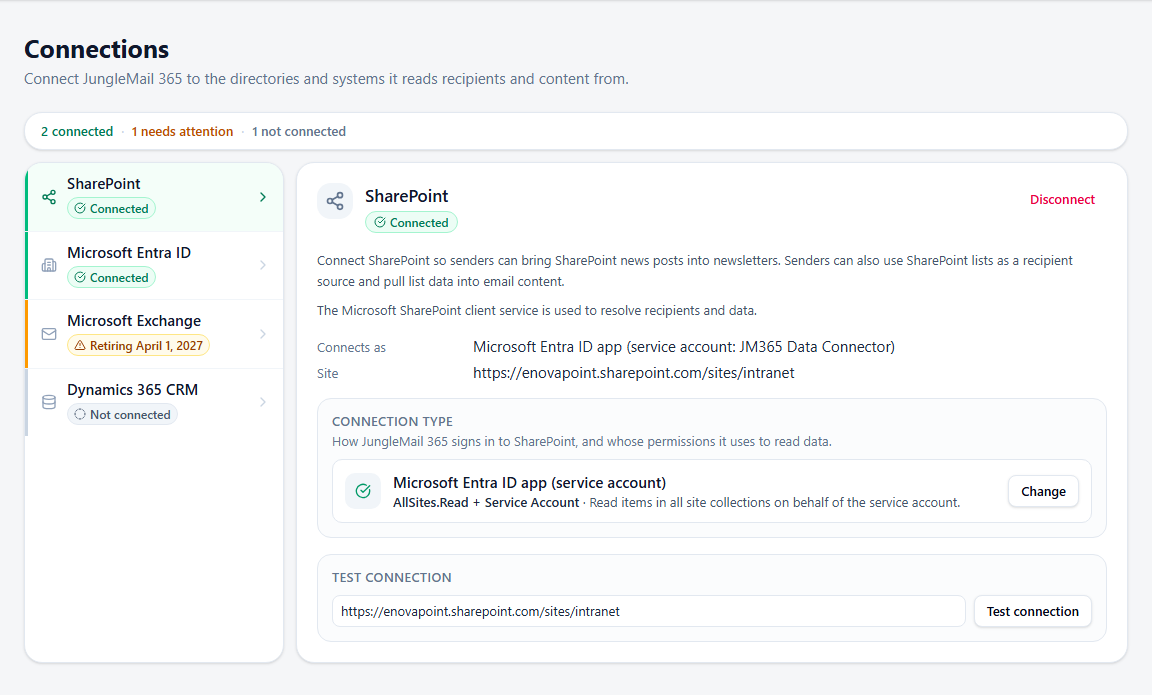
The four connections
Section titled “The four connections”| Connection | Lets editors | Needs |
|---|---|---|
| Microsoft Entra ID | Send to Microsoft 365 groups, security groups, mail-enabled security groups and distribution groups. It can also let a group’s members into the site. | An Entra admin’s consent, and with delegated permissions an account that reads the groups |
| Microsoft Exchange | Send to Exchange groups, including dynamic distribution groups | An account that authorizes JungleMail to read Exchange |
| SharePoint | Send to the people in a SharePoint list, and add SharePoint list content to emails | A choice of how JungleMail signs in to SharePoint, and an administrator’s consent the first time |
| Dynamics 365 CRM | Send to Dynamics 365 CRM accounts, contacts, leads, marketing lists and campaigns | The Enterprise plan, a Microsoft 365 global administrator, and an application user in Power Platform |
In the newsletter wizard, each connection adds a recipient source under To: Microsoft 365, AD groups, Exchange groups, SharePoint list and Dynamics 365 (Choose recipients).
Groups: Entra ID or Exchange
Section titled “Groups: Entra ID or Exchange”The two directory connections resolve different kinds of group:
| Group | Microsoft Entra ID | Microsoft Exchange |
|---|---|---|
| Microsoft 365 groups | Yes | Yes |
| Distribution groups | Yes | Yes |
| Mail-enabled security groups | Yes | Yes |
| Security groups | Yes | No |
| Dynamic distribution groups | No | Yes |
| SharePoint groups | No | No |
EnovaPoint’s All Employees group, for example, is a dynamic distribution group, so sending to it takes the Microsoft Exchange connection. A site can have both connections.
JungleMail looks up the members of a group when the newsletter is sent, and sends each member a personal email. Exchange lists the members of a large group more slowly, so where a group is offered by both, editors are better served by Microsoft 365, AD groups (Send to Exchange and dynamic distribution groups). Microsoft retires Exchange Web Services in Exchange Online on April 1, 2027: after that date, the Exchange connection no longer resolves groups there (Connect Microsoft Exchange).
Which account each connection uses
Section titled “Which account each connection uses”| Connection | Who authorizes it | What JungleMail reads with |
|---|---|---|
| Microsoft Entra ID | An Entra admin, once; with delegated permissions, also the service account or each editor | JungleMail’s application, a service account or each editor’s own account, as chosen under Permissions |
| Microsoft Exchange | The account that signs in under OAuth authorization | That account: JungleMail reads groups and contacts as it |
| SharePoint | The service account, or each person, depending on the Connection type | The service account’s access, or each person’s own permissions |
| Dynamics 365 CRM | A Microsoft 365 global administrator, and an application user you add | JungleMail’s application, with the security roles of its application user |
Where a connection reads as an account, the Exchange connection and the service accounts of SharePoint and Microsoft Entra ID, choose an account that stays, and tell your IT team which it is: Connects as names it for Exchange and SharePoint, Service account for Microsoft Entra ID. When it leaves your organization or its password is reset, the connection can stop until it is authorized again (Newsletters stop sending after a password change). The SharePoint types are compared in SharePoint connection: service account or selected sites.
Statuses
Section titled “Statuses”- Connected: the connection works.
- Not connected: it has not been set up, or it was disconnected.
- A warning, such as Connected (basic auth) or Connected (add-in): it works, but through a method Microsoft has retired. Replace it while it still works: Exchange with OAuth (Connect Microsoft Exchange), SharePoint with a Microsoft Entra ID app (Move SharePoint connections off the add-in). Retiring April 1, 2027 marks an Exchange Online connection, which works until Microsoft retires Exchange Web Services.
- A connection that can’t be used, such as Not configured for SharePoint, Authorization required for Dynamics 365 CRM, Needs authorization or Not available for Microsoft Entra ID, or Retired for Exchange Online from April 1, 2027. Its details say what to do next.
Disconnect stops the connection’s recipient source on the site, and scheduled or running newsletters that use it may fail; those that send to Microsoft Entra ID groups pause instead, until it is connected again. Before you disconnect, look in History & Monitoring, under Running & Scheduled, for newsletters that send to its groups or lists.
Related
Section titled “Related”- Connect Microsoft Entra ID
- Connect Microsoft Exchange
- Connect SharePoint
- Connect Dynamics 365 CRM
- Security and privacy settings, to limit which groups editors may choose