

Trigger Power Automate flows
Power Automate flows can react to a site’s newsletters: when one is submitted, when it starts sending, and when it is complete. A flow could email a newsletter’s results a day after it went out, update a SharePoint list when a newsletter starts, or tell its author it has finished. Flows connect to JungleMail 365 with an API key, and the Automation page decides which of them run.
Turn a trigger on here for a flow that every newsletter of the site needs, such as logging each newsletter in a SharePoint list. For a flow that only some newsletters need, such as a results email for the Leadership Update, let editors start it from the newsletter instead.
Before you begin
Section titled “Before you begin”- You need the Administrator role on the site, or a role with Manage Automation settings.
- Power Automate has to have the JungleMail connector, which a Microsoft 365 administrator sets up once (Connect Power Automate to JungleMail).
Create an API key
Section titled “Create an API key”An API key belongs to the person who creates it and to the site: a flow connected with it can do in JungleMail only what that person may do on the site. Where the site reads Microsoft Entra ID groups with each editor’s own account, newsletters your keys create read groups with yours: if the page asks, select Authorize my account… and sign in.
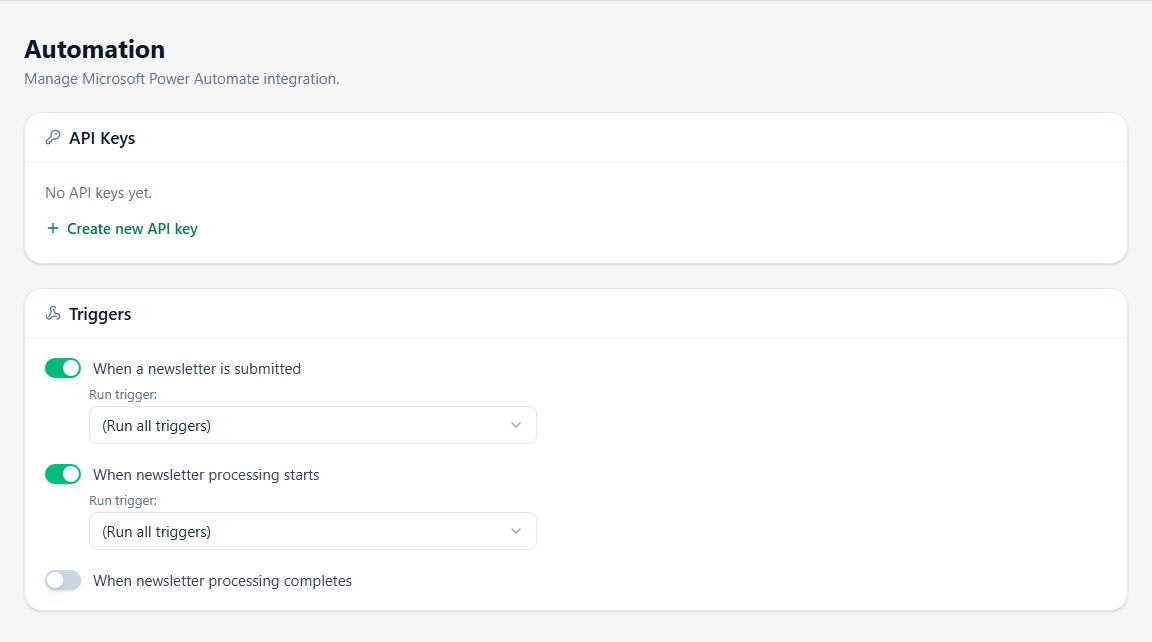
Go to Settings > Automation and, under API Keys, select Create new API key.
- Name the key after what uses it, such as
Newsletter log flow. With one key per flow, you can turn one off without stopping the others. - In Expires, choose Never or a number of months, as your organization’s policies require. When a key expires, its flows stop until you paste a new key into their connection.
Save shows the key once: select Copy, and paste it into the JungleMail connection in Power Automate. To stop flows from using a key, turn its Enabled off, or delete it, which cannot be undone.
Choose which flows run
Section titled “Choose which flows run”When someone builds a flow with one of JungleMail’s triggers in Power Automate, they give the trigger a title, and the flow appears in the Run trigger list of that moment: When a newsletter is submitted, When newsletter processing starts or When newsletter processing completes. Turn the moment on, choose the flow by name in Run trigger, and select Save. (Run all triggers) runs every flow that uses the trigger, including ones that someone builds later, such as a trial flow.
A trigger that is on runs for every newsletter the site sends, so try a flow on one newsletter first. The approval flow chosen on the Approval page is never run twice (Set up newsletter approval).
Start a flow from one newsletter
Section titled “Start a flow from one newsletter”Editors can also start a flow when one newsletter is complete: in the newsletter wizard’s Settings/Send step, Automation has Start a Power Automate Flow when newsletter processing is completed (Delivery, tracking and report options). Use it to try a flow on a test newsletter to yourself before you turn its trigger on for the whole site. If When newsletter processing completes runs (Run all triggers), every newsletter starts those flows already, and Automation is unavailable.
- Wait before you report results. Opens and clicks keep arriving after a newsletter is complete, so a flow that emails the results reads them better a day later, after a delay in the flow, than at once.