

Allowlist JungleMail's mail servers
If your organization sends internal newsletters through Bird Cloud Email Service or the JungleMail mail server, add their IP addresses to your spam filter’s allow list, so the newsletters reach people’s inboxes. Newsletters sent through a Microsoft 365 sending account don’t need this. Which type a site uses, and why, is in Choose a sending account type.
Mail from an address on the allow list skips Exchange Online’s spam filtering and its SPF, DKIM and DMARC checks, so add only the addresses your newsletters come from: those of your cloud, for the mail server your sites send through (Create allowlists). The addresses are dedicated to JungleMail: no other sender’s mail comes from them.
Before you begin
Section titled “Before you begin”- You need permission to change anti-spam policies in the Microsoft Defender portal.
- Look up the IP addresses for your cloud in IP addresses and domains. A JungleMail site administrator can tell you which mail server your sites use: it is the type of each account on Settings > Sending Accounts.
Add the IP addresses to the connection filter
Section titled “Add the IP addresses to the connection filter”-
In the Microsoft Defender portal, go to Email & collaboration > Policies & rules > Threat policies > Anti-spam.
-
Select the row Connection filter policy (Default), anywhere but its checkbox.
-
Select Edit connection filter policy.
-
Under Always allow messages from the following IP addresses or address range, enter each IP address for your cloud and press Enter after it, then select Save. Enter the single addresses as listed, not a range around them, and leave out the other mail server’s addresses if no site sends through it.
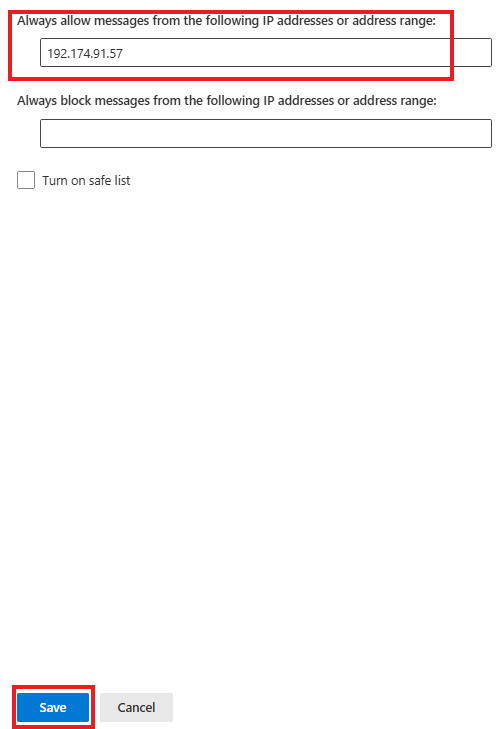
-
Check that the addresses are listed under IP Allow list.
Microsoft describes the connection filter in Configure the default connection filter policy.
The same in Exchange Online PowerShell, which adds the addresses and keeps the entries already on the list:
Set-HostedConnectionFilterPolicy -Identity Default -IPAllowList @{Add="<IP address>","<IP address>"}<IP address> is each address for your cloud, from IP addresses and domains.
- Check a test newsletter’s headers. Send a test to a mailbox in your organization and read its message headers:
IPV:CALin X-Forefront-Antispam-Report shows that the allow list let it in (Create allowlists). If it’s missing, Microsoft describes cases where mail from allowed addresses is still filtered, and the mail flow rule on the sender’s IP address that covers them (Configure the default connection filter policy). - Don’t allow your own domain instead. A mail flow rule on the sender’s domain alone, or your domain in an
anti-spam policy’s allowed domains, lets anyone who forges
enovapoint.comskip spam and spoofing checks. Microsoft warns against both (Create allowlists). - Look at the reference page again when newsletters land in junk. JungleMail’s addresses can change, and a stale entry lets nothing through. Microsoft also recommends removing entries you no longer need: when your sites stop sending through a JungleMail mail server, take its addresses off the list.
- Authorize your domain as well. The allow list only gets newsletters past your own spam filter. People outside your organization, such as subscribers, check your domain’s DKIM signature instead (Send from your own domain).