

Choose a sending account type
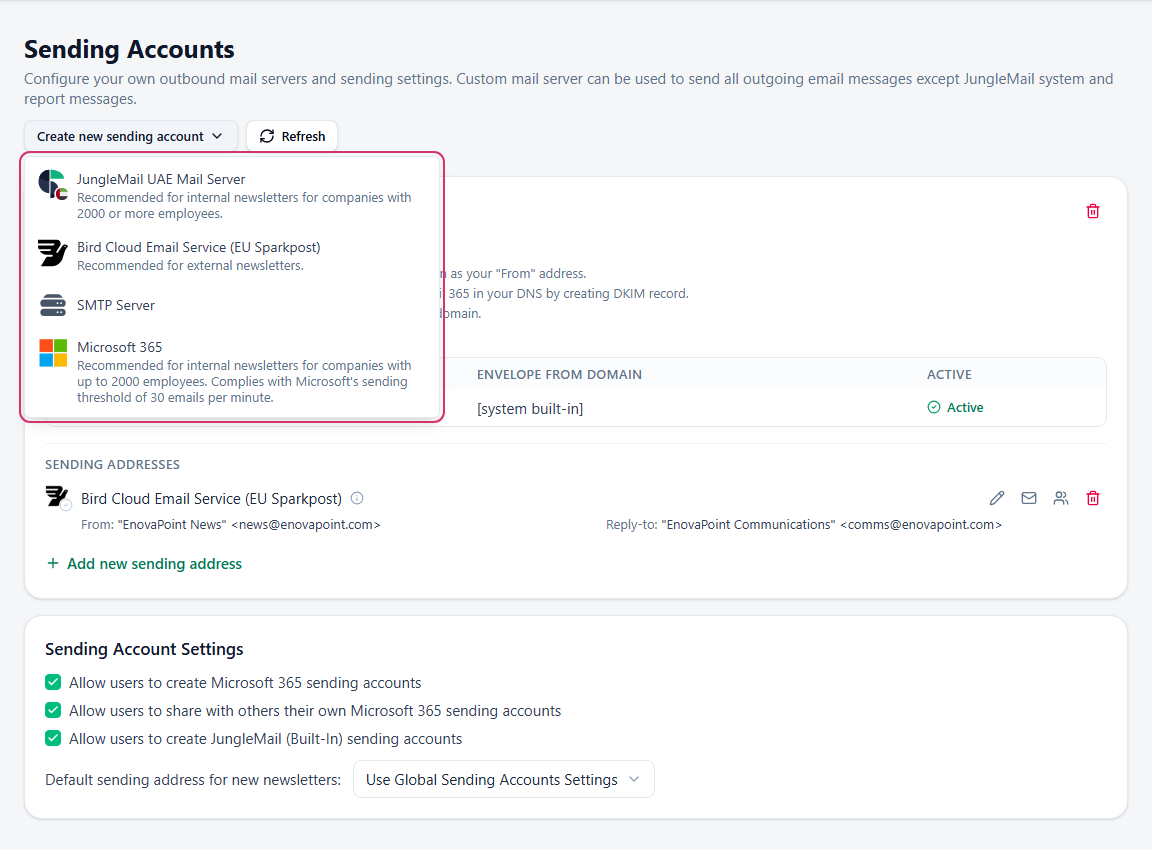
A sending account is the mail server that JungleMail 365 sends a site’s newsletters through, and its sending addresses are the From and Reply-to that recipients see. The type decides whether newsletters arrive as internal mail, how fast they go out, and how much your IT team has to set up. You add one in Settings > Sending Accounts > Create new sending account.
Which to choose
Section titled “Which to choose”- Internal newsletters to up to 2,000 people: Microsoft 365. They arrive as internal mail, with no setup outside JungleMail.
- Large or urgent internal newsletters: your cloud’s JungleMail mail server, once your IT team has allowlisted it, authorized your domain and removed the “External” tag.
- Newsletters to people outside your organization, such as partners, customers or students: Bird Cloud Email Service, with your own domain authorized.
- Several at once: a site can have several accounts, and editors choose one in each newsletter’s From, such as company news through the JungleMail mail server and a manager’s update from their own mailbox.
The types
Section titled “The types”| Type | Sends through | Arrives as |
|---|---|---|
| Microsoft 365 | A mailbox in your organization, a person’s or a shared mailbox | Internal mail from that mailbox |
| Bird Cloud Email Service, with its region, such as (EU Sparkpost) | A mail service for recipients outside your organization | Mail from outside your organization |
| Your cloud’s JungleMail mail server, such as JungleMail UAE Mail Server | A mail server for internal newsletters, in JungleMail’s own region and data center | Mail from outside your organization |
| SMTP Server | A mail server of your own, or an SMTP service | Depends on your server and your Exchange settings |
Every cloud has its own JungleMail mail server, named after the cloud.
Microsoft 365
Section titled “Microsoft 365”JungleMail sends each newsletter from a mailbox in your Microsoft 365, through Microsoft Graph, after someone signs in to that mailbox once. Newsletters arrive as ordinary internal mail: nothing needs allowlisting, and there is no “External” tag.
Microsoft’s limits set the pace. JungleMail sends one email per recipient, and an Exchange Online mailbox sends up to 30 messages a minute and to 10,000 recipients a day (Exchange Online limits), so a newsletter to EnovaPoint’s 2,412 employees takes about 80 minutes. By default, JungleMail refuses to send a newsletter to more than 5,000 recipients through a Microsoft 365 sending account.
Add a Microsoft 365 sending account
The JungleMail mail server and Bird Cloud Email Service
Section titled “The JungleMail mail server and Bird Cloud Email Service”Your cloud’s JungleMail mail server and Bird Cloud Email Service send much faster than a mailbox, and nobody has to sign in to a mailbox to add them. Your cloud’s JungleMail mail server is for internal newsletters, and is hosted in the same region and data center as JungleMail. Bird Cloud Email Service is for newsletters to people outside your organization.
Their newsletters come from outside your organization, so internal ones need some setup by your IT team to look and work like internal mail:
- Authorize your own domain. Until then, the From address uses a JungleMail domain,
@jmcloudpost.comfor Bird Cloud Email Service (Send from your own domain). - Let JungleMail’s servers through your spam filter (Allowlist JungleMail’s mail servers).
- Stop Outlook marking the newsletters External and holding back their images, which also lowers the open rates JungleMail can count (Remove the “External” tag, Load newsletter images automatically).
Both add addresses that bounce to the site’s rejections list, so later newsletters skip them; a soft bounce, a temporary problem such as a full mailbox, doesn’t (Manage unsubscribes and rejections).
Add a JungleMail mail server sending account
SMTP server
Section titled “SMTP server”SMTP Server sends through a mail server your organization runs, or an SMTP service such as High Volume Email for Microsoft 365, which delivers only inside your organization. Whether newsletters arrive as internal mail depends on that server and on how Exchange treats it.
Add an SMTP server sending account
Sites set up a while ago may still have an Exchange Online sending account. It is no longer offered: it uses an Exchange service that Microsoft is retiring, so replace it with a Microsoft 365 sending account.