

Load newsletter images automatically in Outlook
Classic Outlook for Windows downloads pictures from the internet only when it trusts the sender or the website the pictures come from. Otherwise a newsletter shows without its images, and without the 1-pixel image JungleMail 365 uses to count opens (How open and click tracking works). You can make Outlook trust the sending address, or trust the domains the images come from.
You need this only for newsletters sent through a JungleMail mail server or a mail server of your own. Sent through a Microsoft 365 sending account, a newsletter comes from a sender inside your organization, and Outlook downloads its pictures without this setup (Choose a sending account type).
The images come from JungleMail’s servers whichever sending account sends the newsletter (IP addresses and domains). Trusting the sending address takes one entry per address, deployed with the rest of your junk email settings, but also exempts that address from parts of spam filtering. Trusting the image domains changes only which pictures Outlook downloads: choose it if your security team keeps senders off Safe Senders lists.
New Outlook for Windows and Outlook on the web trust senders only: populate everyone’s Safe Senders list centrally, as below.
Before you begin
Section titled “Before you begin”- You need the sending address of your newsletters, for example
news@enovapoint.com. A JungleMail site administrator finds it on Settings > Sending Accounts. - To trust the image domains instead, you need the image and open tracking domains for your cloud (IP addresses and domains).
Trust the sending address
Section titled “Trust the sending address”For one person, in classic Outlook:
-
On the Home tab, select Junk > Junk Email Options.
-
On the Safe Senders tab, select Add, enter the sending address, and select OK.
-
Go to File > Options > Trust Center > Trust Center Settings > Automatic Download, and check that Permit downloads in email messages from senders and to recipients defined in the Safe Senders and Safe Recipients Lists used by the Junk Email filter is selected. It is by default.
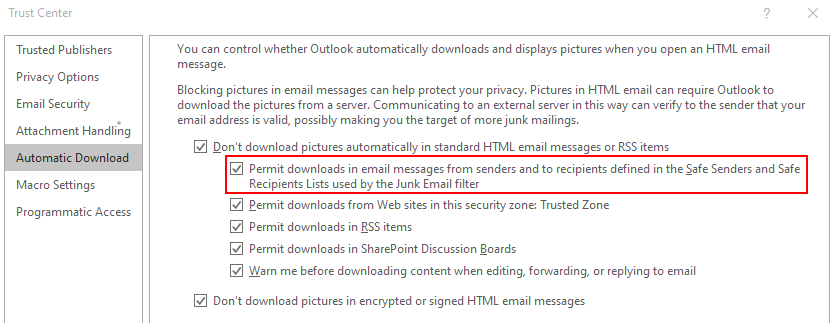
Add the address itself, not your domain: Outlook removes your organization’s own domains from the Safe Senders list, but keeps single addresses in them.
For everyone, deploy the Safe Senders list with Group Policy: put the sending address in a text file, point the Outlook policy Specify path to Safe Senders list at it, and enable Trigger to apply junk email list settings (How to deploy junk email settings by using Group Policy). If your organization sets the policy Automatically download content for e-mail from people in Safe Senders and Safe Recipients Lists, it must not be disabled.
New Outlook and Outlook on the web
Section titled “New Outlook and Outlook on the web”New Outlook for Windows and Outlook on the web download pictures from the senders on the mailbox’s Safe Senders list. The list is kept in the mailbox itself, so the Group Policy above doesn’t reach it, and the Trusted Sites zone below doesn’t apply. Add the sending address to every mailbox’s list in Exchange Online PowerShell:
Connect-ExchangeOnlineGet-EXOMailbox -RecipientTypeDetails UserMailbox -ResultSize Unlimited | ForEach-Object { Set-MailboxJunkEmailConfiguration -Identity $_.UserPrincipalName -TrustedSendersAndDomains @{Add="news@enovapoint.com"} }The command reaches the mailboxes that exist when you run it: run it again for people who join later (Configure junk email settings on Exchange Online mailboxes).
Trust the image domains instead
Section titled “Trust the image domains instead”Outlook also downloads pictures from websites in the Trusted Sites zone, as long as Permit downloads from Web sites in
this security zone: Trusted Zone stays selected under Automatic Download. Add your cloud’s image domain and open
tracking domain to the Trusted Sites zone, for everyone with the Group Policy Site to Zone Assignment List and the
zone value 2. For EnovaPoint on the EU cloud, they are:
https://gallery-eu.junglemail365.com, the images;https://enovapoint.eu.junglemailpages.com, open tracking.
This trusts where the pictures come from rather than who sends them, for organizations that prefer not to add senders to Safe Senders lists.
- Trust the address recipients actually see. With a From of JungleMail newsletter author, that is each
editor’s address; a Specified email address such as
news@enovapoint.comkeeps it to one entry. On a JungleMail mail server whose domain isn’t authorized yet, it is the Effective from address, such asnews@jmcloudpost.com(Add a JungleMail mail server sending account). - Weigh what a Safe Senders entry also does. In Exchange Online, an address on a mailbox’s Safe Senders list also skips parts of spam filtering for that mailbox, so Microsoft discourages the lists in most cases (Create allowlists). The Trusted Sites zone changes only which pictures Outlook downloads.
- Trust both domains. With only the image domain trusted, readers see the pictures but the open-tracking image stays blocked, and their opens aren’t counted.
- Set it up before the first newsletter whose results you follow. Opens that weren’t counted stay uncounted, so open rates from before and after the change don’t compare (Images don’t load, or open rates look low).