

Set up analytics segments and locations
A site’s reports can show results by department, job title, office and company, and by location, as your directory describes each recipient. The Analytics page under Settings decides which of these JungleMail 365 collects, how blank or unknown values are reported, and how raw values are grouped. The results themselves are under Analytics in the top menu (Results by department, job title, office and company).
Turn the segments on before your next important newsletter, since they collect only from then on.
Before you begin
Section titled “Before you begin”- You need the Administrator role on the site, or a role with Manage Analytics settings.
- Segments and locations are part of the Pro and Enterprise plans.
Collect a segment
Section titled “Collect a segment”Go to Settings > Analytics, and open a segment’s card, such as Departments:
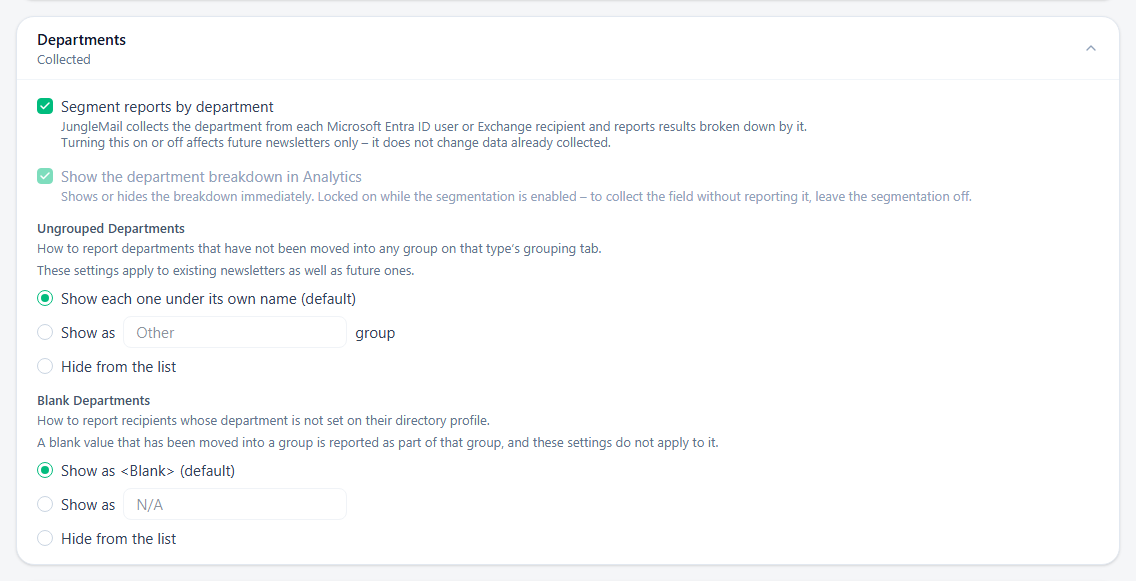
- Select Segment reports by department. JungleMail collects each recipient’s department from the newsletters sent from now on; results already collected don’t change.
- Ungrouped Departments decides how departments in no group are reported, for newsletters already sent too. Keep Show each one under its own name (default) until you have grouped the main values; then Show as Other gathers the stragglers in one row instead of a long tail.
- Blank Departments decides how recipients with no department are reported. Keep <Blank> at first: its size tells you how many profiles your IT team still has to fill in.
Then select Save.
Group values
Section titled “Group values”Directories often spell one department in several ways: Sales, Sales EMEA, Sales - UK. Send one newsletter with the segment on to see the values your directory really holds, then group them into the units people ask about, such as EnovaPoint’s nine departments, so that a report has a row per unit rather than per spelling. On the Departments tab, and on Job titles, Offices and Companies:
- Select New group, name it, and select Create.
- Select the values that belong in it, then Move to group, and choose the group.
- To apply the grouping to newsletters already sent, select Recalculate, once, after the last change. You can do this a few times a day.
Locations
Section titled “Locations”On the Settings tab, Segment reports by location collects each recipient’s country and state from your directory, and Segment reports by geolocation works out the country each open came from by its IP address. For colleagues, location is the more reliable: it reports where people work, while an IP address shows where the connection came from, so a VPN or an email scanner can place an open in another country (Results by location). Geolocation helps most for recipients without a directory profile, such as subscribers or a file of partners. Both apply to newsletters sent from now on.
Where the values come from
Section titled “Where the values come from”For Microsoft Entra ID and Exchange recipients, JungleMail reads the values from their directory profiles. A large <Blank> row, or a missing office, means those profiles are incomplete: ask your IT team to fill them in, which also improves the conditions editors use to show sections to some recipients (How to manage user profile information in the Microsoft Entra admin center).
For JungleMail subscribers, SharePoint lists and files, JungleMail reads the first field or column it finds with one of these names:
| Segment | Column names |
|---|---|
| Department | Department, Division, Subdivision, Cost Center Code |
| Job title | Job Title, JobTitle, Job, Position, Employee Business Title, and for subscribers and files also Title |
| Office | Office, Office Location, OfficeLocation, Business Segment |
| Company | Company, Company Name, CompanyName |
| Country | Country, Country or region, CountryOrRegion, Country/Region, CountryRegion, ContactCountryOrRegion, WorkCountry, Work Location Country Code |
| State | State or province, StateOrProvince, State/Province, StateProvince, State, Province, WorkState, Work Location State Primary |
A department or job title can point to a single person in a small team. If your reports must not identify anyone, group such values or leave the segment off (Security and privacy settings).
The Word report template at the bottom of the Settings tab is described in Word report formulas.