

Fonts, colors and other branding settings
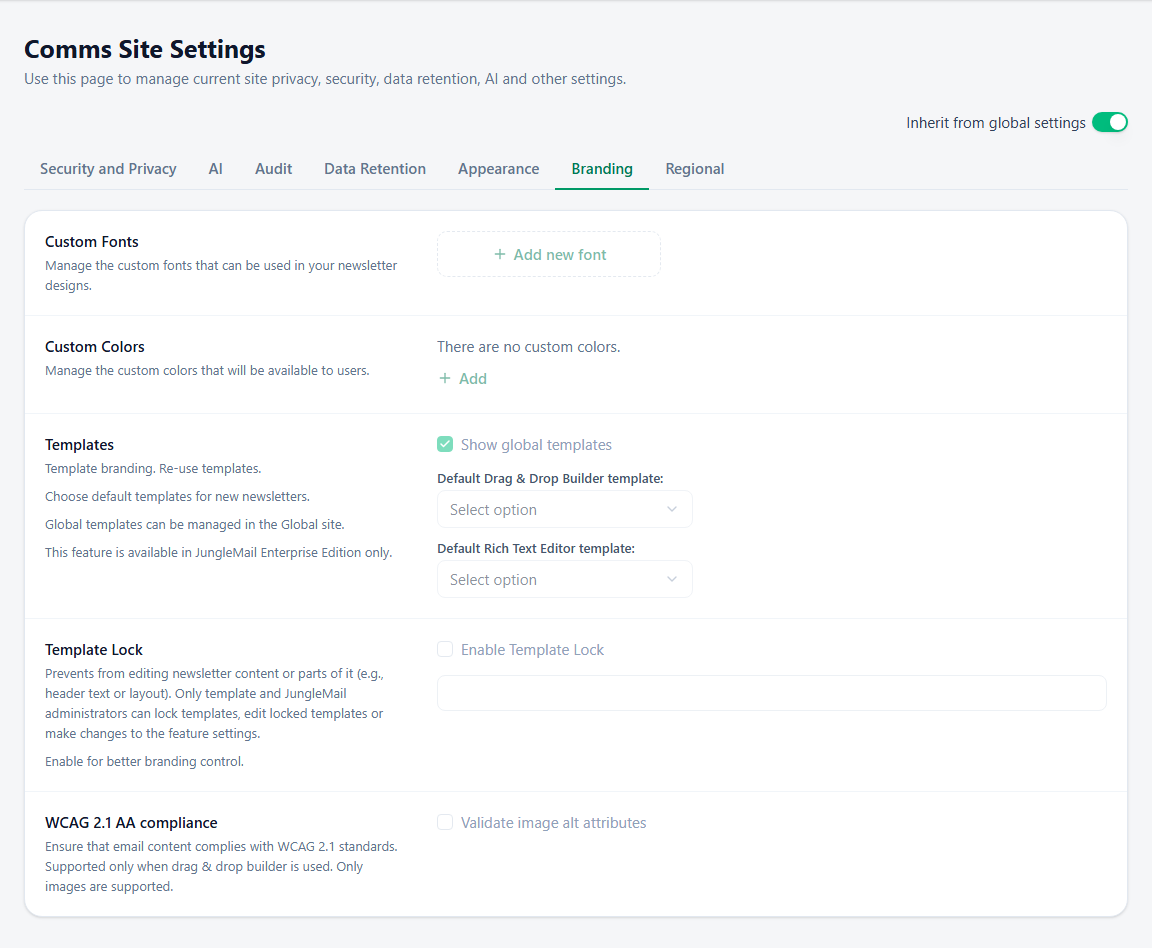
The Branding tab of a site’s settings, under Settings > Settings, keeps its newsletters on brand: the fonts and colors editors can choose in the JungleMail 365 email builder, the templates new newsletters start from, and a check that images have alternative text.
Start with your brand colors and, on the Enterprise plan, a default template that already carries your brand: together they keep most newsletters on brand without limiting editors. Restrict fonts and colors to your own only once those are in place, and turn on the alternative text check on every site that uses the Drag & Drop Builder.
Before you begin
Section titled “Before you begin”- You need the Administrator role on the site, or a role with Manage Settings.
- While Inherit from global settings is on, the site uses the global settings, so that a global administrator can give every site the same branding. Turning it off switches every tab to the site’s own settings at once, and Copy settings from global then copies the global branding to start from (Global settings and inheritance).
Custom fonts
Section titled “Custom fonts”Many email programs show only the fonts installed on the reader’s device and replace any other with their own, so a custom font comes with a font stack: your font first, then fonts to fall back on. Under Custom Fonts, select Add new font:
- For internal newsletters, Preinstalled / organizational font suits most sites: a font already on your readers’
devices, such as one your organization installs on every computer. A Web font is loaded from the web, and only
iOS Mail and Apple Mail show it: choose it only when Apple Mail readers matter, and enter its Font CSS URL, such
as
https://fonts.googleapis.com/css2?family=Inter, then select Download. - In Font Stack, list the fonts in order, separated by commas, with names of several words in single quotes:
'Segoe UI', Arial, sans-serif. End with a widely installed font, such as Arial, and a generic family, such assans-serif: readers without your font see those, so choose ones close to it in width.
Send yourself a test with the font and open it in Outlook and on your phone: where the font is missing, you see what readers without it get (Email client support). Once the site has a font of its own, Hide Built-in fonts lets editors choose only your fonts.
Custom colors
Section titled “Custom colors”Under Custom Colors, select Add and choose a color, which the email builder’s color pickers then offer. Add your brand’s colors and a dark one for text. Before Disable custom color selection limits editors to your colors, check that text in each color is readable on the backgrounds you use: at least 4.5:1 contrast for body text, and 3:1 for large text (Understanding Success Criterion 1.4.3: Contrast (Minimum)).
Templates
Section titled “Templates”Set a Default Drag & Drop Builder template and a Default Rich Text Editor template with your logo, header and footer in place: editors who start a new email then begin on brand rather than from an empty page (Set the default template). Keep Show global templates on when your global administrator maintains brand templates, so that editors find them next to the site’s own (Share templates with every site). Both need a Global site, which is part of the Enterprise plan.
Alternative text check
Section titled “Alternative text check”WCAG 2.1 AA compliance > Validate image alt attributes checks that every image in an email has alternative text. It works with the Drag & Drop Builder only (Make your emails accessible). Turn it on: screen readers read the alternative text in place of a picture, and email programs that block pictures show it instead.
Depending on how JungleMail is set up for your organization, the tab can also offer Image Embedding, and Newsletter Custom Properties. Image Embedding attaches the images to the email itself (CID embedding). It works only with JungleMail’s mail servers and SMTP sending accounts, not with Microsoft 365 sending accounts. Leave it off unless your readers’ email programs don’t show linked pictures and your IT team can’t change that (Load newsletter images automatically in Outlook): every email then carries its pictures, which makes it far larger. If you turn it on, keep pictures few, and send a test to check how the newsletter arrives.