

The Global site
The Global site is a special JungleMail site that brings all your other sites together. It sends no newsletters of its own. Instead it shows what every site sends and how those newsletters do, and it holds the templates and images that every site can use. An organization can have one Global site, on the Enterprise plan.
Create it once your organization has more than one site: it is where you see every team’s newsletters side by side and keep the branded templates every team starts from.
What’s on the Global site
Section titled “What’s on the Global site”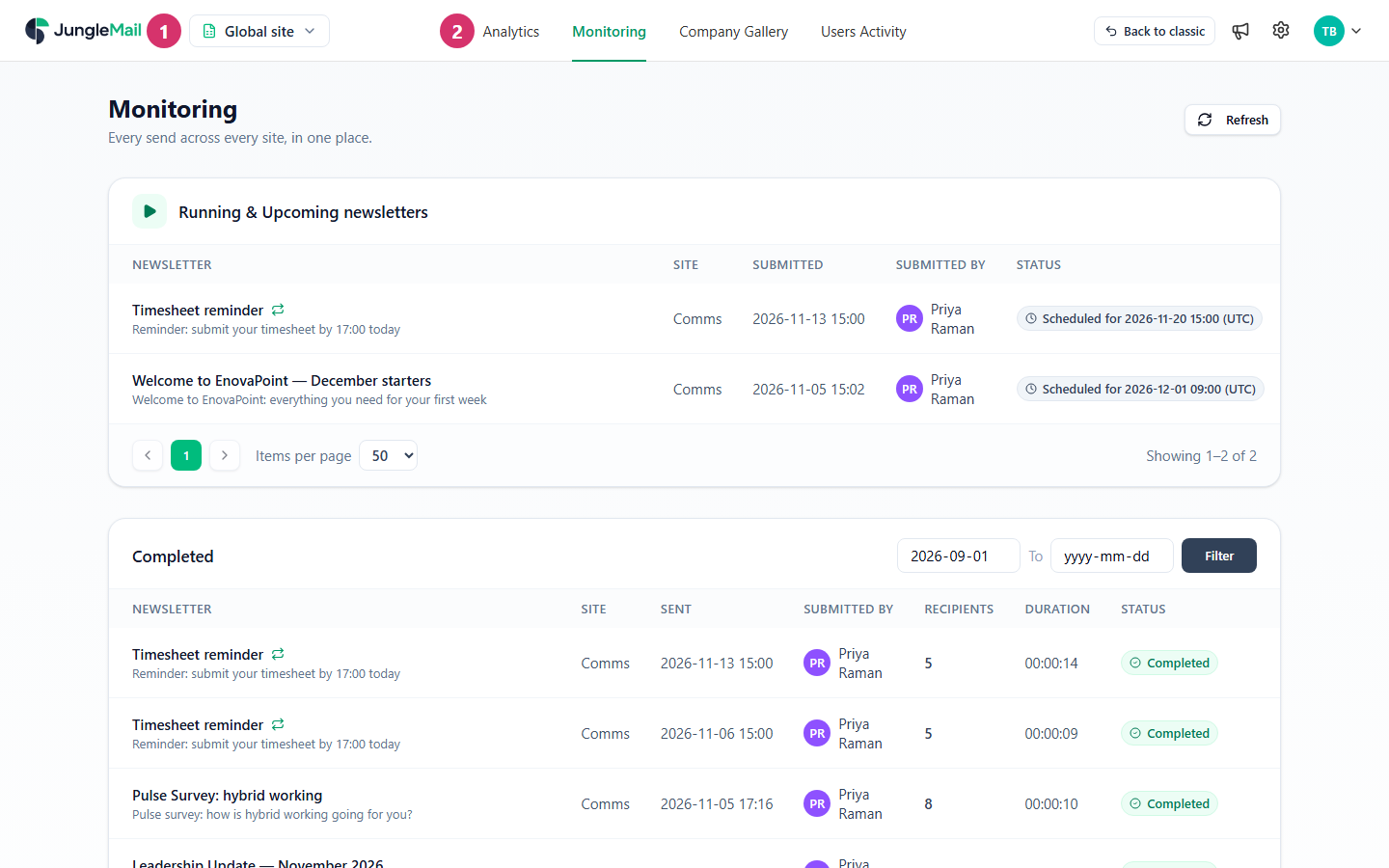
-
The site switcher shows Global site while you are on it.
-
The Global site has a menu of its own:
Menu What it shows Analytics The results of every site’s newsletters in one list, with the site each came from Monitoring Every site’s running, scheduled and completed newsletters Company Gallery The templates and images shared with every site, and the templates sites submit for review Users Activity The audit log and who is using JungleMail now. Only global administrators see it
Its dashboard sums up the last 30 days across all sites: newsletters being sent now, the activity of each site, and the latest newsletters. Its Settings menu, for global administrators only, has fewer pages than a regular site’s: Sending Accounts, Automation, Users and Regional Settings.
Who uses it
Section titled “Who uses it”Global administrators see Users Activity and can manage the Global site’s users. For the rest they need a role on it, as everyone else does: whoever creates the Global site becomes its Administrator. You can also give other people a role on the Global site:
- Report Viewer sees the newsletters of every site, in Analytics and Monitoring. EnovaPoint gives it to Mei Lin Tan, its data analyst.
- Template Manager manages the Company Gallery: the templates every site can start from. EnovaPoint gives it to Sofia Alvarez, its brand designer.
Add people to the Global site like any other site (Manage users and licenses).
Create the Global site
Section titled “Create the Global site”- Go to Settings > All Sites and select New JungleMail Site.
- Choose Create Global site.
- In Create Global site, type its Site name and choose whether to Hide from dropdown. Leave it off if anyone besides global administrators will use the site: they find it only in the site switcher.
- Select Create.
You become the Global site’s first Administrator, and the Report Viewer and Template Manager roles appear on Permission Roles. Once the Global site exists, Create Global site is no longer offered. On plans other than Enterprise the option is shown but can’t be selected.
Open the Global site
Section titled “Open the Global site”Choose Global site in the site switcher at the top left, or select its name on Settings > All Sites. If its Hide from dropdown option is on, the site switcher doesn’t list it: open it from All Sites, or edit it there and turn the option off (Create and manage JungleMail sites).
- Give the narrow roles, not Administrator. Report Viewer and Template Manager do one job each. Keep Administrator on the Global site to the people who manage its settings and users.
- Keep company-wide templates here and team templates on the teams’ sites. A template published from the Company Gallery reaches every site, and only the Global site can change it, so it suits designs such as a company newsletter that must look the same everywhere (Share templates with every site).
- Count the Global site’s people in your licenses. Everyone who uses JungleMail takes a user license, so Mei Lin and Sofia each take one, even though they send nothing (Manage users and licenses).