

Global settings and inheritance
The global settings are one set of security, privacy, AI, audit, data retention, appearance, branding and regional settings for the whole organization. Every site that inherits them uses them instead of its own, so you set a policy once rather than site by site. You can also lock a site’s settings so that only global administrators can change them.
Put your organization’s policies in the global settings, and let every site inherit them, as new sites do. Lock the sites whose settings must not drift from those policies; leave a site’s own settings to it only when the team has a reason, such as its own branding.
Before you begin
Section titled “Before you begin”- You need to be a global administrator (Global administrators).
Change the global settings
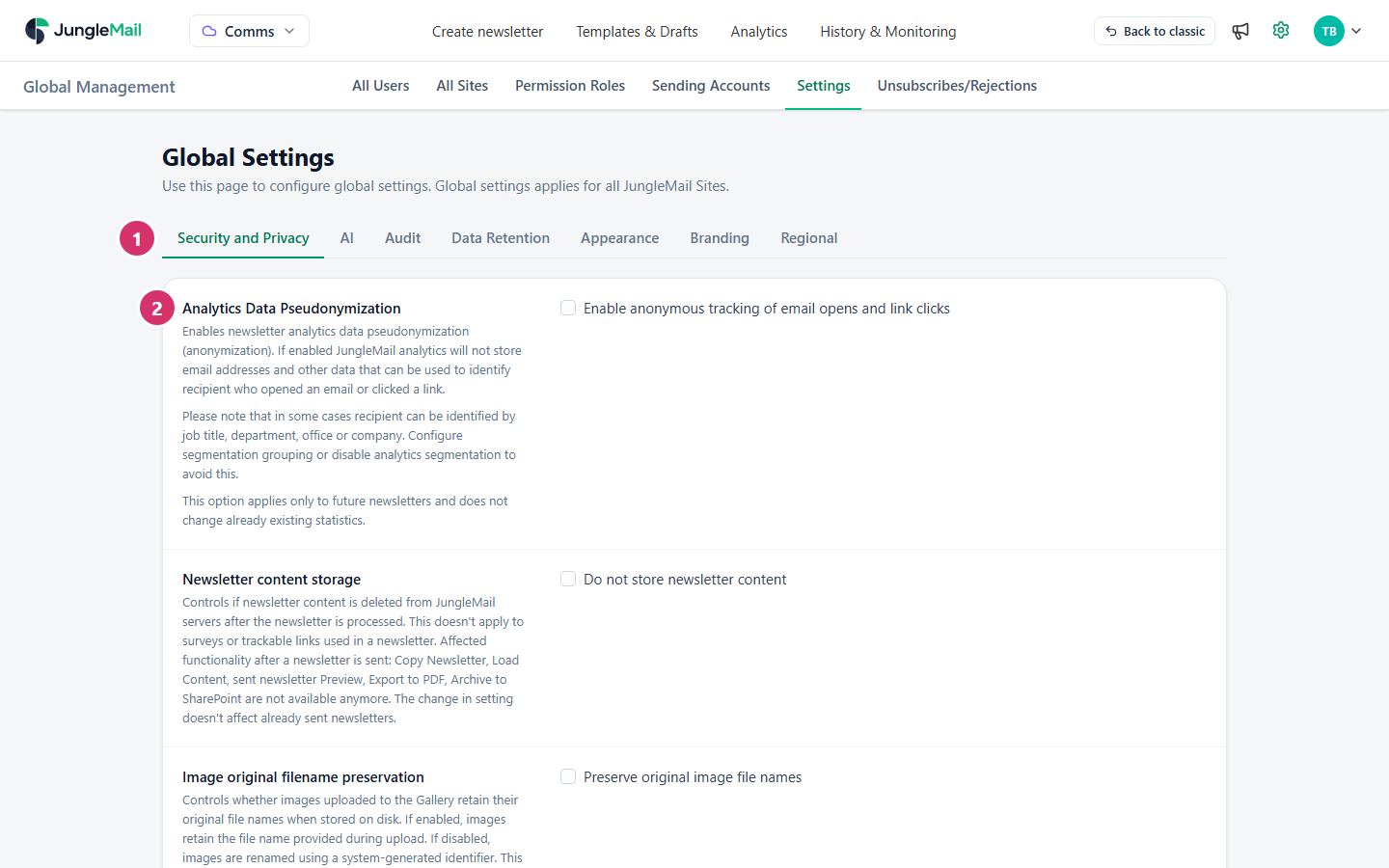
Section titled “Change the global settings”Go to Settings > Global Management > Settings. The page is called Global Settings.
-
Select the tab with the settings you want to change. Each tab has the same settings as a site’s own Settings page:
Tab What it covers See Security and Privacy Analytics privacy, content storage, recipient sources, groups and email domains Security and privacy settings AI The AI assistants and translations Turn AI features on or off Audit Extra recipients of every newsletter and every report Audit copies and data retention Data Retention When old newsletters and the Recycle Bin are emptied Audit copies and data retention Appearance Menu colors, template tabs, the Recipient Activity tab and custom texts Change the menu colors and template tabs Branding Fonts, colors, default templates and other branding Fonts, colors and other branding settings Regional Language, time zone and formats Language, time zone and formats Where your organization can connect Microsoft Entra ID with a service account, Security and Privacy also has a setting only Global Settings has: Microsoft Entra ID connection > Allow sites to use the service account of another site, on by default. It lets a site administrator connect Microsoft Entra ID with the service account another site uses, without signing in as that account (Connect Microsoft Entra ID).
-
Change the settings.
-
Select Save in the bar that appears at the bottom of the page. Cancel undoes your changes.
The changes apply at once to every site that inherits the global settings. Sites that don’t inherit keep their own.
Choose which sites follow the global settings
Section titled “Choose which sites follow the global settings”On Settings > All Sites, each site’s card has two switches. Each takes effect as soon as you select it.
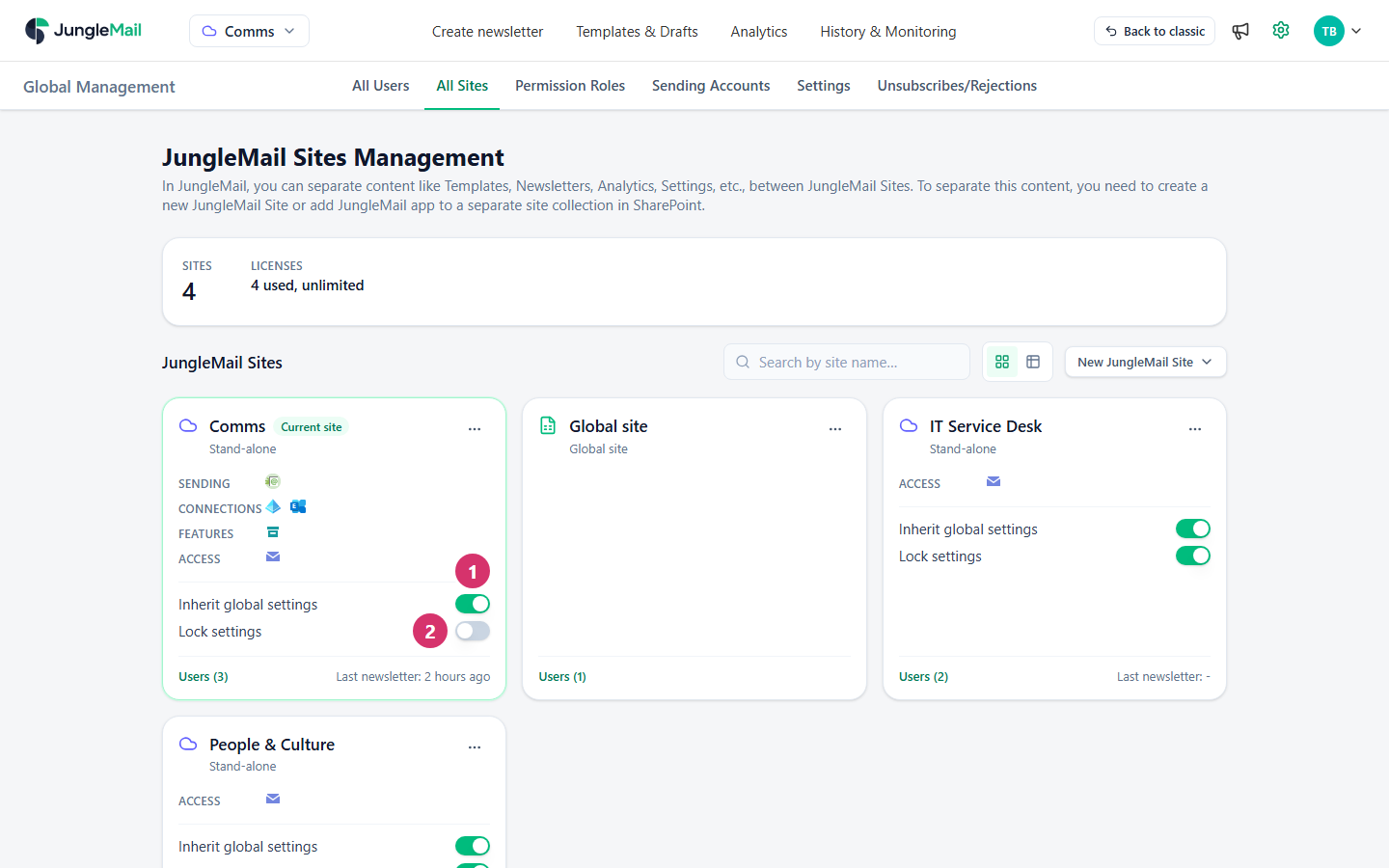
- Inherit global settings: on, the site uses the global settings, and its own Settings page shows them without letting anyone change them there. Off, the site uses its own settings.
- Lock settings: on, only global administrators can change the site’s settings, and only they can turn its inheritance on or off. Its administrators see Site settings are locked by global administrator.
Together, the two switches give a site one of four arrangements:
| Inherit global settings | Lock settings | The site uses |
|---|---|---|
| On | Off | The global settings. Its administrators can turn inheritance off to use their own |
| On | On | The global settings, and only global administrators can change that |
| Off | Off | Its own settings, which its administrators manage |
| Off | On | Its own settings, which only global administrators can change |
A site you create on All Sites starts with both switches on; the first site, which JungleMail creates for your organization, starts with only Inherit global settings on. The same two switches are also at the top of each site’s Settings page, as Lock Site settings, which only global administrators see, and Inherit from global settings.
Sending accounts follow their own rule: a site can use the global sending account settings or its own (Global sending accounts).
- Lock the first site. It starts with Lock settings off, so its administrators can turn inheritance off and leave your policies behind. Turn the lock on unless they need settings of their own.
- Remember that inheritance covers every tab at once. A site that stops inheriting to get its own branding or time zone also gets its own Security and Privacy, Audit and Data Retention settings. Copy your policies to it, then lock it, so that it keeps them (the last row of the table above).
- Set the policies that carry obligations once, here. Anonymous tracking, newsletter content storage, audit copies and data retention decide what JungleMail keeps about recipients. Agree them with whoever looks after privacy and records in your organization, and keep them out of each site’s hands (Security and privacy settings).
- Tell site administrators before a change. It reaches every inheriting site at once. Turning on Do not store newsletter content, for example, means newsletters sent from then on can no longer be previewed, copied or archived to SharePoint.
- Choose the time zone most editors schedule in. Newsletters are scheduled in the site’s time zone unless the editor chooses another (Language, time zone and formats).