

Connect Dynamics 365 CRM
The Dynamics 365 CRM connection lets the editors of a site send newsletters from JungleMail 365 to records in your Dynamics 365 CRM: accounts, contacts, leads, marketing lists and campaigns, each of which you can offer or hold back. Connect it on a site that sends to customers, partners or leads your organization keeps in Dynamics 365; for employees, groups serve better (Recipients). JungleMail reads the records as its own application, through an application user in your environment, so the connection doesn’t depend on the account of whoever set it up.
Before you begin
Section titled “Before you begin”- You need the Administrator role on the site, or a role with Manage Connections.
- The connection is part of the Enterprise plan, where your deployment offers a way to sign in to Dynamics 365.
- You need the address of your Dynamics 365 environment, which the Power Platform admin center shows, a Microsoft 365 global administrator, and someone who can manage the environment’s application users. Plan the setup with both: Microsoft’s sign-in opens as soon as you save, and the test passes only once the application user exists.
- Microsoft’s sign-in opens in a new window, so allow pop-ups for JungleMail in your browser.
Set it up
Section titled “Set it up”-
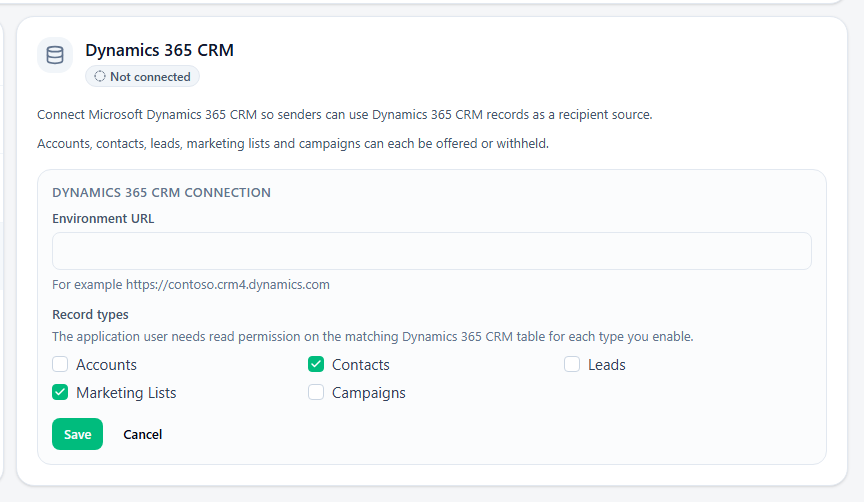
Go to Settings > Connections, select Dynamics 365 CRM, then Connect…, and enter your environment’s address in Environment URL, such as
https://<organization>.crm4.dynamics.com. -
Under Record types, select only the types your editors will use, such as Marketing Lists and Contacts: turning a type off later stops every newsletter that uses it until its editor removes it (Send to Dynamics 365 records).
-
Select Save. Microsoft’s sign-in opens in a new window: sign in as a Microsoft 365 global administrator and accept. This registers JungleMail’s app in your tenant, and the Setup step names the app. If the window closed before you signed in, select Authorize… to open it again.
-
In the Power Platform admin center, go to Manage > Environments, select your environment, then Settings > Users + permissions > Application users. Add JungleMail’s app as an application user (New app user > Add an app, and search for it by name), with security roles that can read the record types you selected (Manage application users). Reading those types is all JungleMail asks for, so don’t give it a broader role, such as System Administrator, for convenience.
-
Back on Connections, select Test. When JungleMail can read the records, the status is Enabled and tested, and Dynamics 365 under To in the newsletter wizard lists the record types you selected.
Change it or turn it off
Section titled “Change it or turn it off”- Change keeps the setup while you change the environment URL or the record types: use it, rather than Disconnect, to adjust the connection.
- Re-authorize… runs the Microsoft consent again, if your tenant or environment changed or the consent was withdrawn. It also needs a Microsoft 365 administrator.
- Disconnect, at the top right, turns the connection off and clears the environment URL and the sign-in settings. Scheduled or running newsletters that use it may fail. Your organization’s consent stays: connecting the same environment again doesn’t ask for it.
- Ask for views that leave out people who don’t want marketing email. Editors send to the records in a Dynamics 365 view or marketing list, so ask whoever runs Dynamics 365 for views that respect the contact preferences recorded there, and tell editors which ones to use.
- Set up the sending side before the first customer newsletter. Newsletters to customers go to mail services such as Gmail, which ask senders for an authenticated domain and an easy way to unsubscribe (Email sender guidelines, Send from your own domain, Add an unsubscribe link).