

Approval flows in Power Automate
JungleMail 365 can hold newsletters until someone approves them. Its built-in approval needs no flow (Set up newsletter approval). Use Power Automate when approval should follow rules of your own, for example only for newsletters with more than 100 recipients. JungleMail starts your flow when an editor submits a newsletter, and the flow approves or rejects it.
Built-in approval suits most sites: there is no flow to build or look after, and it asks for approval of every newsletter on the site. It comes with the Enterprise plan, and your account manager can turn it on for other plans. A flow is worth it when:
- only some newsletters need approval, such as those to many recipients or recurring ones, and the others should go straight through;
- approvers should answer in Outlook or a Teams card, as they do for other approvals in Power Automate (Get started with Power Automate approvals);
- approvers must answer one after the other, such as Legal before Communications, with a sequential approval;
- the approval has to do more, such as record each decision in a SharePoint list.
Before you begin
Section titled “Before you begin”- You need the JungleMail connector and a connection to it (Connect Power Automate to JungleMail).
- In JungleMail, you need permission to manage Automation settings on the site, as a site administrator has.
Build the flow
Section titled “Build the flow”- Create an automated cloud flow that starts with your connector’s trigger When a newsletter is submitted. In
Title, enter a name, for example
EnovaPoint newsletter approval: JungleMail lists the flow under this name. - Add the action Get newsletter details, with Newsletter id from the trigger.
- Add Microsoft’s action Start and wait for an approval. Send it to the trigger’s Newsletter moderator emails (semicolon separated), or to people of your choice, and put the newsletter’s Preview URL in its details. As its type, Approve/Reject - First to respond suits most sites, as At least one must approve does in built-in approval; choose Approve/Reject - Everyone must approve only when each approver checks something different.
- Add a condition that checks whether the approval’s Outcome is
Approve. - If it is, add Approve newsletter, with Secret set to the trigger’s Newsletter approval secret. If it isn’t, add Reject newsletter with the same Secret, and put the approvers’ comments in Comments.
- Save the flow.
To let some newsletters through without asking anyone, add a condition before step 3 on a value from Get newsletter
details, such as Total recipients greater than 100, and approve the others straight away with Approve
newsletter.
Use the flow in JungleMail
Section titled “Use the flow in JungleMail”In JungleMail, go to Settings > Approval.
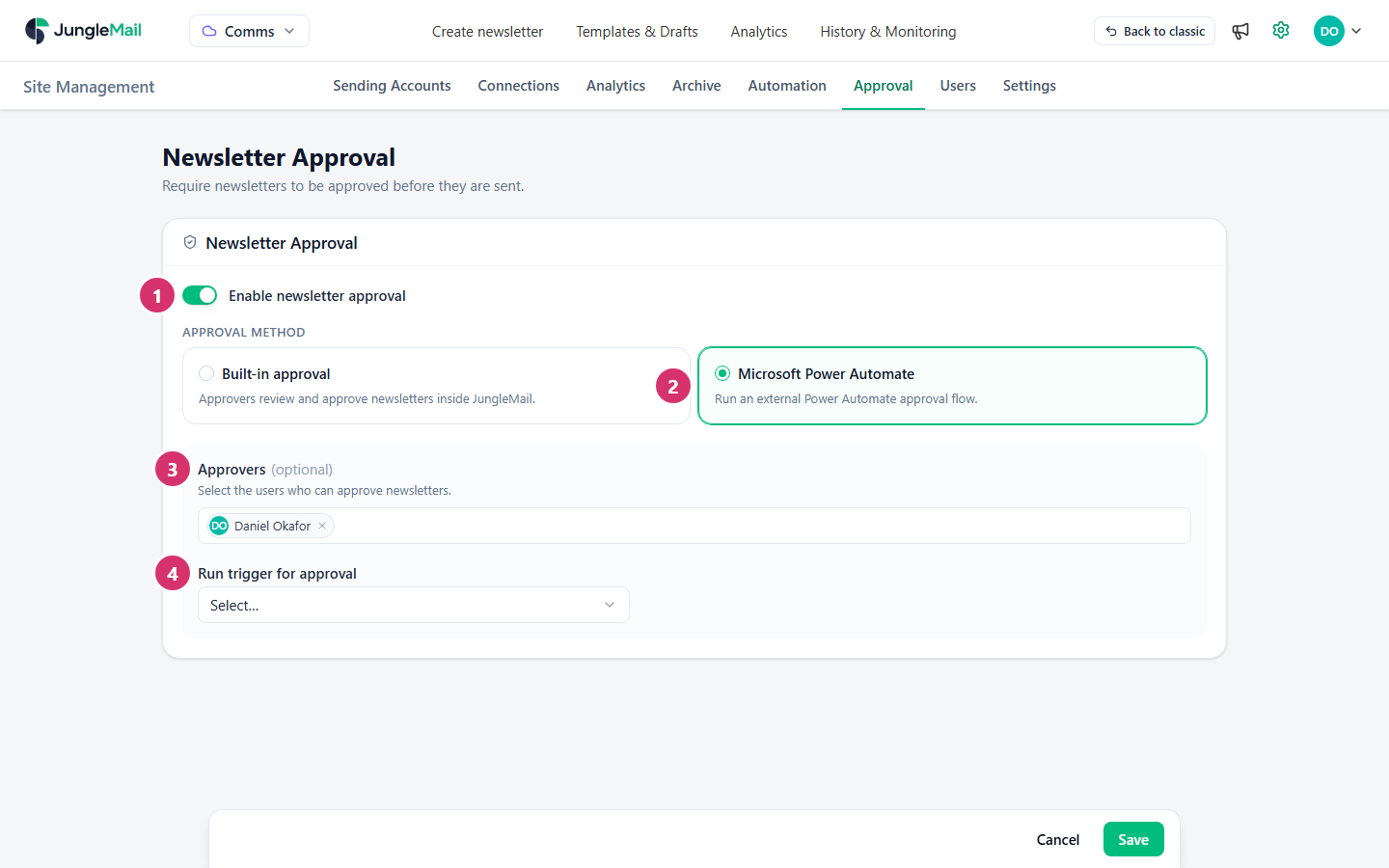
- Turn on Enable newsletter approval.
- Under Approval method, select Microsoft Power Automate.
- Optionally, choose Approvers. Their addresses reach the flow as Newsletter moderator emails. If the flow sends its approval to them, the site administrator can change approvers here without editing the flow.
- In Run trigger for approval, select your flow’s title.
- Select Save.
From then on, newsletters that editors submit on this site wait for your flow (Submit a newsletter for approval).
- Decide what happens when nobody answers. A flow run lasts at most 30 days, and an approval still pending then times out (Limits of automated, scheduled, and instant flows). A newsletter whose flow ends without an answer, or whose flow run fails, stays pending approval in JungleMail until someone selects Restart approval. Give the approval a shorter time limit and reject the newsletter with a comment when it runs out, so that the editor hears back instead of waiting.
- Put what approvers check in the request. Add Total recipients next to the Preview URL: a newsletter for the London office should show about 820 recipients, not All Employees’ 2,412 (Approve or reject a newsletter).
- Give the flow a co-owner. A flow keeps running while it has an active owner; with none, submitted newsletters wait for a flow that no longer runs. Add a co-owner who stays, and when someone leaves, replace the connections they created in the flow (Share a cloud flow).
- Test both paths before you turn it on. With a threshold, submit one newsletter under it and one over it, each to a few test recipients, and check that the first goes out at once and the second reaches the approvers.