

Set up newsletter approval
With newsletter approval on, a site’s newsletters go out only once they are approved: editors submit them instead of sending them. JungleMail 365 can run the approval itself, emailing your approvers a link to review each newsletter, or hand it to an approval flow in Power Automate.
Approval adds a wait to every newsletter on the site, so turn it on where a second look is worth that wait: a site whose newsletters reach the whole organization or speak for its leadership, new editors who are still learning, or content your organization requires someone to sign off, such as HR or legal notices. For a team that sends short, frequent updates to a small audience, a test and a colleague’s read may be check enough (Preview and test a newsletter).
Before you begin
Section titled “Before you begin”- You need the Administrator role on the site, or a role with Manage Automation settings.
- Built-in approval comes with the Enterprise plan. On other plans, ask your account manager to turn it on; until then the option says Not available on your current plan. Contact your account manager to enable it.
- Approvers are chosen from the site’s users, so add them to the site first (Manage site users). An approver who doesn’t write newsletters needs no more than the Viewer role.
- For Microsoft Power Automate, you need an approval flow that starts with JungleMail’s When a newsletter is submitted trigger (Approval flows in Power Automate).
Turn approval on
Section titled “Turn approval on”Go to Settings > Approval, turn on Enable newsletter approval, and choose the Approval method:
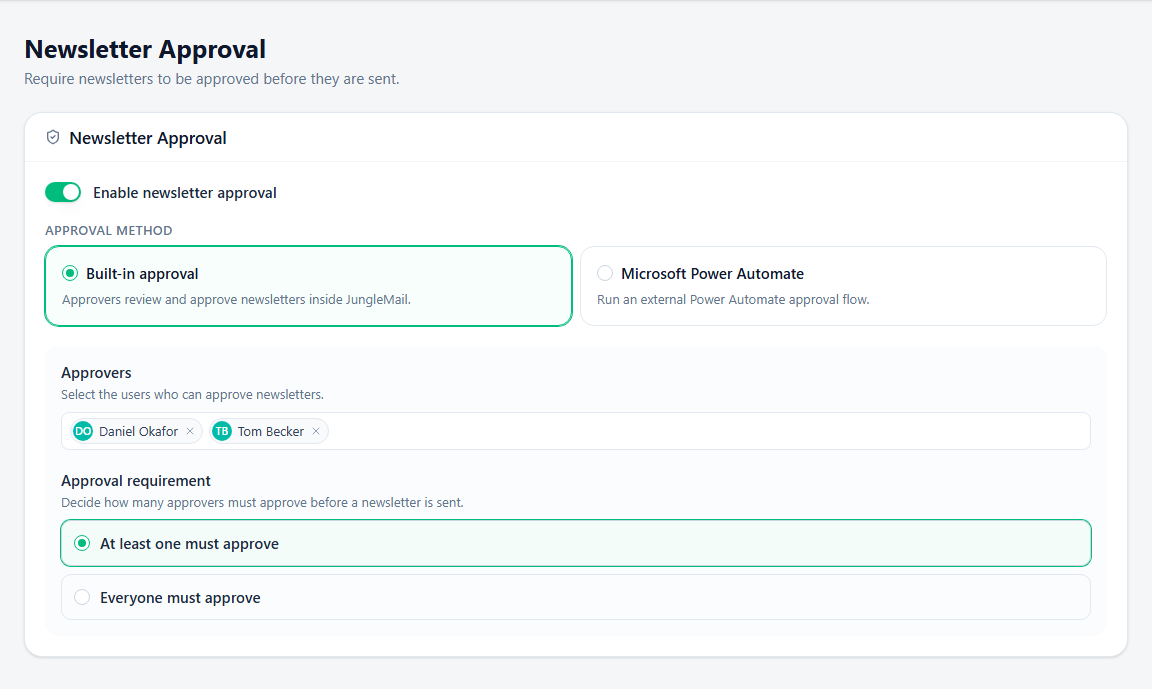
- Built-in approval: approvers review and approve newsletters inside JungleMail. Choose it unless you need rules: it needs no flow to build or look after. Under Approval requirement, At least one must approve suits most sites; choose Everyone must approve only when each approver checks something different, such as Legal and Communications, because the newsletter then waits for the slowest answer.
- Microsoft Power Automate: the approval flow you choose under Run trigger for approval decides. Choose it when only some newsletters need approval, such as those to more than 100 recipients: a flow can approve small ones at once and ask a person only about the large ones, while built-in approval applies to every newsletter on the site.
Under Approvers, add the users who can approve; for Power Automate they are optional, and their addresses are passed to the flow. Choose people who are accountable for what the site says, such as the head of communications, rather than the editors who write the newsletters, and add at least two, so that one person’s absence doesn’t hold newsletters back. An approver can approve a newsletter they submitted themselves, so approval checks nothing when they are the same person. Then select Save.
When you change the approvers while newsletters are waiting for built-in approval, such as when an approver goes on leave, select Apply to newsletters awaiting approval as you save. Answers already given are kept, new approvers are emailed a review request, and nothing is approved automatically.
What editors and approvers see
Section titled “What editors and approvers see”- Editors submit their newsletters for approval instead of sending them (Submit a newsletter for approval).
- With built-in approval, approvers open the newsletter from the email they receive and approve or reject it (Approve or reject a newsletter).
- With Power Automate, the flow approves or rejects the newsletter, and JungleMail sends or stops it.
- Tell editors before you turn it on. From then on, their newsletters need time for approval: ask them to submit early and schedule rather than send at once, so that a late approval doesn’t send a newsletter in the evening (Submit a newsletter for approval).
- Agree on what approvers check. Who the newsletter goes to and from which address matter as much as the text: a newsletter for London that shows All Employees’ 2,412 recipients instead of 820 is going to the wrong people (Approve or reject a newsletter).