

Restore deleted items
When you delete a newsletter, a draft, a template, a saved section, a theme or an image in JungleMail 365, it goes to the Recycle Bin of its JungleMail site, and you can restore it from there, as it was and where it was. You see the items you deleted, under My Recycle Bin; site administrators see everyone’s, under Recycle Bin. So ask your site administrator for an item a colleague deleted, such as a shared template.
Restore an item
Section titled “Restore an item”Go to Settings > Recycle Bin, find the item, select … at the end of its row, then Restore.
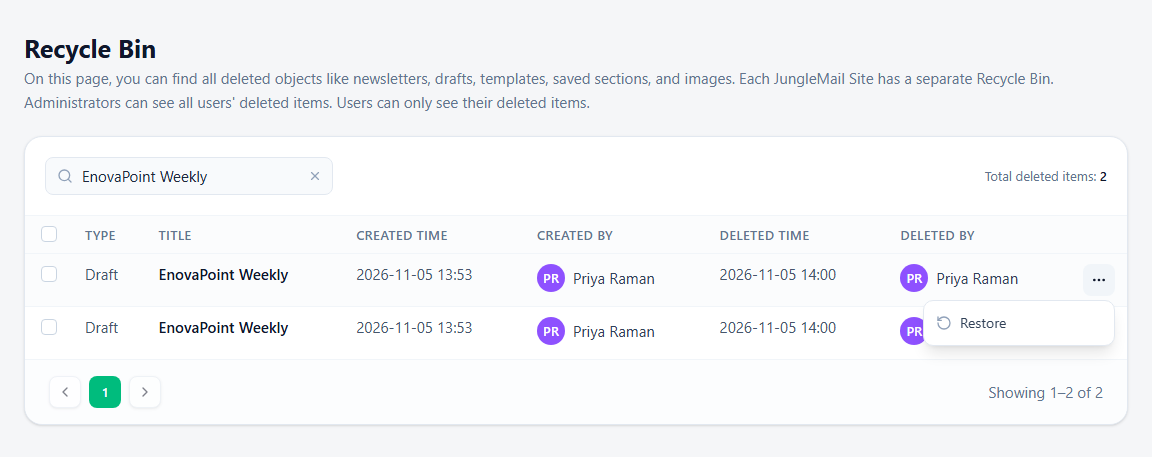
When several items share a title, such as the drafts of a regular newsletter, tell them apart by Type and by when they were deleted. To restore several items at once, select their rows, then the button that appears above the list, such as Restore 2 items.
How long items stay
Section titled “How long items stay”Your site’s administrator decides how long items stay in the Recycle Bin. If they have set a period, the page says so: Items in the Recycle Bin will be automatically deleted after that many days, and JungleMail then deletes them for good, except images, which stay until someone deletes them. Without a period, items stay until someone restores them. Before a large clean-up, check the period, and if it is short, ask colleagues before you delete what they might still use (Audit copies and data retention).
Don’t delete sent newsletters to tidy up History: when a sent newsletter is deleted for good, the images and links in the emails already sent may stop working, and its analytics are deleted with it.