

Send your first newsletter
You create a newsletter, check it on a phone, send yourself a test, send it to a few colleagues and follow it until it has arrived. It takes about 15 minutes. Do it before your first newsletter to a large group, so that you know every step when it matters. The pictures show EnovaPoint Weekly, a newsletter from EnovaPoint’s communications team.
You need:
- access to a JungleMail site as an editor or administrator (Sign in to JungleMail);
- a sending account on the site. If the From field turns out empty, ask your site administrator.
Step 1: Start a newsletter
Section titled “Step 1: Start a newsletter”- Select Create newsletter in the top menu, or on the dashboard.
The newsletter wizard opens at its first step, Recipients.
Step 2: Say who it is from and who gets it
Section titled “Step 2: Say who it is from and who gets it”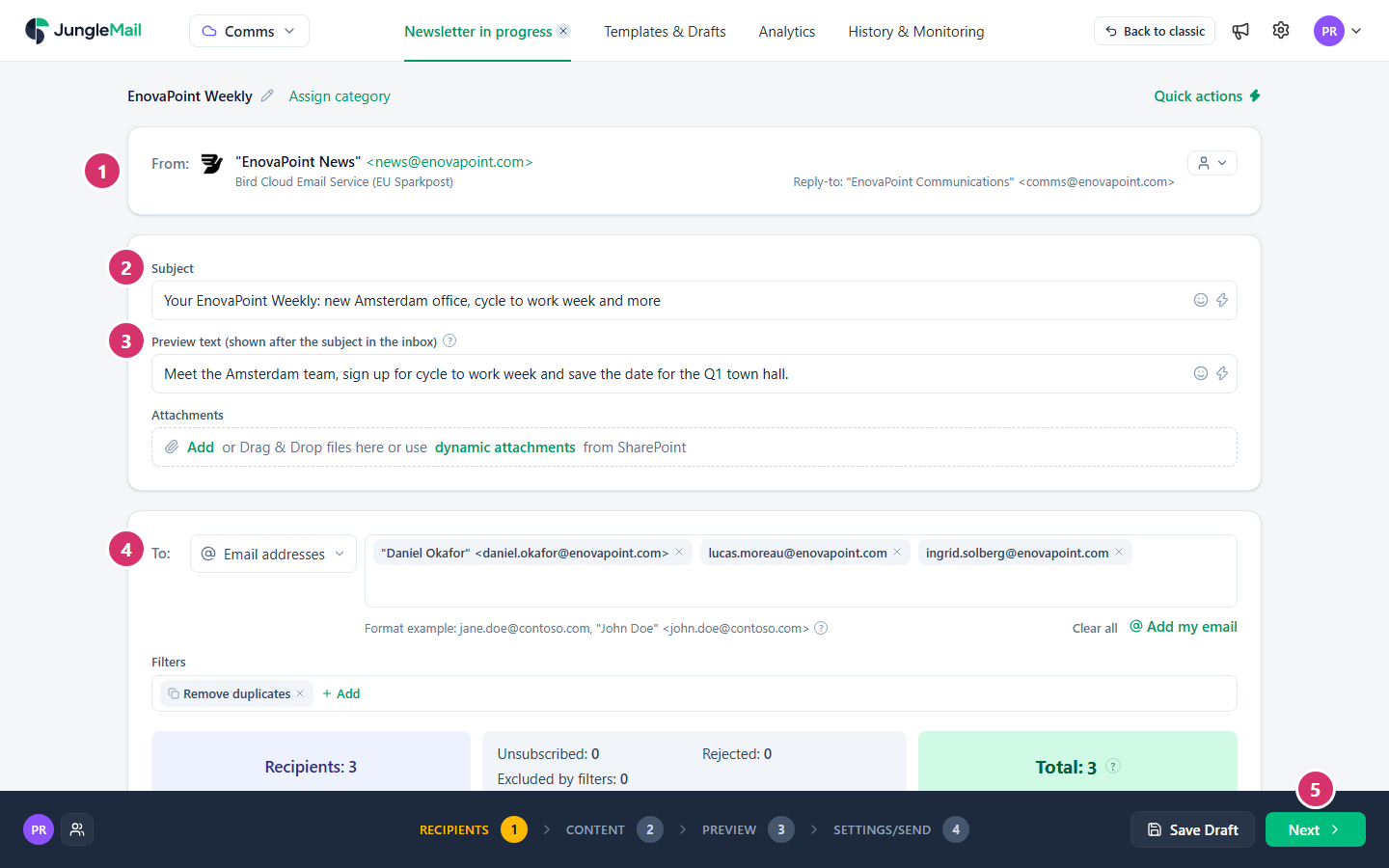
- In From, check the sending account: the name and address your colleagues will see. If you can choose a shared
address, such as
news@enovapoint.com, prefer it to your own for newsletters, so that they don’t come from one person. - In Subject, type the subject, for example
Your EnovaPoint Weekly: new Amsterdam office, cycle to work week and more. Put the words that matter first: phones show only the beginning. - In Preview text (shown after the subject in the inbox), type a sentence that adds to the subject. Many email programs show it after the subject; left empty, they show the first words of the newsletter instead (Write the subject and preview text).
- In To, open the list of recipient sources and select Email addresses. Type the addresses of two or three colleagues, separated by commas. To get a copy yourself, select Add my email.
- Select Next.
Step 3: Write the email
Section titled “Step 3: Write the email”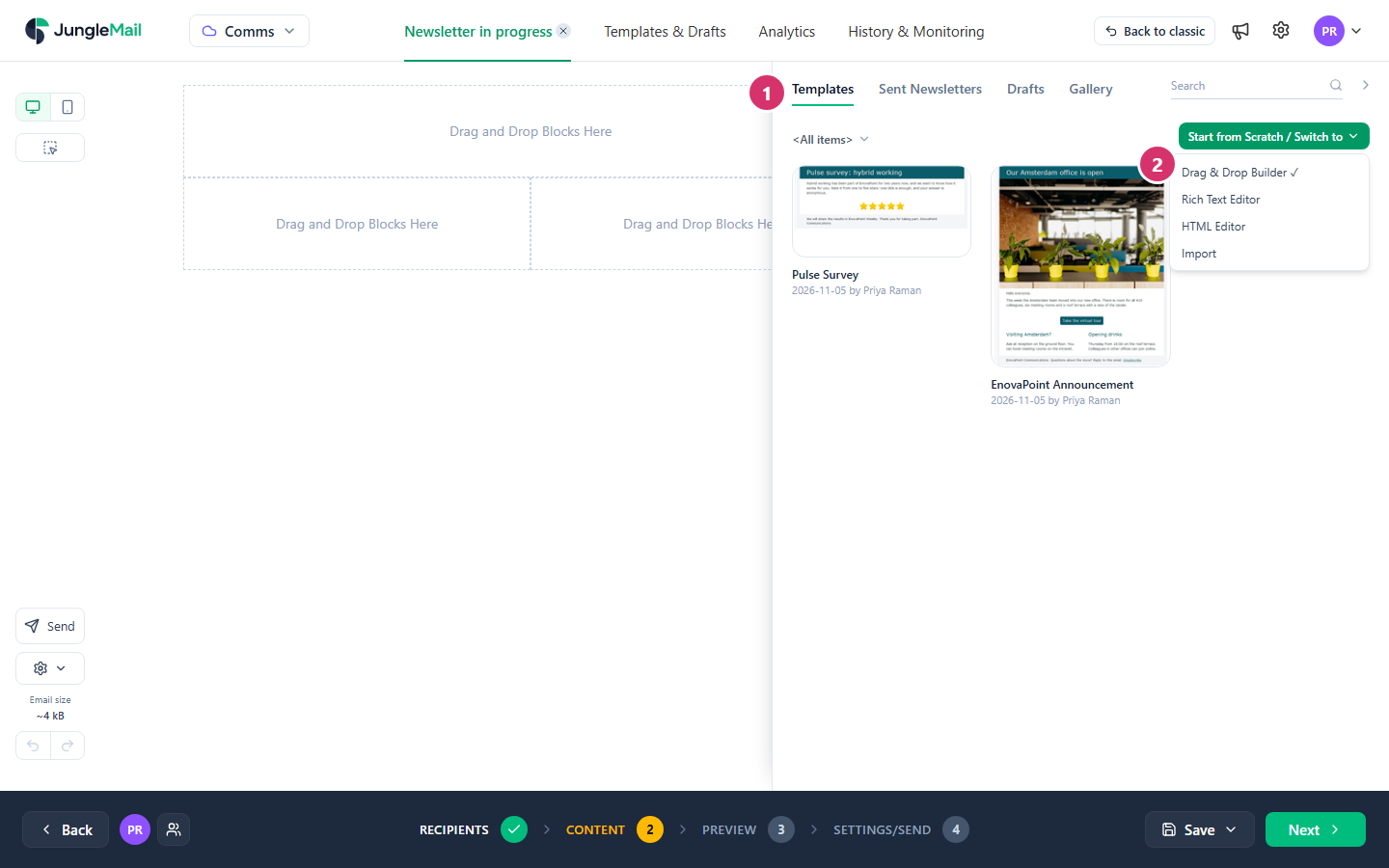
- If your site has templates, select one under Templates: the email starts from its design, with its structure and branding in place, and you change only the words.
- Otherwise, select Start from Scratch / Switch to > Drag & Drop Builder for a new email.
- Change the text: select a block on the canvas and type. To add a block, drag one from Content blocks, such as Text or Button, onto the canvas (Build an email with blocks and sections). Keep the text short, and link to longer stories on your intranet rather than copying them in, since Gmail cuts off long emails (Keep your email under Gmail’s clipping limit).
- Select Next.
Step 4: Check it and send yourself a test
Section titled “Step 4: Check it and send yourself a test”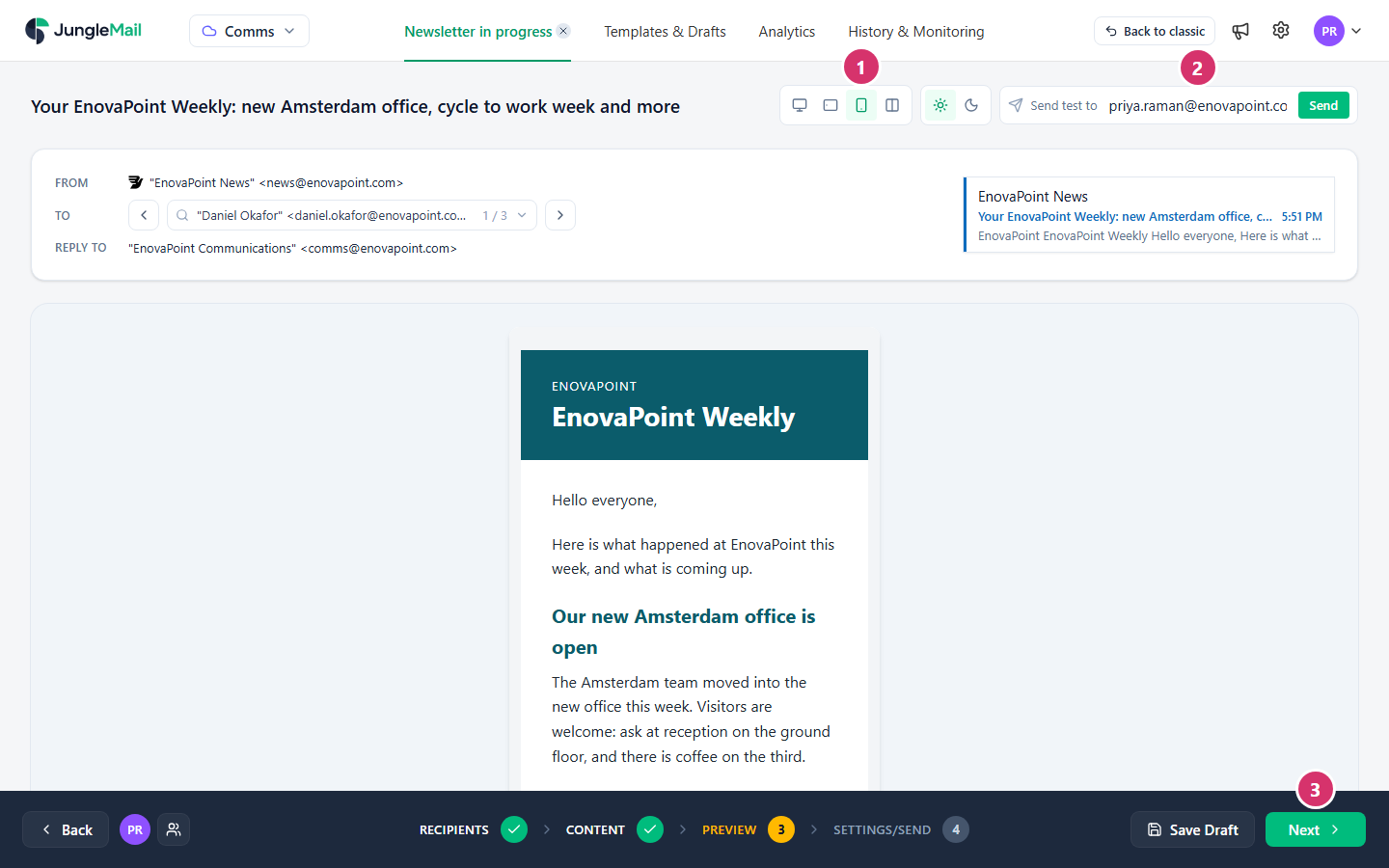
- Select Mobile to see the newsletter on a phone screen. On phones, a section’s columns are stacked one under the other, so check that they still read in order.
- In Send test to, your address is filled in. Select Send, then open the test email in Outlook and on your phone: email programs can show it slightly differently from the preview.
- Select Next.
Step 5: Send it
Section titled “Step 5: Send it”This newsletter is a trial run, so mark it as one: below When to send, turn on Mark as a test newsletter. You can then leave it out of your results with Hide test newsletters in Analytics (Find and compare newsletter results).
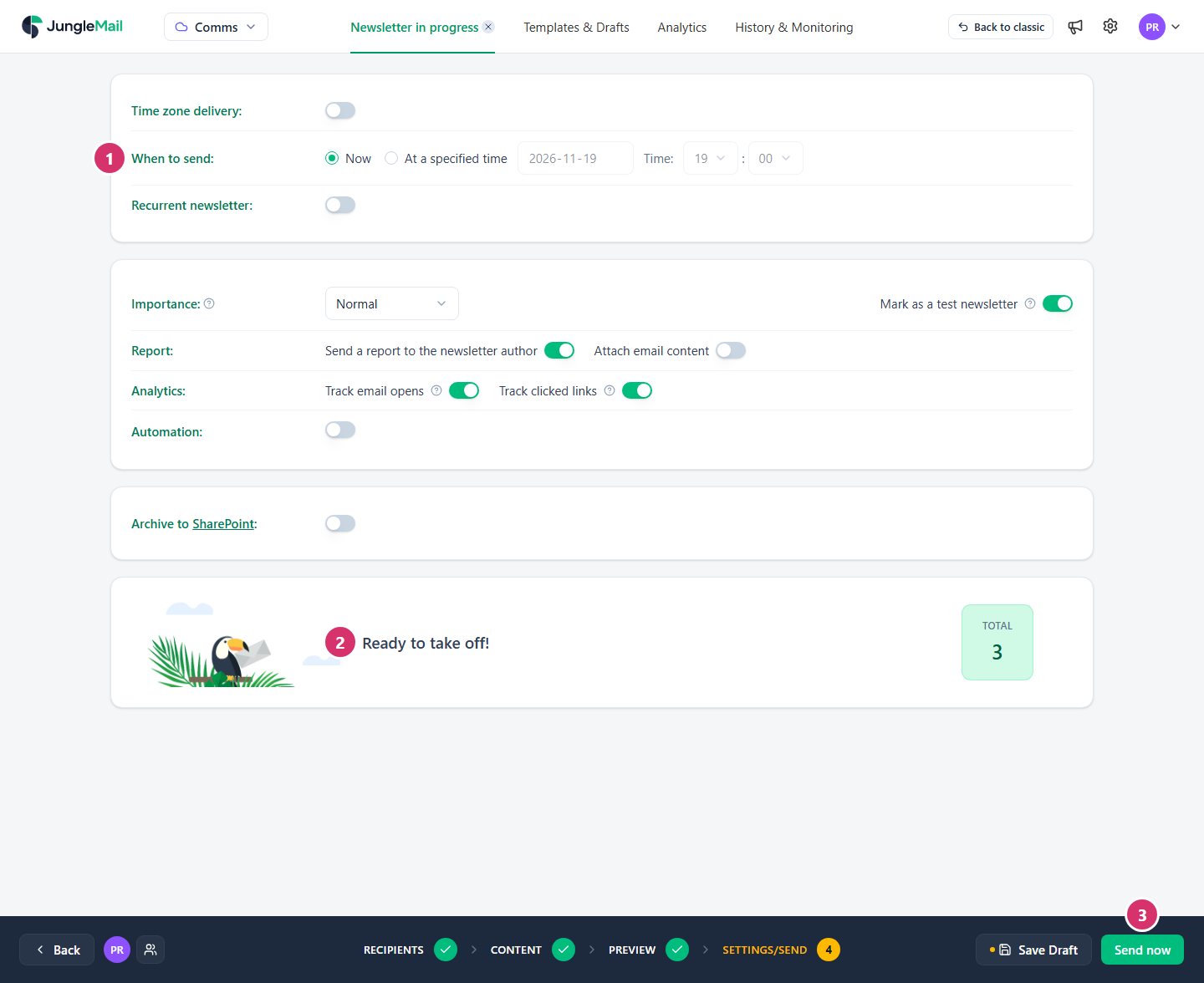
- In When to send, leave Now selected.
- Check that the step says Ready to take off!. If something is missing, such as the subject, it says what, with Fix. beside it.
- Select Send now.
Step 6: Follow it
Section titled “Step 6: Follow it”JungleMail takes you to History & Monitoring.
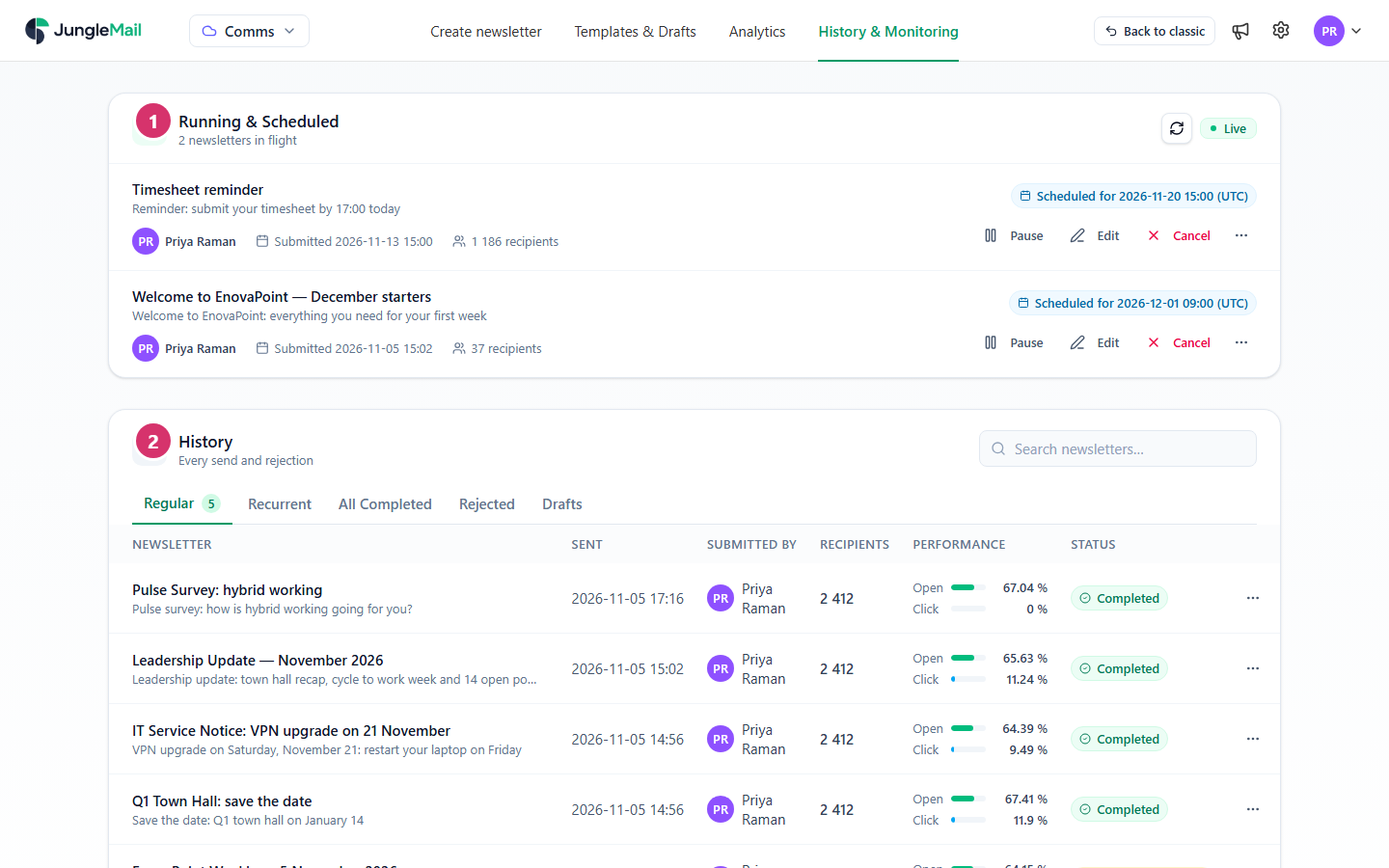
- Running & Scheduled shows your newsletter while it is being sent, with how many emails have gone out.
- Once everyone has it, it moves to History, with its open and click rates. Select More actions (…) > Open analytics for its full results. Read the open rate as a minimum: readers whose email program doesn’t load pictures, and who click nothing, aren’t counted (How open and click tracking works).
You have sent your first newsletter.
- Send to a team through its group. When you send to a team for real, select its group under Microsoft 365, AD groups or Exchange groups, never its address under Email addresses. Only then does each member get an email of their own, with their own merge tags, results and unsubscribe (Choose recipients).
- Check Total before you send to a group. Under To, Total is everyone who will receive the newsletter, and the lines above it say who is left out and why, such as people who unsubscribed (Some recipients are missing).
- Send when your readers read. A newsletter’s report shows its Peak Engagement Window, the day and hour with the most opens: schedule later issues for then (Read a newsletter report). For offices in several time zones, such as EnovaPoint’s from Chicago to Sydney, Time zone delivery, on the Enterprise plan, delivers at the same local time in each (Send or schedule a newsletter).
What’s next
Section titled “What’s next”- Choose recipients, such as Microsoft 365 groups
- Start a newsletter from a template
- Send or schedule a newsletter
- Read a newsletter report