

Connect SharePoint
The SharePoint connection lets the editors of a site send to the people in a SharePoint list, and pull list items, such as news or events, into their emails.
For most sites, choose the per site type: people see only what they may open themselves, and JungleMail 365 stays out of every site your IT team hasn’t granted. Choose the service account type when one account to set up and review suits you better, and everyone who builds newsletters may use the same content (SharePoint connection: service account or selected sites).
Before you begin
Section titled “Before you begin”- You need the Administrator role on the site, or a role with Manage Connections.
- Decide with your IT team how JungleMail signs in to SharePoint, because that decides whose permissions it reads with. The service account and per-site types need some setup in Microsoft 365 first: with a service account or for selected sites.
- The first time, a Microsoft 365 administrator grants consent to the app’s permissions.
Connect it
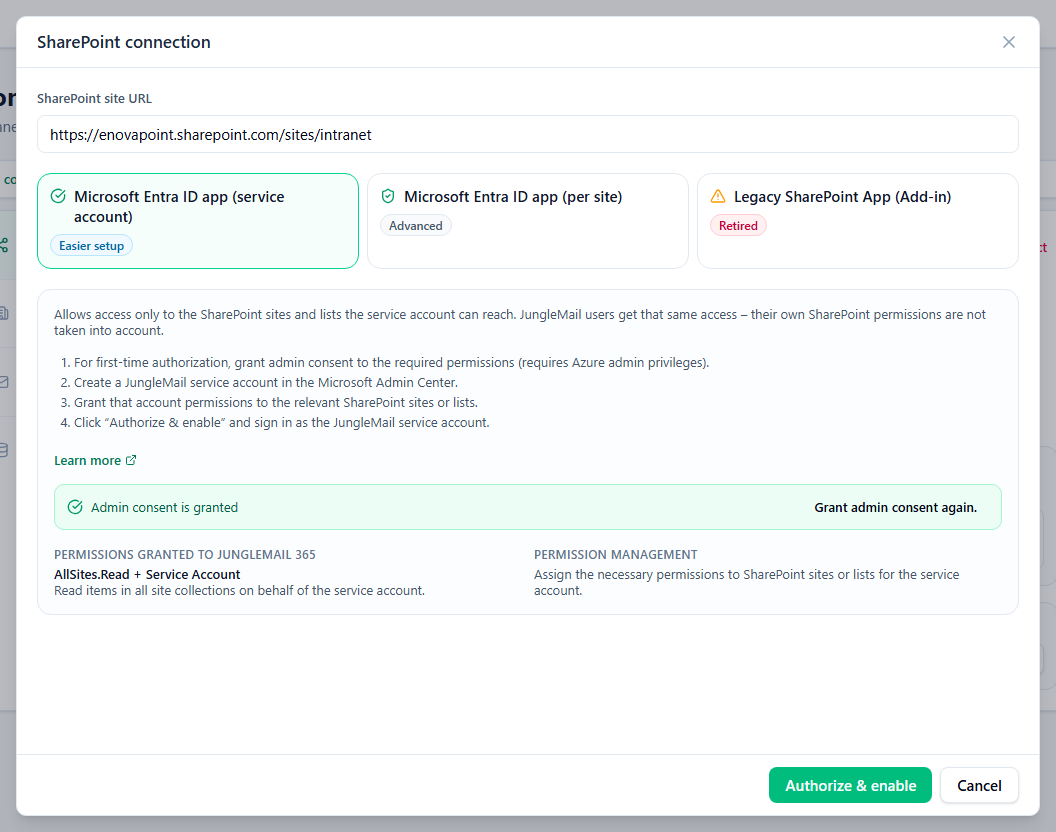
Section titled “Connect it”Go to Settings > Connections, select SharePoint, then Connect…. Nothing is turned on until you finish the SharePoint connection dialog.
-
In SharePoint site URL, enter the address of a site, such as
https://enovapoint.sharepoint.com/sites/intranet: one the service account can open, or, for per site, one that was granted to JungleMail. -
Choose how JungleMail signs in. The dialog offers the types your organization can use, and lists the steps for the one you choose; for per site, with the PowerShell command an administrator runs for each site.
Type Reads SharePoint with Microsoft Entra ID app (service account) The access of one service account. Everyone gets that same access, whatever their own SharePoint permissions Microsoft Entra ID app (per site) Each user’s own permissions, and only on the sites your administrators have allowed with PowerShell Legacy SharePoint App (Add-in) The classic SharePoint Add-in, which Microsoft has retired. Use one of the others -
If the dialog says Admin consent is required for the app permissions on first use., a Microsoft 365 administrator selects Grant Admin Consent and accepts.
-
Select Authorize & enable, and sign in: as the service account for service account, with your own account for the others. For the service account, use an account made for JungleMail alone, such as
jm365dataconnector@enovapoint.com, with read access to only the sites newsletters draw on: everyone on the site works with its access (Set up the SharePoint connection with a service account). If Microsoft offers your own account, choose Use another account: signed in as yourself, JungleMail would read SharePoint with your access.
The connection then shows Connected, and Connects as names the account. Tell your IT team which it is: a password reset, revoked sessions or a blocked sign-in can stop the connection until someone authorizes it again with Change.
With the per-site type, each person grants their own consent once, the first time they use SharePoint in JungleMail; you grant yours with Re-authorize for me, beside Change. Someone who can’t connect usually can’t open the site in SharePoint, or the site wasn’t granted (Set up the SharePoint connection for selected sites).
Check that it works
Section titled “Check that it works”Under Test connection, enter the address of a list editors will really use, such as the Employee Directory on the intranet, and select Test connection. A list the account can’t open then fails here instead of in an editor’s newsletter.
Turn it off
Section titled “Turn it off”Select Disconnect, at the top right, and confirm. The SharePoint recipient source and SharePoint content stop working on the site, and scheduled or running newsletters that use them may fail.