A formula is an expression in braces that JungleMail 365 works out when it sends a newsletter, separately for each
recipient. With formulas you can insert a date, change how a recipient’s details look, or show different words to
different people: {FormatDate(Today; "MMMM yyyy")} becomes the month and year the newsletter is sent in, such as
March 2027.
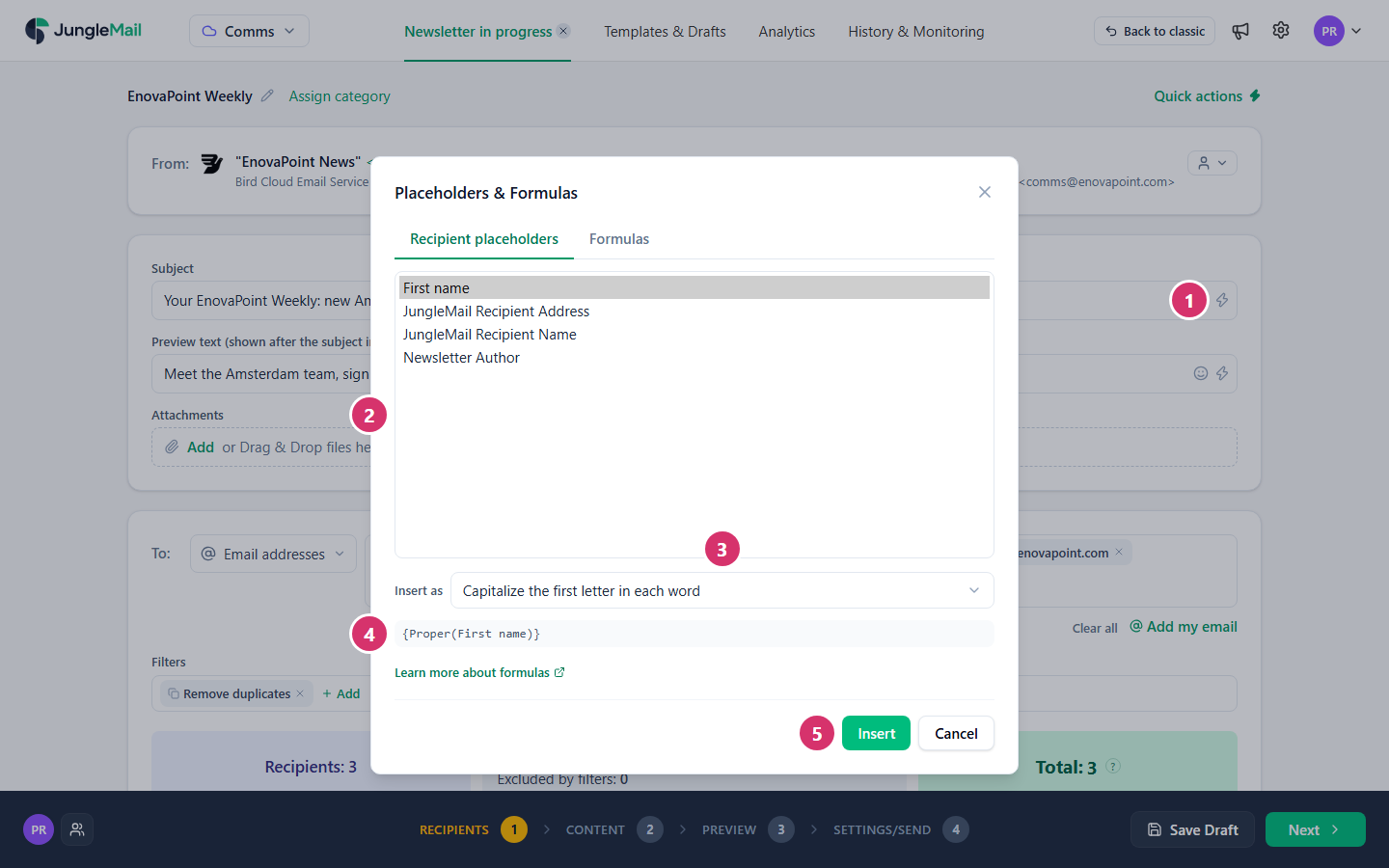
The newsletter wizard can write the formula for you. In the Recipients step:
Select the lightning bolt at the right of Subject or Preview text (shown after the subject in the inbox),
then Placeholders & Formulas.
On Recipient placeholders, select a merge tag.
In Insert as, choose what to do with it. The choice depends on the merge tag: formats for a date, rounding for a
number, capitals or a shorter version for text.
Check the formula below the list.
Select Insert.
For the date and time the newsletter is sent, use the Formulas tab instead: each line shows today’s date in its
format. In the email builder, Insert merge tag offers the same choices under Format, and one more for a date,
Convert date to another time zone. You can also type a formula anywhere in the subject, the preview text or the
text of the email.
Choice
For
Inserts
Column value
Any
The merge tag alone: {First name}
Capitalize the first letter in each word
Text
{Proper(First name)}
Retrieves a first word from text
Text
{FirstWord(First name)}
Retrieves a substring from text
Text
{SubString(First name; 50)}
Crop text to approximate characters length without word cut-off
Text
{LimitText(First name; 50)}
Converts text to lowercase
Text
{Lower(First name)}
Converts text to uppercase
Text
{Upper(First name)}
Converts Rich text to Plain text
Rich text
{PlainText([Summary])}
Format date – extract year
Date
{FormatDate([Start Date]; "yyyy")}
Format date – extract month
Date
{FormatDate([Start Date]; "MMMM")}
Format date – extract day
Date
{FormatDate([Start Date]; "dd")}
Full date
Date
{FormatDate([Start Date]; "dddd, dd MMMM yyyy")}
Format date – e.g.: February 20, 2017
Date
{FormatDate([Start Date]; "MMMM dd, yyyy")}
Format date – 12-hour format
Date
{FormatDate([Start Date]; "MM/dd/yyyy h:mm tt")}
Format date – 24-hour format
Date
{FormatDate([Start Date]; "MM/dd/yyyy hh:mm")}
Convert date to another time zone
Date, in the email builder
{ConvertTimeZone([Start Date]; "Eastern Standard Time")}
Converts number to a currency text representation
Number
{CurrencyToLiteral([Amount])}
Will round a number to a specified number of digits
Braces mark a formula. Text outside them stays as you typed it.
Arguments are separated by semicolons:{SubString("EnovaPoint"; 0; 5)}. Commas work too, unless your site’s
regional format writes decimals with a comma.
Text goes in quotes:"MMMM". Straight and curly double quotes both work.
Names with characters such as - or : go in square brackets:{[E-mail]}. The columns of a SharePoint list are
inserted that way anyway: {[Start Date]}.
Function names are not case-sensitive:upper works like Upper.
A formula JungleMail cannot work out stays in the email as you typed it, braces included: for example a
misspelled name, or a missing argument. Check the newsletter in the Preview step before you send it.
In the HTML Editor, formulas inside an element’s style attribute are left as they are.
The date written in a format, with the codes below
{FormatDate(Today; "dddd, MMMM d")}
ConvertTimeZone(date; timeZone)
The date and time in another time zone, named as Windows or IANA names it: "Arabian Standard Time" or "Asia/Dubai". A date without a time is not changed
The week number of today or of the date, by your regional format’s rules; with True, the ISO 8601 week
{WeekOfYear(Today; True)}
IsWholeMonth(start; end)
True if the two dates are the first and the last day of the same month
The format codes FormatDate uses, shown for Tuesday, March 16, 2027, at 9:05 in the morning:
Code
Gives
Example
d
The day of the month
16
dd
The day, always two digits
16
ddd
The short day name
Tue
dddd
The day name
Tuesday
M
The month number
3
MM
The month, always two digits
03
MMM
The short month name
Mar
MMMM
The month name
March
yy
The year, two digits
27
yyyy
The year
2027
H
The hour, 0 to 23
9
HH
The hour, 00 to 23
09
h
The hour, 1 to 12
9
hh
The hour, 01 to 12
09
mm
The minutes
05
ss
The seconds
00
tt
AM or PM
AM
Day and month names are in the language of your regional format. A format of one letter on its own is a standard
format: "d" is the short date and "t" the short time. In a format, / and : become your regional format’s date
and time separators; to keep a character as typed, put it in single quotes: "MM'/'dd'/'yyyy". Microsoft lists every
code in Custom date and time format strings.
The amount in English words. The currency comes from the SharePoint currency column, or from the culture you name. Dollars and euros are written out; other currencies keep their symbol
{CurrencyToLiteral(2500; "en-US")} gives two thousand five hundred dollars and zero cents
The value of the first condition that is true, otherwise the last value
And(condition; condition; …)
True if every condition is true
Or(condition; condition; …)
True if at least one condition is true
Not(condition)
The opposite
For example,
{If(Office = "London"; "See you in the atrium"; Office = "Toronto"; "See you on the third floor"; "Join us online")}
gives each office its own sentence.
In a section or block that shows SharePoint content, a formula can use the columns of the item being shown: S: for the
section’s item and B: for the block’s, as in {S:[Title]}
(Merge tags). Two functions are there only:
Function
Gives
ReadingTime()
How long a SharePoint news page takes to read, at 200 words a minute: “1 minute”, “4 minutes”
With DeepL turned on (Turn AI features on or off),
Translate(text) translates the text into the language of the recipient’s version of the newsletter, and
Translate(text; "fr") into the language whose code you give. If a translation fails, the email shows the reason in
square brackets instead.
A detail some recipients lack:{IfEmpty(Office; "your office")}. It is shorter than If(IsEmpty(…); …), and
nobody gets a sentence with a gap in it.
A summary that has to fit:{LimitText([Summary]; 120)}. Unlike SubString, it doesn’t cut a word in half, and
it shows with ... that there is more.
Names typed in capitals, in a file or a list:{Proper(First name)} turns PRIYA into Priya.
A date read in several countries: write the month as a word, {FormatDate([Start Date]; "MMMM d, yyyy")}.
03/04/2027 is March 4 to EnovaPoint’s Chicago office and April 3 to its London office.
A 24-hour time: type HH, as in {FormatDate([Start Date]; "HH:mm")}. hh is the 12-hour clock, and without
tt nobody can tell morning from evening.
A date in a recurring newsletter: build it from Today, such as {FormatDate(Today + 7; "dddd, MMMM d")} for
a deadline a week after each issue, so that every issue shows its own date
(Set up a recurring newsletter).