

A newsletter was skipped, failed or rejected
Symptoms
Section titled “Symptoms”In History & Monitoring, a newsletter you sent or scheduled doesn’t say Completed: it is paused under Running & Scheduled, or its status under History says it was skipped, completed with warnings, failed, terminated or rejected.
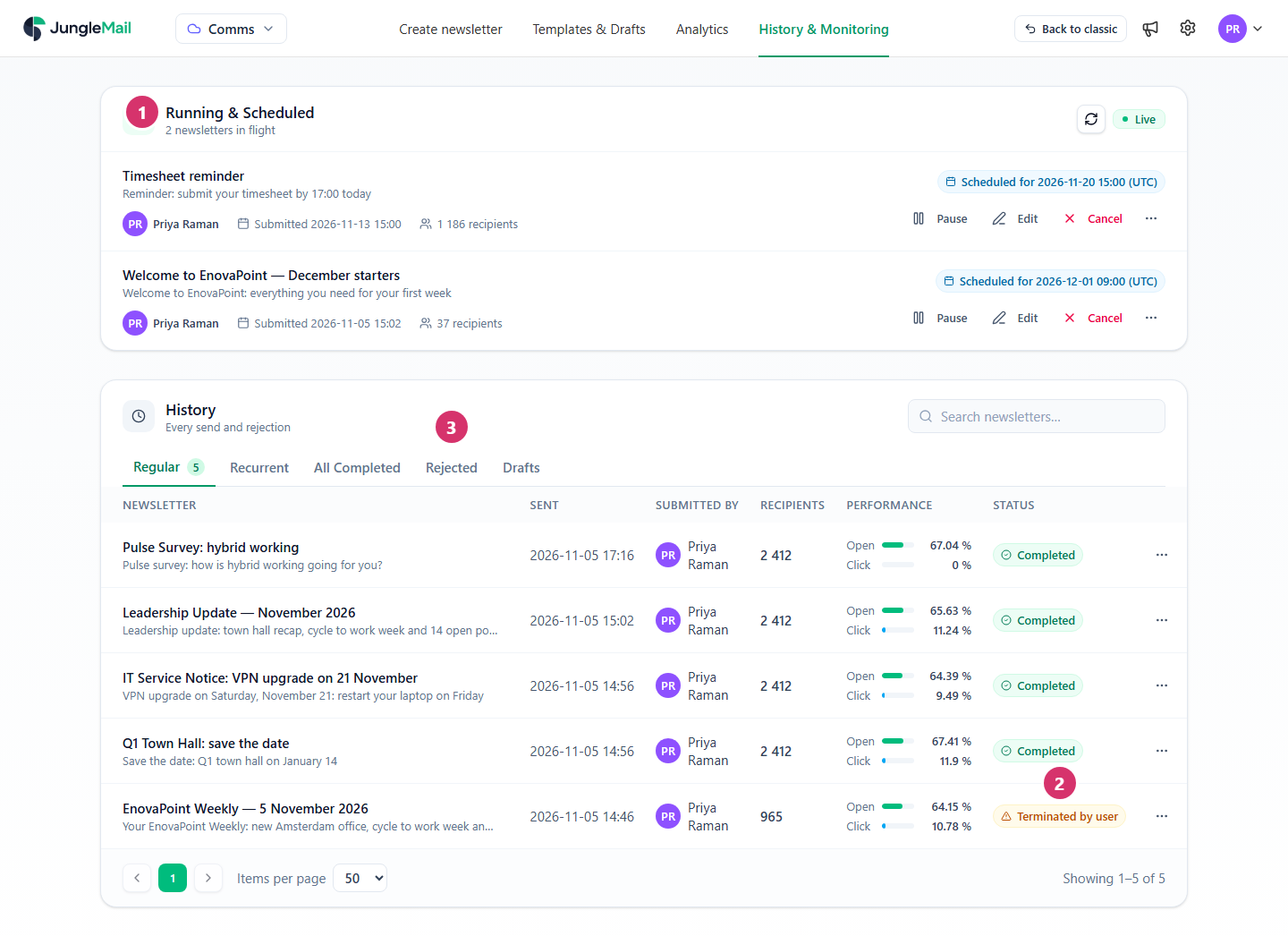
- Running & Scheduled: newsletters being sent or waiting for their time, including paused ones.
- Status: how each sent newsletter ended. Here a send was stopped: Terminated by user.
- Rejected: newsletters an approver rejected.
The status says what happened:
| Status | What happened |
|---|---|
| Completed (skipped) | JungleMail 365 sent nothing, as the newsletter asked: its sending conditions found nothing new in SharePoint, or its dynamic attachments’ settings skipped it |
| Completed with warnings | The newsletter went out, but something went wrong on the way, such as some emails not being sent or its report not reaching you |
| Failed, Failed (error) | JungleMail couldn’t send the newsletter |
| Failed (archive error) | JungleMail couldn’t save the newsletter to its SharePoint archive |
| Terminated by user, Terminated (by system) | Someone stopped the send, or JungleMail stopped it |
| Paused, with a reason in brackets | The send waits, for the reason in brackets |
| Rejected | An approver rejected the newsletter, and it went back to your drafts |
A paused newsletter names its reason, such as Paused (email limit reached):
- by user: someone paused it.
- sending account error – Microsoft 365 authorization failed: the sending account’s Microsoft 365 sign-in has expired, often after a password change.
- sending account error – Send As permission denied: the account may no longer send as the mailbox.
- SharePoint connection error: JungleMail can no longer read SharePoint for the newsletter’s content or recipients.
- Entra ID connection needs authorization, Entra ID connection disabled: JungleMail can’t read the newsletter’s Microsoft 365 groups.
- email limit reached, usage limit exceeded, unique recipient site quota reached, subscription expired, license invalid, license expired, account suspended: your organization’s subscription doesn’t allow more sending at the moment.
Solution
Section titled “Solution”- Select the newsletter’s name to open it, and look at its Report tab: the Processing log says what JungleMail did, step by step, and what went wrong.
- Then, depending on the status:
- Completed (skipped): nothing to fix if there was nothing new to send. If there was, check the newsletter’s SharePoint content (SharePoint content is empty in the email).
- Paused because Microsoft 365 authorization failed, or with a SharePoint connection error: select Reauthorize to fix beside the status, sign in, and then select Resume. After a SharePoint sign-in, JungleMail resumes the newsletter itself (Newsletters stop sending after a password change).
- Paused with an Entra ID connection reason: if Reauthorize to fix appears beside it, select it and sign in with your own account, and the newsletter goes on by itself. Otherwise a site administrator fixes the connection in Settings > Connections, and then the newsletter can be resumed (Connect Microsoft Entra ID).
- Paused because Send As permission was denied: an Exchange administrator gives the account Send As permission again (Let users send as another mailbox), and then the newsletter can be resumed.
- Paused by a limit, a license or the subscription: a global administrator checks the subscription (When you reach your plan’s limit), and then the newsletter can be resumed.
- Rejected: on the Rejected tab, select More actions > Open approval review on the newsletter to read the approver’s comment. Change the newsletter in Templates & Drafts > Drafts, and submit it again (Submit a newsletter for approval).
- Failed or Terminated: fix what the processing log names, and send the newsletter again from a copy (Find and reuse past newsletters). If some emails had gone out before it stopped, add the filter By newsletter with the stopped newsletter to the copy, so that nobody gets it twice (Filter recipients).
Prevent it
Section titled “Prevent it”- Make sure your plan has room before a large newsletter. On Subscription, a global administrator sees this quarter’s unique recipients and how far the allowance lets your organization go. A newsletter with more recipients than your plan and its allowance together isn’t sent at all (Your subscription and usage, When you reach your plan’s limit).
- Authorize with accounts that stay. A Microsoft 365 sending account, the SharePoint connection and a Microsoft Entra ID service account sign in as an account. When its password is reset, the newsletters that use it pause until it signs in again. A sending account whose holder has left can’t sign in again: stop its paused newsletters with Terminate and send copies from another sending account. Choose accounts that will be around, and tell your IT team which they are (Newsletters stop sending after a password change).
- Look at the dashboard after a scheduled send. Its Calendar marks newsletters that failed or were skipped (The dashboard), and a paused newsletter waits under Running & Scheduled until someone fixes its cause.
If that does not help
Section titled “If that does not help”Contact support with the newsletter’s name, its status and the time it was sent (Get help from support).