

Create permission roles
A permission role is a set of permissions that decides what someone can do on a JungleMail site. Everyone has one role on each site they belong to. JungleMail 365 comes with built-in roles; create your own when none of them fits, for example for people who write and send newsletters but shouldn’t change templates. Roles are defined once, for every site, on Settings > Permission Roles.
Give each person the role with the least access that still lets them do their job. Editor suits most people who write and send; a role of your own fits when even Editor allows more than someone should do.
Before you begin
Section titled “Before you begin”- You need to be a global administrator (Global administrators).
The built-in roles
Section titled “The built-in roles”| Role | What it allows |
|---|---|
| Administrator | Everything on the site. Its permissions can’t be changed |
| Editor | Everything with newsletters, drafts and templates, including sending and test emails, and viewing, adding and deleting subscribers. No site management |
| Viewer | Viewing newsletters, templates and subscribers |
| No Access | Nothing: the person can’t open the site |
| Report Viewer | On the Global site only: seeing the newsletters of every site |
| Template Manager | On the Global site only: managing the templates shared with every site |
Create a role
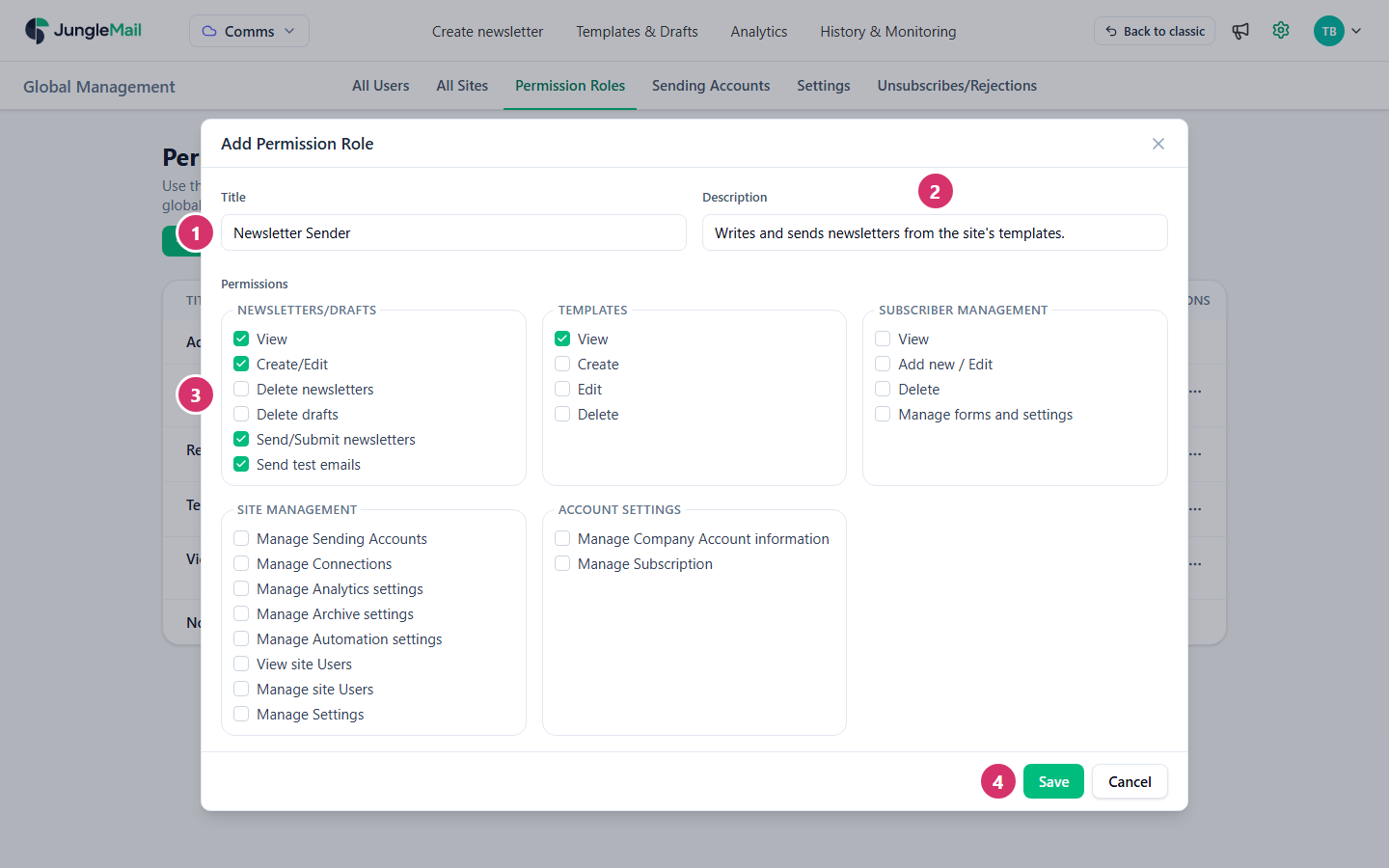
Section titled “Create a role”Go to Settings > Permission Roles and select Add new role. The example creates Newsletter Sender, for people who write and send newsletters from the site’s templates.
-
In Title, type the role’s name, for example
Newsletter Sender. -
In Description, say who the role is for. It appears in the list of roles.
-
Under Permissions, tick what the role allows:
Group Permissions Newsletters/Drafts View, Create/Edit, Delete newsletters, Delete drafts, Send/Submit newsletters, Send test emails Templates View, Create, Edit, Delete Subscriber management View, Add new / Edit, Delete, Manage forms and settings Site management Manage Sending Accounts, Manage Connections, Manage Analytics settings, Manage Archive settings, Manage Automation settings, View site Users, Manage site Users, Manage Settings Account settings Manage Company Account information, Manage Subscription Ticking a permission also ticks the ones it needs: Send/Submit newsletters, for example, ticks View and Create/Edit with it. Unticking View clears everything that needs it.
For a role that writes and sends, keep Send test emails: without it, tests go only to the sender’s own address, and nobody else can check a newsletter before it goes out. Leave Site management and Account settings to the site’s administrators and to whoever handles your subscription.
-
Select Save. JungleMail shows Permission Role successfully created.
Permissions describes what each permission allows.
Give people the role
Section titled “Give people the role”The new role can now be chosen wherever a role is: when you invite people, on a person’s Sites in All Users (Manage users and licenses), and on a site’s Users page, where its administrators choose roles for their own site.
Change or delete a role
Section titled “Change or delete a role”Select ⋯ (More actions) in the role’s row, then Edit or Delete. A change applies at once to everyone who has the role, on every site.
JungleMail doesn’t delete a role that people still have, or that a site gives to people who join it by themselves: it shows Unable to delete Permission Role with the reason. Give those people another role first. Administrator and No Access can’t be changed or deleted, and Report Viewer and Template Manager can’t be changed.
- Create a role rather than change a built-in one. A change to Editor or Viewer reaches everyone who has it, on every site. When one team needs something different, a role of its own keeps the other sites as they are.
- Let writers prepare and someone else send. A role with Create/Edit and Send test emails but without Send/Submit newsletters lets people draft and test newsletters that an Editor then sends. To have every newsletter checked before it goes out, set up approval instead (Set up newsletter approval).
- Keep the account permissions to the people who pay. Manage Company Account information and Manage Subscription concern your whole organization, not the site: put them only in a role for whoever handles billing.
- Give Viewer to people who only follow results. A department head who wants to see how their team’s newsletters do can read them and their results with Viewer, without being able to change or send anything.