

Grant consent to JungleMail
People sign in to JungleMail 365 with their Microsoft 365 accounts, through JungleMail’s application in Microsoft Entra ID, JungleMail 365, published by EnovaPoint, UAB, a Microsoft verified publisher (Publisher verification). The first time someone signs in, Microsoft asks them to let it sign them in, read their profile and keep that access. Depending on your organization’s consent settings, they accept for themselves, or they see Approval required or Need admin approval and can’t sign in until an administrator consents. Once you consent for the whole organization, nobody is asked.
Consent for the organization before people start using JungleMail, rather than letting each person accept for themselves: you review the permissions once, and nobody is stopped on their first day. If JungleMail 365 already appears in your tenant, consent in the Microsoft Entra admin center; otherwise, consent while signing in.
Before you begin
Section titled “Before you begin”- You need a Microsoft Entra role that can grant consent for your organization, such as Cloud Application Administrator or Application Administrator (Microsoft’s list of roles). To consent while signing in, you need Privileged Role Administrator or Global Administrator: for permissions that people may grant themselves, as here, Microsoft shows the Consent on behalf of your organization box only to those roles (Consent experience for applications in Microsoft Entra ID). With another role, consent in the Microsoft Entra admin center.
- You need your organization’s JungleMail address, which depends on its cloud (Clouds and app addresses).
Consent while signing in
Section titled “Consent while signing in”-
Open JungleMail at your organization’s address and select Sign in with Microsoft.
-
Sign in with your administrator account.
-
On Permissions requested, select Consent on behalf of your organization, then select Accept. The box is cleared by default: if you leave it so, you consent only for yourself, and everyone else is still asked.
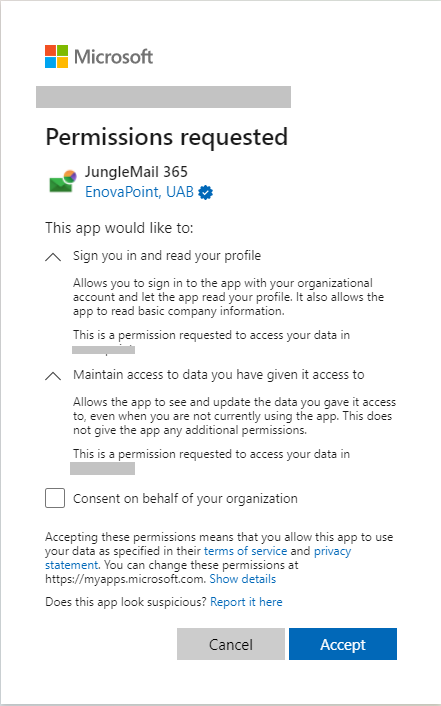
From now on, nobody in your organization is asked to consent to sign in.
Approve a request
Section titled “Approve a request”If your organization uses Microsoft’s admin consent workflow, people who can’t consent see Approval required, give a reason and select Request approval. The reviewers you chose get an email.
- In the Microsoft Entra admin center, go to Entra ID > Enterprise apps.
- Under Activity, select Admin consent requests.
- On the My Pending tab, select JungleMail 365.
- Select Review permissions and consent, check the permissions, and select Accept.
Everyone who asked is told that the request was approved, and everyone in your organization can sign in. Microsoft explains the workflow in Review admin consent requests. Without the workflow, people see Need admin approval and have to ask you directly.
Consent in the Microsoft Entra admin center
Section titled “Consent in the Microsoft Entra admin center”JungleMail 365 appears in your tenant once someone has signed in to JungleMail. From then on, you can consent for everyone without signing in to JungleMail:
- In the Microsoft Entra admin center, go to Entra ID > Enterprise apps > All applications.
- Search for JungleMail 365 and open it.
- Under Security, select Permissions.
- Select Grant admin consent for and your organization’s name, then accept in the window that opens.
Consent for the connections
Section titled “Consent for the connections”The connections on JungleMail’s Settings > Connections page have applications of their own, which ask for consent when someone sets them up:
- Microsoft Entra ID reads users, groups and, if the site chooses, organizational contacts. With Application permissions, only a Global Administrator or Privileged Role Administrator can consent; with delegated permissions, a Cloud Application Administrator or Application Administrator can too. The JungleMail administrator selects Grant consent now… in its setup if they hold such a role, or sends you the link from Copy consent link: open it and accept, without signing in to JungleMail (Connect Microsoft Entra ID).
- SharePoint needs an administrator’s consent the first time, with Grant Admin Consent in its dialog (SharePoint connection: service account or selected sites).
- Microsoft Exchange and Microsoft 365 sending accounts are authorized by the person who sets them up, who consents for themselves if your settings allow it. Otherwise, approve their request as above.
What each application may access is in Manage JungleMail’s applications in Entra ID.
- Consent for each application people will use, not only sign-in. Sending accounts and each connection ask separately. When an administrator does the first setup of each and consents for the organization, editors are never stopped halfway through a task.
- Turn on the admin consent workflow. People who can’t consent then send a request instead of having to find an administrator. Choose reviewers who can grant consent: being a reviewer doesn’t give that right, and only a Global Administrator can approve application permissions, such as those of the Microsoft Entra ID connection with Application permissions (Configure the admin consent workflow).
- Use the least privileged role that works. Cloud Application Administrator can consent in the Microsoft Entra admin center for sign-in, sending accounts, Exchange, SharePoint and the Microsoft Entra ID connection’s delegated permissions. Keep Privileged Role Administrator or Global Administrator for its Application permissions, which need them (Grant tenant-wide admin consent to an application).
- Compare the permissions before you accept. Admin consent lets everyone in your organization use the application until you require assignment, so check that the list matches the table in Manage JungleMail’s applications in Entra ID.