

Make and view payments
The Payments tab of your JungleMail 365 account lists the payments for your subscription, each with its invoice. A payment that is still due has a Pay button.
Before you begin
Section titled “Before you begin”- You need to be a global administrator, or to have a permission role with Manage Subscription.
See your payments and invoices
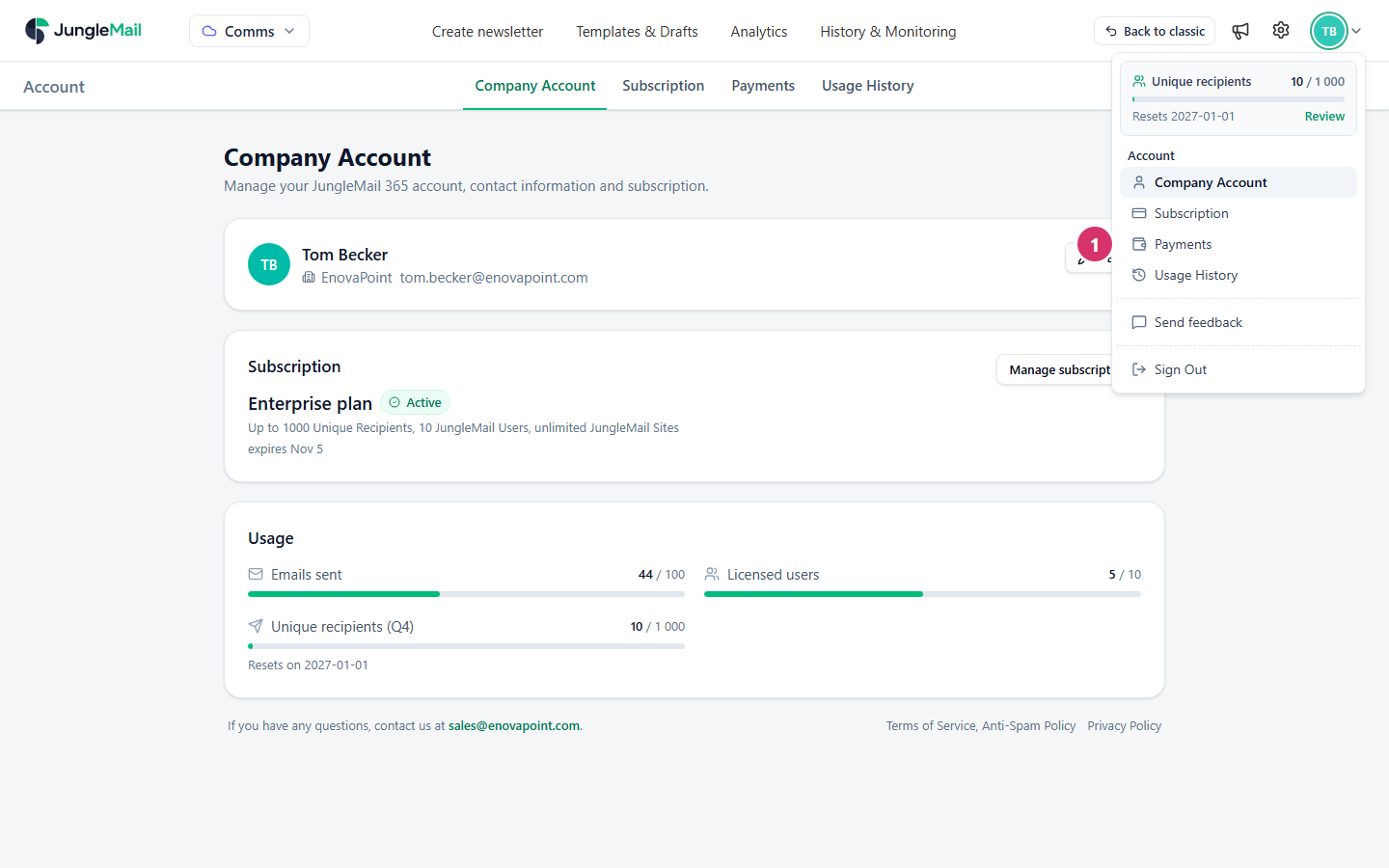
Section titled “See your payments and invoices”Select your initials at the top right and choose Payments.
The list has one row for each payment:
| Column | What it shows |
|---|---|
| Date | When the payment was made or became due |
| Description | What it was for, with the Period it covers |
| Amount | The amount |
| Invoice | The invoice number. Select it to download the invoice |
| Status | Whether the payment went through, is still due, or failed |
Pay a payment that is due
Section titled “Pay a payment that is due”- On Payments, select Pay in the payment’s row.
- In Make a payment, check what you’re paying for: the period, the Subtotal, the VAT, and the Total. If you are a company in the European Union with a valid VAT number and VAT is charged, stop and add the number to your billing information first (Update your company account).
- Check the payment card shown under it. To use another card, select the pencil beside it.
- Select Pay with the amount. The amount is charged to the card at once, and your bank may ask you to confirm the payment.
JungleMail shows Payment confirmed, and the payment’s status changes in the list.
Change your payment card
Section titled “Change your payment card”Payments for your subscription are taken from the payment card saved in your account.
- Select your initials at the top right and choose Subscription.
- Under Billing, select Update card.
- In Payment card, type the Card holder, the name on the card, and the card’s details under Card.
- Select Save card. JungleMail shows Payment card saved.
The card’s details go straight to EnovaPoint’s payment provider: JungleMail itself never receives the card number. Billing then shows the card’s brand, its last four digits and when it expires.
A card can be saved only once your account has a billing contact. Until then, Payment card says A billing contact is needed before a payment card can be saved. Select Complete billing information to add one (Update your company account).
- Replace the card before it expires. Billing shows when the saved card expires. A new card saved in time keeps the next payment from failing and leaving a payment due.
- Give whoever pays a role of their own. Someone in finance who pays and downloads invoices needs Manage Subscription, not global administrator. Put it in a role for billing only (Create permission roles).
- Look at Payments after each renewal date. Status shows a payment that failed or is still due, and one still due can be paid from its row. Settled at once, it doesn’t wait for someone to notice.