

Add and manage sending addresses
A sending account in JungleMail 365 can have several sending addresses, each with its own From and Reply-to, and
editors choose one in the From of each newsletter. Add one when a kind of newsletter should come from a sender its
readers recognize, such as people@enovapoint.com for HR news. Keep the number small: every extra address is one more
choice for editors to get right.
Before you begin
Section titled “Before you begin”- You need the Administrator role on the site, or a role with Manage Sending Accounts.
- To send as a shared mailbox or as another person through a Microsoft 365 sending account, the account you signed in with needs Send As permission on that mailbox (Let users send as another mailbox).
Add a sending address
Section titled “Add a sending address”Go to Settings > Sending Accounts and select Add new sending address under the account. Under From,
choose Specified email address and type the address with the name to show in quotes before it, such as
"EnovaPoint Communications" <comms@enovapoint.com>. Most inboxes show the name first, so choose one readers know, the
team’s or the newsletter’s, rather than a person’s name on a shared address. If the From isn’t a mailbox anyone reads,
specify a Reply-to that is. Save first sends a test email, and doesn’t save the address if the test can’t be
sent.
A Microsoft 365 sending account has Add mailbox… in place of Add new sending address: each of its addresses belongs to a mailbox that someone signs in to (Add a Microsoft 365 sending account).
Rename, test, restrict or delete an address
Section titled “Rename, test, restrict or delete an address”The buttons beside each address’s title rename it, send a test email from it, limit it to some people (Manage permissions) and delete it (Decide who can use and create sending accounts).
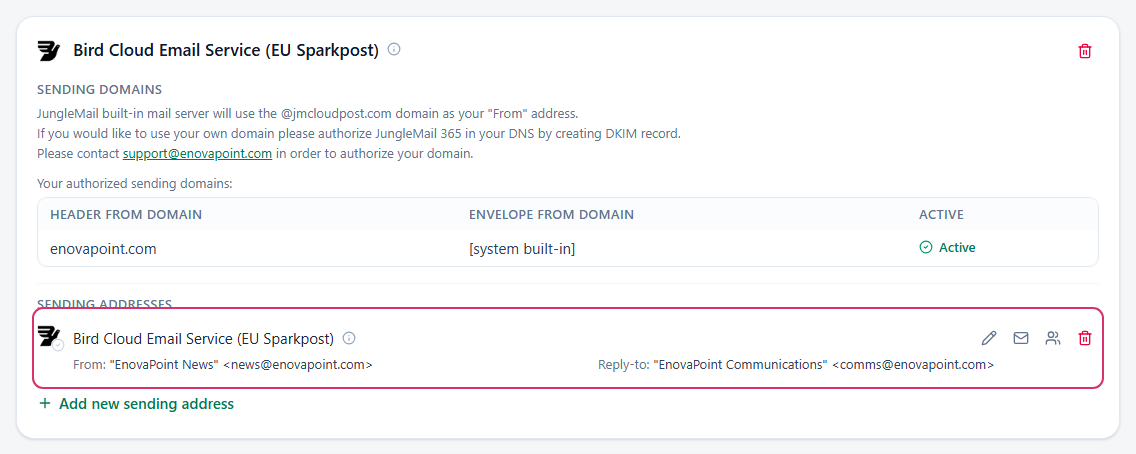
- Rename each address for what it is for, such as Company news or HR updates. Editors see the title under the address in From; two addresses titled with the same account name look alike.
- Test an address again after a change outside JungleMail. When your IT team changes a mailbox’s permissions or the domain’s DNS, a test shows at once whether the address still sends, before an editor’s newsletter finds out.
- Make the address most newsletters use the default: select the tick on its icon. New newsletters start with it when the site’s Default sending address for new newsletters says so (Decide who can use and create sending accounts). Someone’s own Microsoft 365 mailbox, a personal sending address, can’t be the default.
Addresses marked Global Address belong to your global administrator, who manages them on the global Sending Accounts page. You can test them, but not change them.