

Set up the SharePoint connection for selected sites
With the Microsoft Entra ID app (per site) type, JungleMail 365 reads SharePoint as the person who uses it, and only in the sites you grant to its application. You grant each site with a PnP PowerShell command, and each person authorizes their own connection once. It is the type for most organizations: people see only the SharePoint content they can open themselves, and JungleMail stays out of every site you haven’t named. A service account is less work, where everyone who builds newsletters may use the same content. The other types are compared in SharePoint connection: service account or selected sites.
Before you begin
Section titled “Before you begin”- You need a Microsoft Entra role that can grant consent for your organization, such as Cloud Application Administrator, and an account that can grant apps access to your SharePoint sites.
- You need PowerShell 7.4 or later with the PnP PowerShell module (
Install-Module PnP.PowerShell, PnP’s instructions). - The JungleMail steps are on the site’s Settings > Connections page. Open it yourself if you are a site administrator in JungleMail, or work with one.
Turn the connection on
Section titled “Turn the connection on”In JungleMail, go to Settings > Connections.
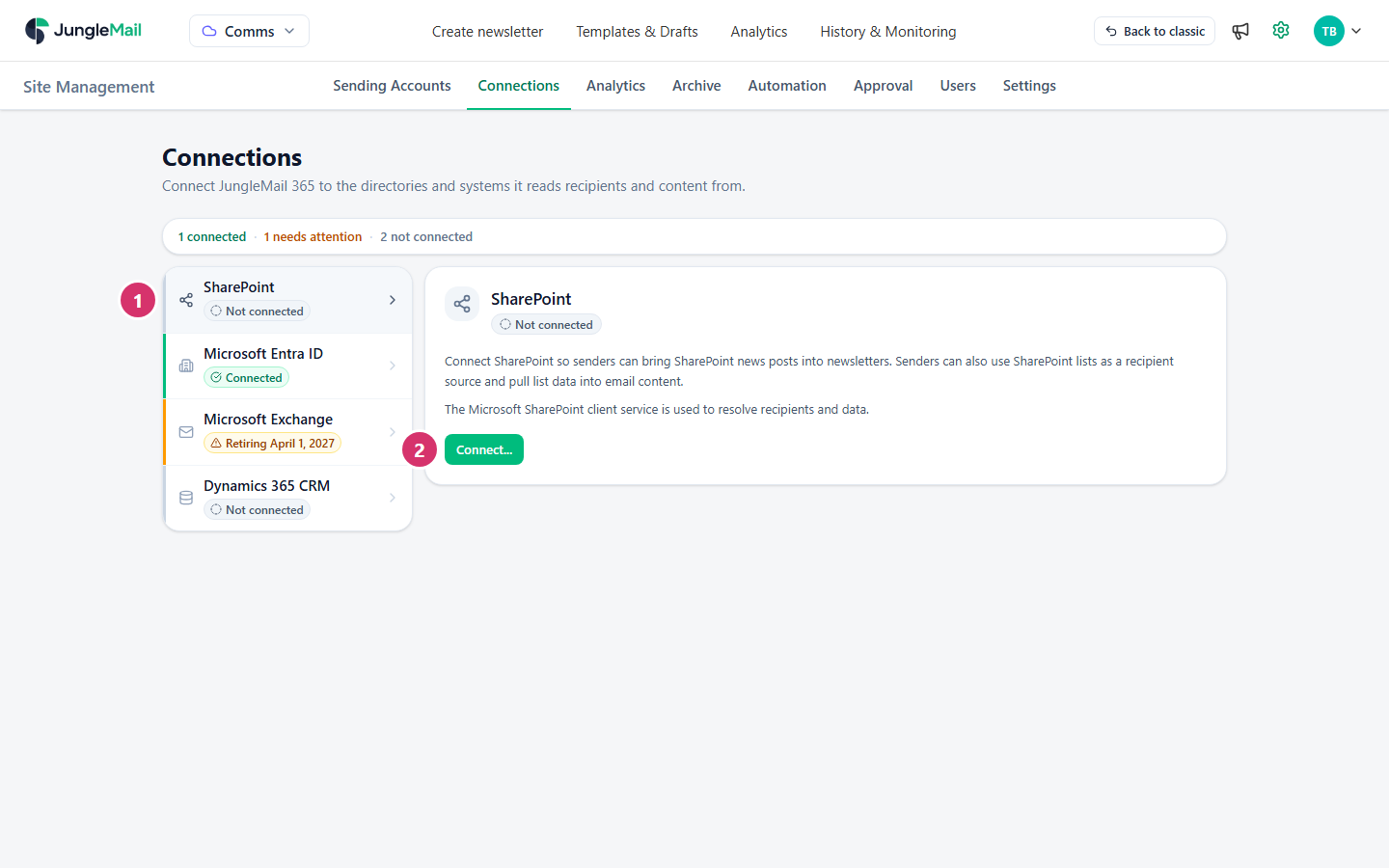
- Select SharePoint.
- Select Connect…. The SharePoint connection dialog opens.
- In SharePoint site URL, enter the first site JungleMail should read, for example
https://enovapoint.sharepoint.com/sites/intranet. - Select Microsoft Entra ID app (per site).
- If the dialog says Admin consent is required for the app permissions on first use., select Grant Admin Consent and accept in Microsoft’s window as an administrator.
- Under Use the PnP PowerShell cmdlet to grant permissions for a specified site, select Copy. The command holds JungleMail’s application ID and the site’s address. Leave the dialog open.
Grant JungleMail each site
Section titled “Grant JungleMail each site”In PowerShell:
-
If your organization has no Microsoft Entra application for PnP PowerShell yet, register one:
Register-PnPEntraIDAppForInteractiveLogin -ApplicationName "PnP PowerShell" -Tenant <tenant>.onmicrosoft.com -SharePointDelegatePermissions AllSites.FullControl<tenant>is your Microsoft 365 tenant’s name. Accept the permissions in the window that opens, as an administrator, and note the client ID the command prints. -
Sign in to SharePoint with it:
Connect-PnPOnline -Url https://enovapoint.sharepoint.com/sites/intranet -Interactive -ClientId <client ID> -
Paste and run the command you copied from JungleMail:
Grant-PnPAzureADAppSitePermission -AppId <JungleMail app ID> -DisplayName "JungleMail 365 SharePoint Connection" -Permissions Read -Site https://enovapoint.sharepoint.com/sites/intranetThe output lists
readunderRoles. Run it again for every other site JungleMail should read, with that site in-Site. For a site that holds an archive list, use-Permissions Write; for one that holds a subscriber list,-Permissions Manage.
Authorize the connection
Section titled “Authorize the connection”Back in JungleMail’s dialog:
- Select Authorize & enable, sign in with your own account, and accept. JungleMail says SharePoint connection saved., and Connects as shows Microsoft Entra ID app (per site).
- To check the connection, enter a site you granted under Test connection and select Test connection.
Permissions
Section titled “Permissions”JungleMail can read a SharePoint site for a person only when both are true:
- the site is granted to JungleMail’s application, with the PowerShell command above;
- the person can open the site in SharePoint.
Each person authorizes their own connection once. JungleMail asks them in SharePoint Connection authorization the first time they need SharePoint, for example when they choose a SharePoint list as recipients. People who can open the Connections page can also select Re-authorize for me there. When someone can’t connect, check that they can open the site in SharePoint and that the site was granted.
- Grant each site the lowest role it needs.
Readfor recipients and content;Writeonly where an archive list is,Manageonly where a subscriber list is. Microsoft computes access as what both the application and the person may do, so the role you grant is the most JungleMail can ever do on that site (Overview of Selected Permissions in OneDrive and SharePoint). - Grant admin consent before people authorize. Each person’s authorization then goes through without a request to an administrator, even where your organization doesn’t let people consent themselves (Grant consent to JungleMail).
- Check and tidy the grants with PnP PowerShell.
Get-PnPEntraIDAppSitePermission -Site <site URL>lists the applications granted on a site, andRevoke-PnPEntraIDAppSitePermissionremoves one when a site no longer feeds newsletters (PnP’s reference). - Agree how site administrators ask for a new site. A site you haven’t granted stays closed to JungleMail, even for people who can open it in SharePoint, so JungleMail site administrators need to know whom to ask before editors plan a newsletter around it.