

Change your plan or add-ons
You change your JungleMail 365 subscription on the Subscription tab of your account: order one of the plans listed there, add users, sites or emails to the plan you have, or ask EnovaPoint for a quote when no listed plan fits. When your plan has the features you use and you only need more people, sites or emails, an add-on is enough. For a feature your plan lacks, or for more unique recipients, change the plan.
Before you begin
Section titled “Before you begin”- You need to be a global administrator, or to have a permission role with Manage Subscription.
- Your account needs a billing contact, and a payment card for anything you pay for, now or from your next billing cycle (Update your company account, Make and view payments). Without them, the order says A billing contact is needed before an order can be placed. or No payment card configured., with a way to add them.
Order a plan
Section titled “Order a plan”Select your initials at the top right and choose Subscription. Below your plan and usage, the plans you can order are listed with their prices. Plans that aren’t offered online for your subscription aren’t listed: request a quote instead.
- If the list has a Monthly and Yearly switch, choose how often you want to pay.
- Select Order overview beside the plan you want.
- Check the order: the period it covers, your current plan beside the new one, any add-ons, and Today’s charge.
- Select Next: summary. Check the order items and the Total, and enter a Promo code if you have one, then select Apply.
- Select Pay with the amount, or Confirm when nothing is due today. Your bank may ask you to confirm the payment.
JungleMail shows Payment confirmed or Subscription updated. A plan that starts with your next billing cycle shows on Subscription as Next plan, starts and its date, until then; Cancel beside it withdraws it.
Add users, sites or emails
Section titled “Add users, sites or emails”- Select Add more beside JungleMail users on your plan, or beside JungleMail sites or Emails where your plan limits them. The same comes up from Add more licenses on All Users and All Sites.
- Or select Add-ons on your current plan’s row, to change every add-on at once.
In the dialog, change the quantities with the + and − buttons. The price is worked out again after each change. An increase applies straight away, after payment. A decrease applies from your next billing cycle, and until then you keep what you have; the dialog says so, and Cancel that request withdraws the decrease.
JungleMail tells you when add-ons can’t be changed for your subscription, for example during a trial: Add-ons cannot be changed on a trial subscription. Then upgrade your plan, or contact sales@enovapoint.com.
More unique recipients aren’t sold as an add-on. For those, order a larger plan or request a quote.
Request a quote
Section titled “Request a quote”On Subscription, select Request quote. The example asks for Enterprise for EnovaPoint’s 2,412 employees.
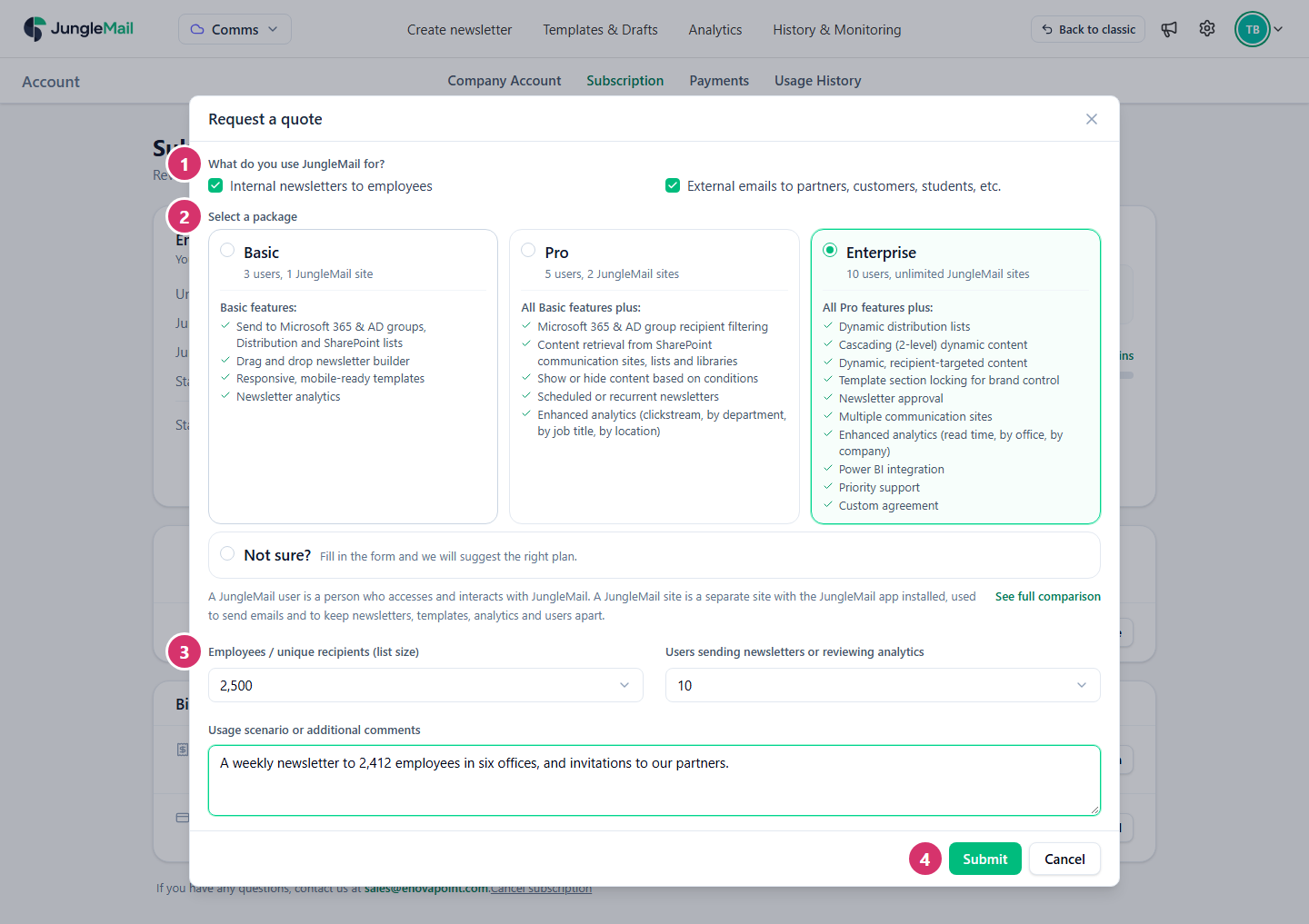
- Under What do you use JungleMail for?, tick what you send: newsletters to employees, emails to people outside your organization, or both.
- Under Select a package, choose a plan. Each card lists what the plan adds. If you aren’t sure, choose Not sure? and tick what matters to you, and EnovaPoint suggests a plan.
- Choose your Employees / unique recipients (list size) and how many Users sending newsletters or reviewing analytics, and describe how you use JungleMail under Usage scenario or additional comments. Base the list size on the different addresses you send to in a quarter, outside addresses included: Subscription shows last quarter’s count. Say in the comments how many of them are outside your organization.
- Select Submit.
EnovaPoint reviews the request within 24 hours on working days. The quote then appears among the plans on Subscription, marked Quote: Your quote is on the way, please check back later. until it’s ready, then with its price and Order overview.
- Free licenses before you buy more. People who left, or who joined a site through auto-join and never use JungleMail, still take a license until you delete them. Check All Users first (Manage users and licenses).
- Order a decrease as soon as you know. A decrease applies only from your next billing cycle, and you keep what you have until then, so there is nothing to gain by waiting until the cycle ends.