

Global administrators
A global administrator manages JungleMail 365 for the whole organization rather than for one site. The person who sets JungleMail up for the organization becomes its first global administrator, and can make others global administrators too.
What a global administrator can do
Section titled “What a global administrator can do”- Create, rename, archive and delete JungleMail sites (Create and manage JungleMail sites).
- Invite people, give them sites and roles, disable or delete them, and keep track of user licenses (Manage users and licenses).
- Create and change the permission roles that every site uses (Create permission roles).
- Set the global settings, choose which sites follow them, and lock a site’s settings so that only global administrators can change them (Global settings and inheritance).
- Manage the sending accounts and the unsubscribe and rejection lists that apply to every site.
- Create the Global site, and see on it the audit log and who is using JungleMail now (The Global site).
- Look after the organization’s account: its contact details, subscription and payments (Account and billing).
On every site, a global administrator can also manage the site’s users, including the switches under Site new users on its Users page, which decide whether people can join the site by themselves or be invited to it by email.
Who is a global administrator
Section titled “Who is a global administrator”The person who completes the Get started with JungleMail 365 form when the organization first starts using JungleMail becomes its first global administrator. Any global administrator can then make others global administrators.
On Settings > All Users, a shield beside a person’s name marks a global administrator.
Keep the role to the few people who run JungleMail for everyone. It lets them change every site’s users and settings and the organization’s subscription; someone who looks after one team’s site needs only the Administrator role there (Manage site users).
Make someone a global administrator
Section titled “Make someone a global administrator”Go to Settings > All Users, select ⋯ (More actions) in the person’s row, and choose Edit user.
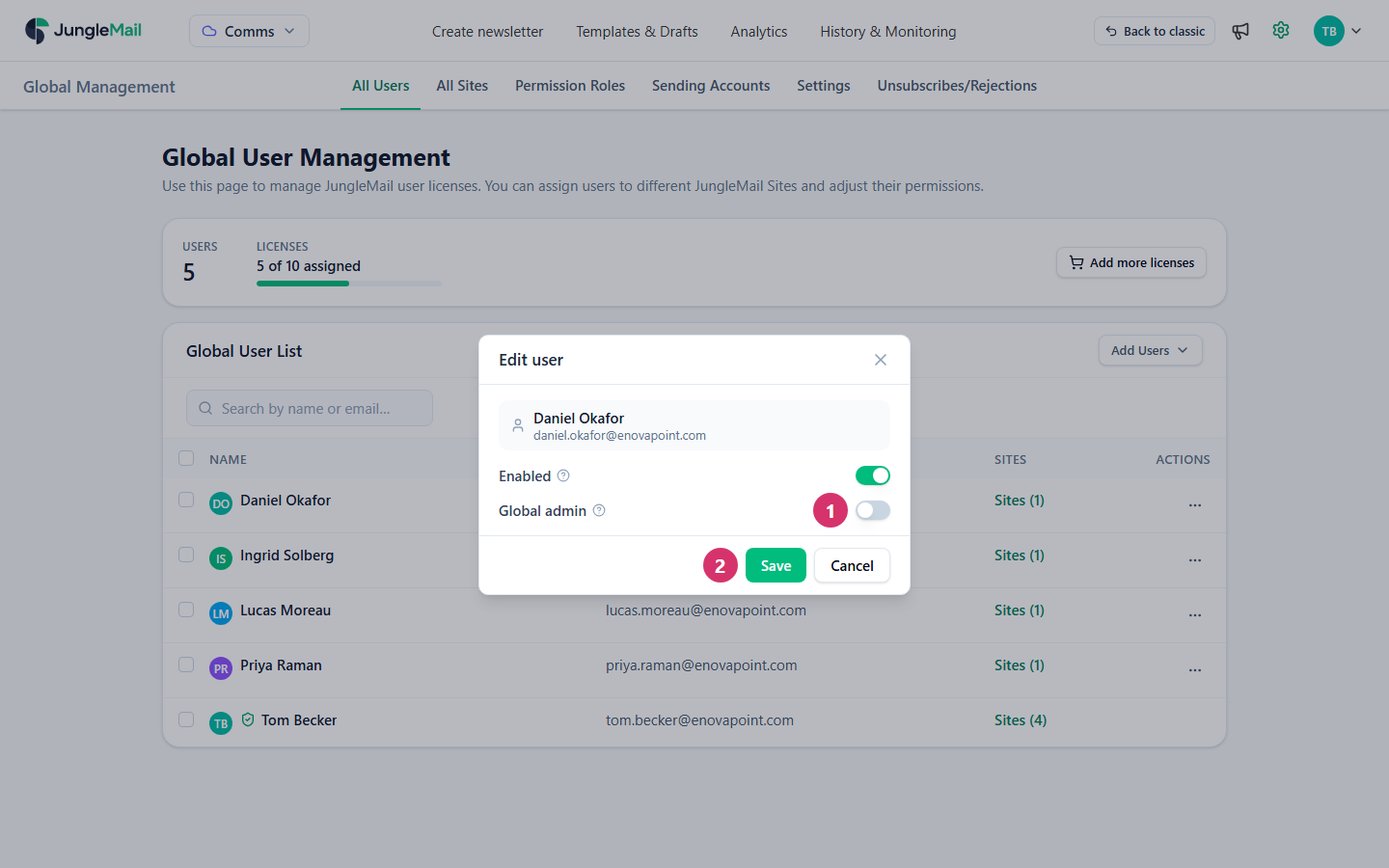
- Turn on Global admin.
- Select Save.
To take the role away, turn Global admin off and save. Turning off Enabled in the same dialog stops the person from using JungleMail at all, and removes the role with it. Your own row has no More actions menu: another global administrator has to change your account.
If you need to become a global administrator
Section titled “If you need to become a global administrator”When someone who isn’t a global administrator opens a Global Management page, JungleMail shows Global administrator account is required to access the page. and a Request permissions button. Selecting it emails the organization’s global administrators, with a link to All Users, and shows Permission request has been sent.
If your organization has no global administrator who can help, contact support@enovapoint.com, as the same page says.
- Make at least two people global administrators. Then someone can always add users, change settings and manage the subscription when the other is away, and change the other’s account, which nobody can do for themselves.
- Pair IT with communications. EnovaPoint makes Tom Becker, its IT manager, and Daniel Okafor, its head of internal communications, global administrators: one knows the Microsoft 365 side, the other how the teams send.
- Give a narrower role where it does the job. Someone who only needs every site’s results can have Report Viewer on the Global site, and a brand designer Template Manager, without being a global administrator (The Global site).
- Hand over before a global administrator leaves. Make their successor a global administrator first. Also find out which sending accounts and connections they authorized: an account that leaves the organization takes its authorization with it, and newsletters that depend on it stop (Newsletters stop sending after a password change).