

Add an SMTP server sending account
An SMTP Server sending account sends a site’s newsletters through a mail server you choose: one your organization runs, or an SMTP service such as Microsoft’s High Volume Email (HVE). Choose it when your organization wants newsletters to go through such a server; otherwise, a Microsoft 365 sending account or a JungleMail mail server needs less setup (Choose a sending account type).
Before you begin
Section titled “Before you begin”- You need the Administrator role on the site, or a role with Manage Sending Accounts.
- Ask whoever runs the server for its address and port, whether it uses StartTLS, and the user name and password to sign in with. For High Volume Email, your Microsoft 365 administrator creates the account first (below).
- The server has to accept connections from JungleMail over the internet. If it accepts mail only from known addresses, ask support for the addresses JungleMail connects from on your cloud.
Add the account
Section titled “Add the account”Go to Settings > Sending Accounts, select Create new sending account, then SMTP Server, and enter the server’s details:
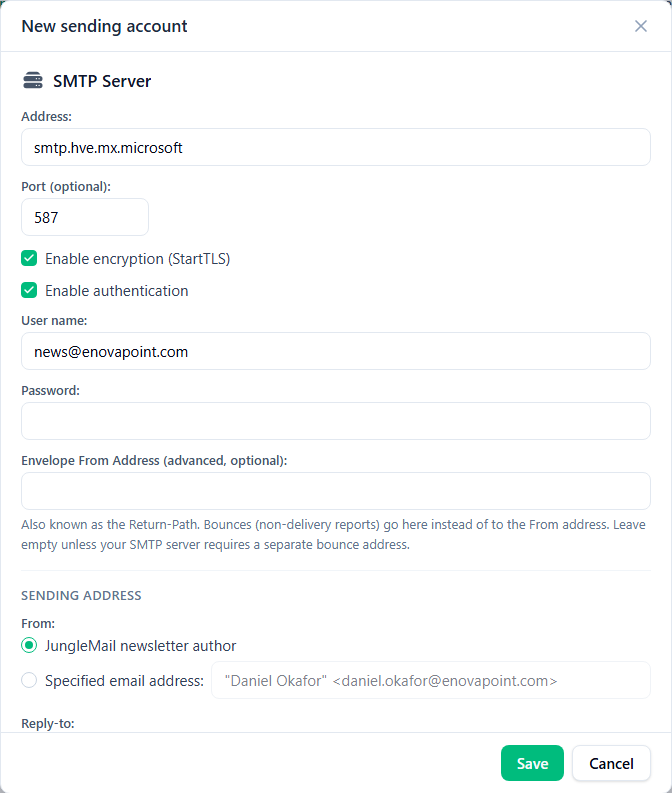
- Select Enable encryption (StartTLS) whenever the server offers it: without it, the password and every newsletter cross the internet unencrypted.
- For Enable authentication, ask for an account made for JungleMail rather than a person’s, so that it stays when people leave, and ask to be told before its password changes: until you enter the new one, JungleMail can’t send.
- Leave Envelope From Address (advanced, optional) empty, unless your server needs bounces (non-delivery reports) to go to an address of their own instead of the From address.
Lower in the dialog, choose a From address the server lets you send from, and a Reply-to your team reads if the From isn’t one. Save first sends a test email to the address in Send test email to, and doesn’t create the account if the test can’t be sent. Send it to a colleague and check that it reaches the inbox, without the External tag and with its pictures: whether newsletters arrive as internal mail depends on your server and on how Exchange treats it.
Send through High Volume Email
Section titled “Send through High Volume Email”High Volume Email (HVE) is a Microsoft 365 service that sends large numbers of emails by SMTP, only to people in your own organization. Microsoft bills it for each recipient, so every issue of a newsletter to EnovaPoint’s 2,412 employees is 2,412 billed recipients: agree with whoever holds the billing policy before a recurring newsletter goes out through it (Manage High Volume Email for Microsoft 365).
Your Microsoft 365 administrator first creates an HVE account in the Exchange admin center, under Mail flow > High Volume Email, with an address in one of your domains and a password, and assigns it a billing policy. Then enter these in the dialog:
| Field | Value |
|---|---|
| Address | smtp.hve.mx.microsoft |
| Port (optional) | 587 |
| Enable encryption (StartTLS) | Selected |
| Enable authentication | Selected, with the HVE account’s address as User name, and its password |
| From | Specified email address, with the HVE account’s address |
| Reply-to | A shared mailbox your team reads, such as comms@enovapoint.com |
HVE takes a password only while basic authentication is allowed in your organization. With security defaults turned on in Microsoft Entra ID, it accepts only OAuth sign-ins, which an SMTP Server sending account doesn’t make: choose another sending account type.