

Audit log and live users
The Global site’s Users Activity page has two tabs for global administrators. Audit log lists the changes people made on every site of your organization, newest first. Live users shows who is using JungleMail 365 right now. Use the audit log to answer “who changed this, and when?”, and to look back over what global administrators did; use Live users before a change that would interrupt people at work.
Before you begin
Section titled “Before you begin”- You need to be a global administrator (Global administrators).
- Your organization needs the Global site, which is part of the Enterprise plan (The Global site).
Find a change in the audit log
Section titled “Find a change in the audit log”Choose Global site in the site switcher at the top left, and select Users Activity in its menu. Audit log opens.
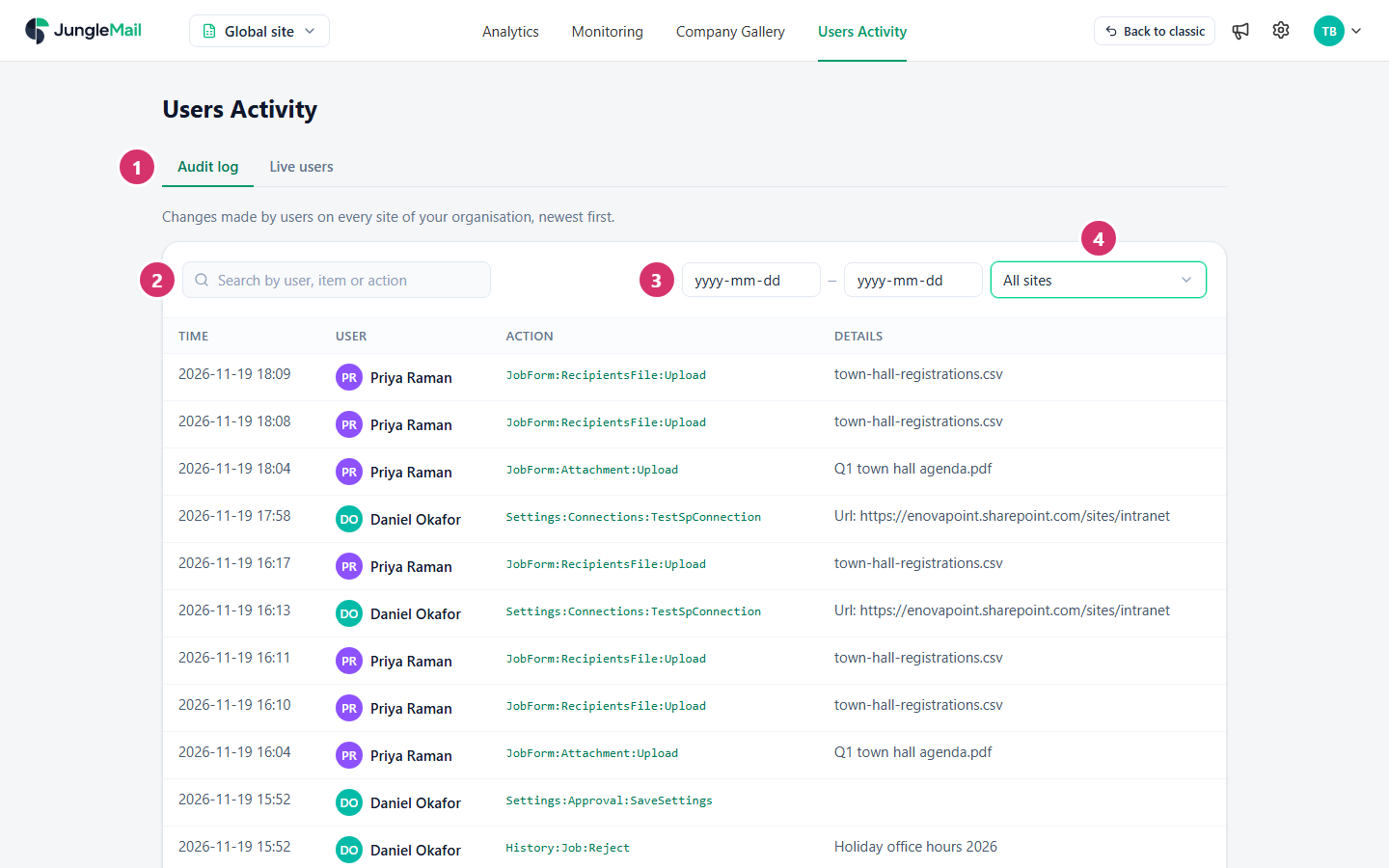
- Audit log is the first tab of Users Activity; Live users is beside it.
- To find entries about a person, an item or an action, type it in the search box and press Enter.
- To see a period only, choose the first and last date.
- Choose the site. The log starts with the Global site’s own entries: choose All sites to see every site’s, or one site.
Each entry has its Time, the User, the Action and its Details, such as the newsletter it concerned. The action is JungleMail’s technical name for what happened:
| Action | What happened |
|---|---|
JungleMail:SignIn |
Someone signed in |
JobForm:Job:Create |
Someone started a newsletter |
JobForm:Job:Submit |
Someone sent, scheduled or submitted a newsletter |
History:Job:Terminate |
Someone stopped a newsletter that was being sent |
Export:JobsReport |
Someone exported newsletter results from Analytics |
GlobalSettings:Users:Save |
A global administrator changed a user |
GlobalSettings:Sites:Save |
A global administrator created or changed a site |
Failed beside an action means it didn’t succeed. Select an action to open Audit Log Entry, with the item it concerned, any message, the site and, for a change, what was changed.
See who is using JungleMail now
Section titled “See who is using JungleMail now”On Users Activity, select Live users. It lists everyone who has used JungleMail in the last few minutes, across all sites, and refreshes every minute; the page says how many minutes it covers. For each person it shows the sites they are using and when they were last active.
Check it before you change something that affects people at work, such as the global settings, a site’s settings or someone’s role.
- Start with All sites. The log opens on the Global site’s own entries, where most of what happens on the teams’ sites doesn’t appear. Choose All sites and narrow it down with the dates.
- Search for an action to see one kind of change. Searching for
GlobalSettings:Users:Savelists every change a global administrator made to users, such as making someone a global administrator, so you can check from time to time that each one was intended. - Look for Failed when someone couldn’t do something. When an editor says their newsletter didn’t go, search for
their name and look for
JobForm:Job:Submitmarked Failed: its Audit Log Entry may hold the message they saw.