

Decide who can use and create sending accounts
A JungleMail 365 site’s Sending Account Settings decide whether its editors may add sending accounts of their own, and which sending address a new newsletter starts with. Each sending address can also be kept for some people only.
For most sites, keep sending accounts in the administrator’s hands and start new newsletters with the site’s default address: newsletters then come from addresses you set up and tested.
Before you begin
Section titled “Before you begin”- You need the Administrator role on the site, or a role with Manage Sending Accounts.
Choose what editors may add and the default address
Section titled “Choose what editors may add and the default address”Go to Settings > Sending Accounts and scroll down to Sending Account Settings.
-
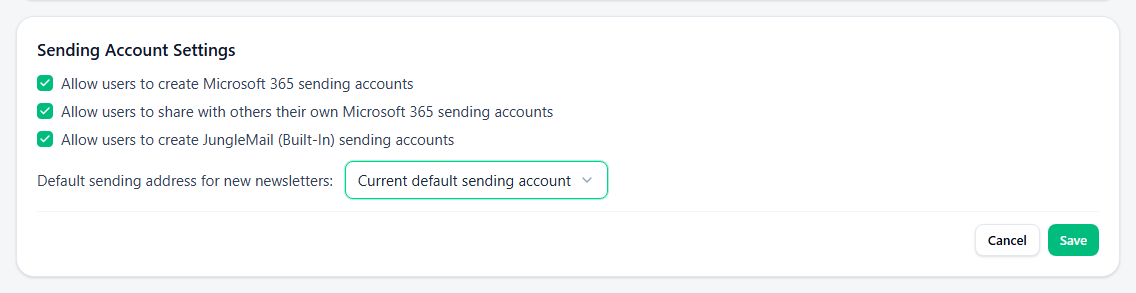
Allow users to create Microsoft 365 sending accounts lets editors add their own mailbox from the From of a newsletter. Turn it on only if newsletters should come from people personally, such as a manager’s update to their team: each such account pauses its newsletters whenever its owner’s password is reset, until they sign in again (Newsletters stop sending after a password change).
-
Allow users to share with others their own Microsoft 365 sending accounts: leave it off unless someone sends for another person, such as an assistant who sends a manager’s updates. Otherwise people could send under a colleague’s name.
-
Allow users to create JungleMail (Built-In) sending accounts lets people whose role has Manage Settings and Manage Sending Accounts add a JungleMail mail server account from the From of a newsletter. Leave it off to keep new accounts on the Sending Accounts page, where you see and test them.
-
Default sending address for new newsletters: the address a new newsletter starts with.
Option A new newsletter starts with Not selected No address: the editor chooses one. Suits a site whose newsletters come from several senders equally Current default sending account The site’s default address, the one with the green tick. Suits a site with one main sender, such as Comms with EnovaPoint News Prefer personal Microsoft 365 accounts over default sending accounts The editor’s own Microsoft 365 address if they have one, otherwise another Microsoft 365 address they may use, otherwise the default Use Global Sending Accounts Settings Whatever your global administrator chose for every site
Then select Save.
Limit an address to some people
Section titled “Limit an address to some people”Under the address, select Manage permissions, the people button beside its title, then Allow only specified users, and add everyone who may use the address, including whoever stands in when its usual sender is away.
Do it for an address that speaks for someone, such as a leadership or HR address, so that it can’t be picked by mistake for a routine newsletter, and leave the site’s general address open to every editor. Update the list when your team changes: someone new can’t choose the address until you add them.
For an address that several sites share, ask your global administrator for a global sending account instead: it is set up once and appears on every site (Global sending accounts).