

Global sending accounts
A global sending account is set up once, for the whole organization, and every JungleMail site can send from it. On
each site’s Sending Accounts page it appears beside the site’s own accounts, marked Global Account, and its
addresses are marked Global Address. Only global administrators can change it. Use one when several teams send from
the same mailbox or mail server, such as a company-wide address that every site’s announcements come from. When each
team sends from its own address, as EnovaPoint’s People & Culture does from people@enovapoint.com, keep that account
on the team’s site.
Before you begin
Section titled “Before you begin”- You need to be a global administrator (Global administrators).
- Choose the kind of account first (Choose a sending account type).
Create a global sending account
Section titled “Create a global sending account”Go to Settings > Global Management > Sending Accounts. The page is called Global Sending Accounts.
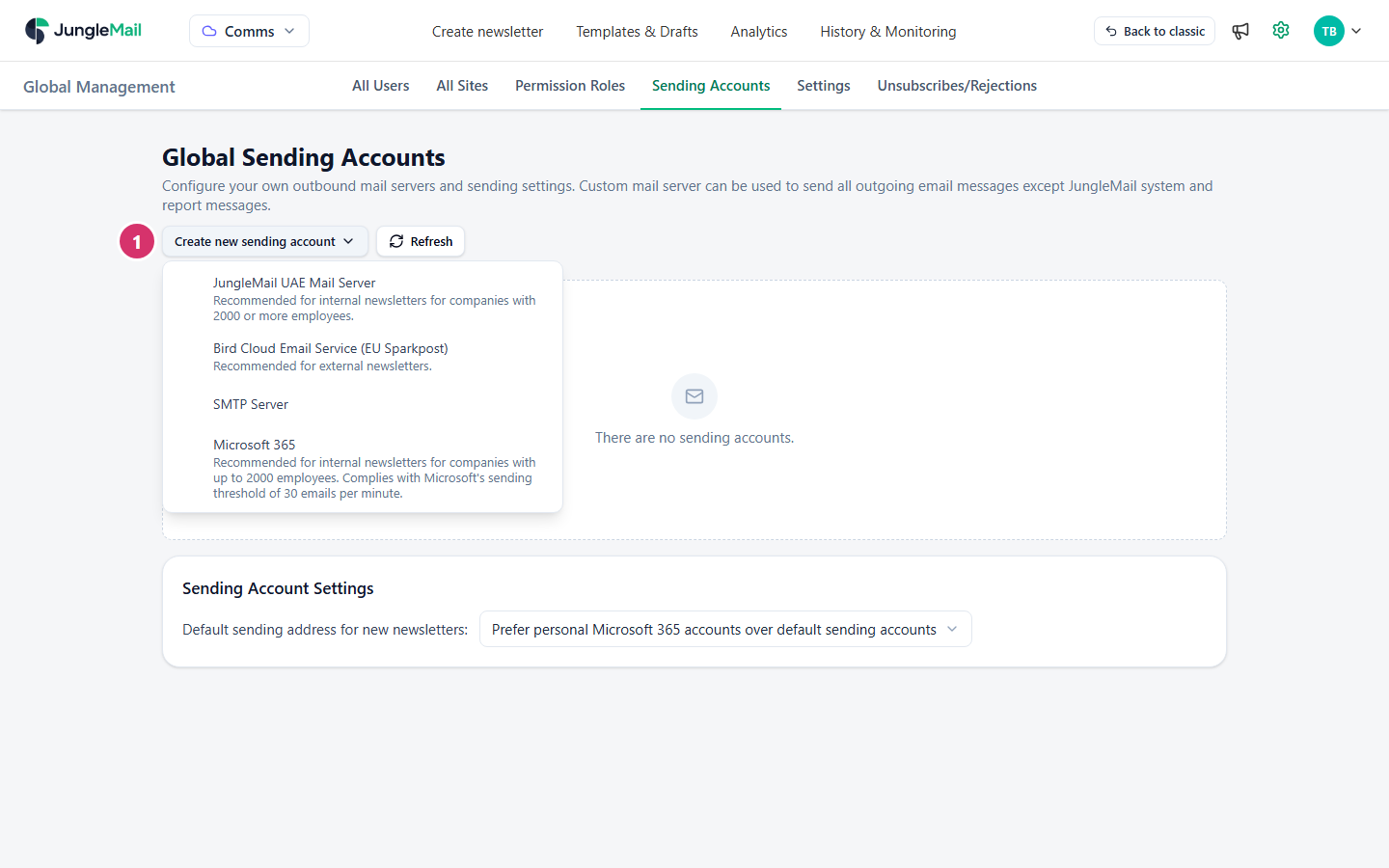
- Select Create new sending account and choose the kind of account: your cloud’s JungleMail mail server (here JungleMail UAE Mail Server), Bird Cloud Email Service (here Bird Cloud Email Service (EU Sparkpost)), SMTP Server or Microsoft 365.
- Fill in the account and its sending addresses as you would on a site: Add a JungleMail mail server sending account or Add a Microsoft 365 sending account.
The account is then available on every site. To decide who may send from one of its addresses, select Manage permissions on the address (Decide who can use and create sending accounts).
Choose the default sending address for new newsletters
Section titled “Choose the default sending address for new newsletters”On the same page, under Sending Account Settings, choose what new newsletters start with in Default sending address for new newsletters, then select Save.
| Option | New newsletters start with |
|---|---|
| Not selected | No sending address: the author chooses one |
| Current default sending account | The default sending address, the one ticked as default on this page |
| Prefer personal Microsoft 365 accounts over default sending accounts | The author’s own Microsoft 365 sending account if they have one, otherwise another Microsoft 365 address they may use, otherwise the default |
Each site follows this setting when its own Sending Accounts page is set to Use Global Sending Accounts Settings, and can choose one of the same options for itself instead.
Choose Current default sending account when most newsletters go out from one company address. When each site sends from its own, choose Not selected, so that authors pick the right address rather than send from a default that belongs to another team.
- Keep global accounts few, and limit who uses them. Every global address is offered in the From of every newsletter on every site. Use Manage permissions to keep each one to the people who may send in its name.
- Remember that the sites share the account’s limits. Through a Microsoft 365 sending account, every site’s newsletters come from the same mailbox, within one set of Exchange Online sending limits (Choose a sending account type). For large or frequent sending from several sites, a JungleMail mail server suits better.
- Authorize with an account that stays. When the account that authorized a global Microsoft 365 sending account changes its password or leaves, newsletters from every site that uses it pause. Tell your IT team which account it is (Newsletters stop sending after a password change).