

Create and manage JungleMail sites
Each JungleMail site keeps its own newsletters, templates, analytics, settings and users apart from the others. EnovaPoint, for example, has a site for internal communications (Comms), one for HR (People & Culture) and one for the IT service desk (IT Service Desk). You create and manage sites on Settings > All Sites.
Create a site for each team that sends newsletters in its own name, not one for each office or newsletter: a team shares its templates, sending accounts and results, and offices show up in the results anyway (Set up analytics segments and locations).
Before you begin
Section titled “Before you begin”- You need to be a global administrator (Global administrators).
- Your plan sets how many sites you can have: one on Basic, two on Pro, as many as you need on Enterprise (Plans and editions). Licenses, at the top of All Sites, shows how many you use.
Create a site
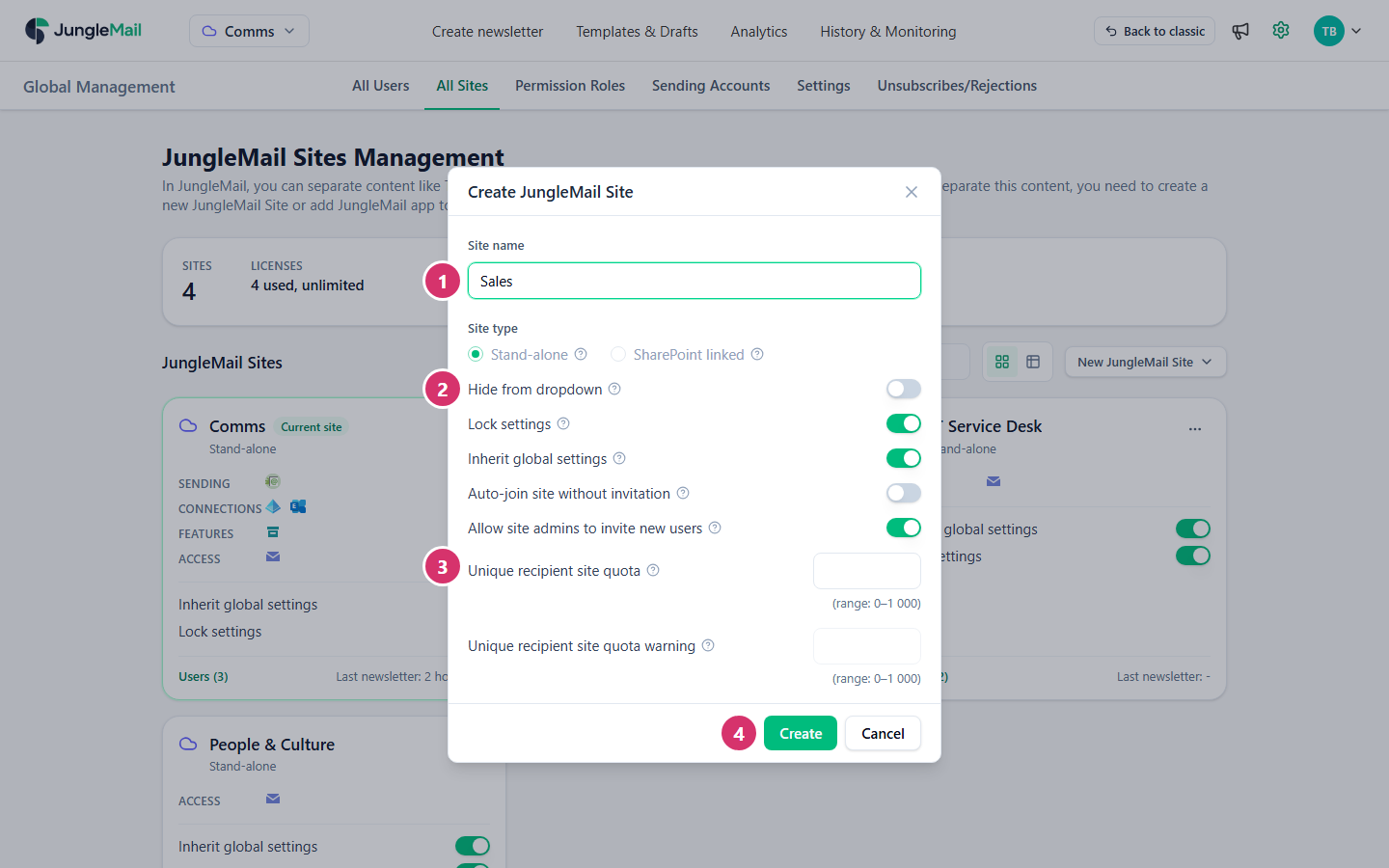
Section titled “Create a site”Go to Settings > All Sites, select New JungleMail Site and choose Create new JungleMail Site.
-
In Site name, type the name people will see in the site switcher, for example
Sales. Keep it short: it also appears in the top menu. -
Choose the site’s options. A new site starts with the values in the last column.
Option What it does New site Hide from dropdown Leaves the site out of the site switcher at the top left Off Lock settings Only global administrators can change the site’s settings; its own administrators can’t On Inherit global settings The site uses the global settings instead of its own On Auto-join site without invitation Anyone in your organization who signs in to JungleMail joins the site and takes a user license Off Allow site admins to invite new users The site’s administrators can invite people to it by email On Keep these values unless the team needs settings of its own, such as its own time zone (Global settings and inheritance). With auto-join off, you decide who takes a user license; turn off Allow site admins to invite new users too if every new license should go through you. Site administrators can still add groups with Add Users > Add groups, and each member who signs in then takes a license.
The first site, which JungleMail creates for your organization, starts with Auto-join site without invitation on instead, and gives everyone who joins it the Administrator role. Turn it off there with Edit on the site’s card, described below.
-
If you want to cap the site’s sending, enter a Unique recipient site quota: the number of unique recipients the site can send to in a quarter. Unique recipient site quota warning shows a warning bar on the site when it reaches that many. Site quotas are part of the Enterprise plan. Set one for a site that sends outside your organization, so that it can’t use up the unique recipients every site shares (How unique recipients are counted).
-
Select Create.
The site appears on All Sites, with you as its first Administrator. Next, add the people who will use it (Manage users and licenses), and have its administrator set up a sending account (Manage a JungleMail site).
Change, archive or delete a site
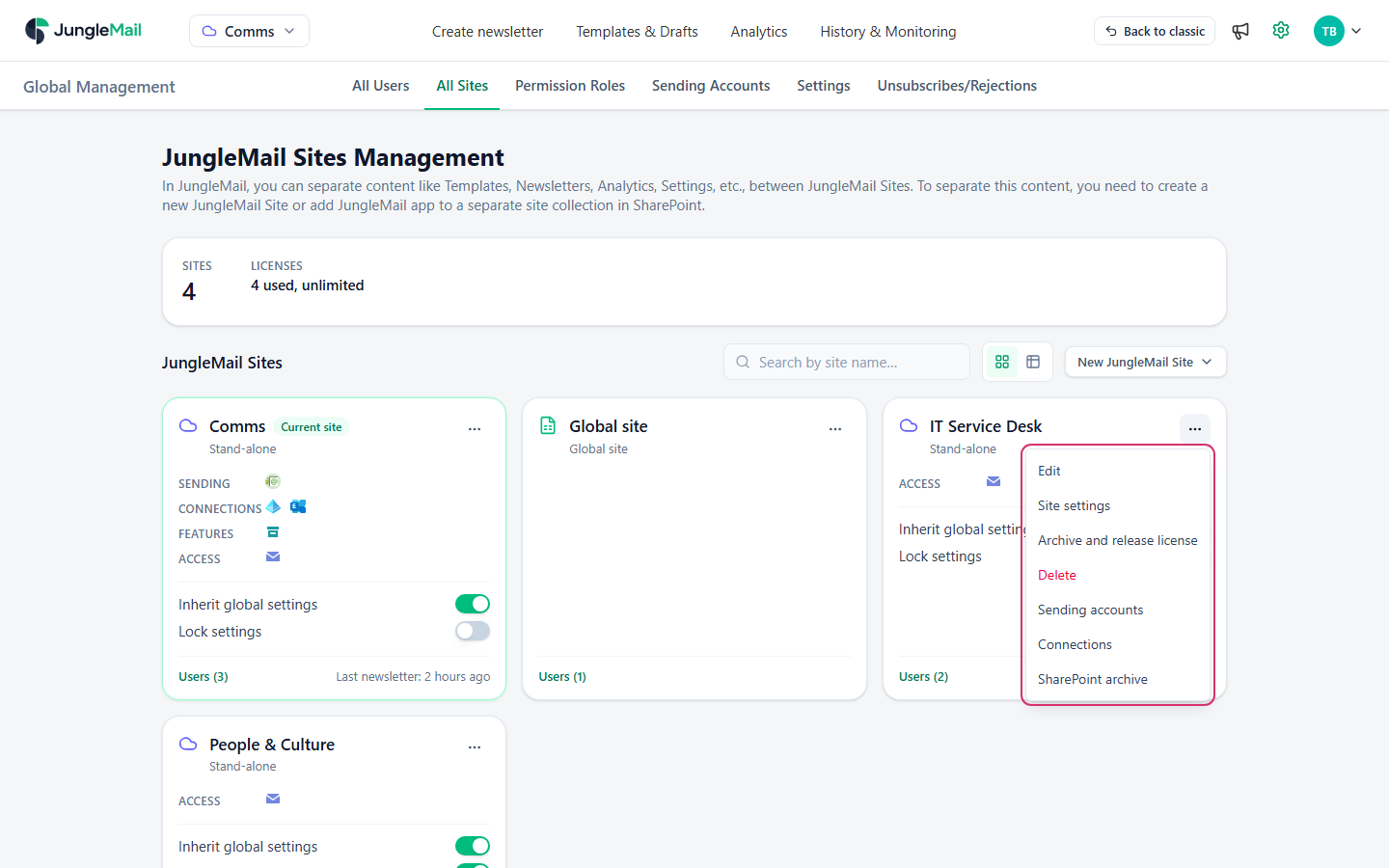
Section titled “Change, archive or delete a site”Every site has a card on All Sites. Select ⋯ (More actions) on the card to see what you can do with it.
| Action | What it does |
|---|---|
| Edit | Changes the site’s name and options, as when you created it |
| Site settings | Opens the site’s own Settings page |
| Archive and release license | Keeps all of the site’s data but frees its site license. Nobody can open the site until it’s restored, and newsletters it has scheduled or is sending are stopped |
| Delete | Deletes the site with everything in it |
| Sending accounts, Connections, SharePoint archive | Open those pages on that site |
You can’t archive or delete the site you are working on: switch to another site first.
The card also has two switches, Inherit global settings and Lock settings. Each one takes effect as soon as you select it. Users, at the bottom of the card with the number of people, opens Site users: the site’s people and their roles, where Add users adds people, the pencil changes a role and the bin removes someone from the site. Selecting the site’s name switches to that site.
To restore an archived site, select Show archived JungleMail Sites below the list, then ⋯ beside the site and Assign a license and restore. The site needs a free site license: if your plan’s sites are all in use, archive another site first or add site licenses to your plan.
- Give each site its own sending address. EnovaPoint’s People & Culture sends from
people@enovapoint.comand IT Service Desk fromservicedesk@enovapoint.com, so recipients see at once who wrote, and replies reach the right team (Choose a sending account type). - Share from the Global site what every team should use. On Enterprise, branded templates published from the Global site appear on every site, and only the Global site can change them (Share templates with every site). An address that every team sends from belongs in a global sending account (Global sending accounts).
- Hand the site over. You are its first Administrator: make someone from the team Administrator, and the people who write and send Editor, so that the team runs its own site.