

Update your company account
Your JungleMail 365 account has two sets of details. The contact information names the account owner, the person EnovaPoint contacts about your account and subscription. The billing information is what goes on your invoices. Fill in the billing information before your first order: orders and payment cards need it.
Before you begin
Section titled “Before you begin”- To change the contact information, you need to be a global administrator, or to have a permission role with Manage Company Account information.
- To change the billing information, you need to be a global administrator, or to have a role with Manage Subscription.
Update the contact information
Section titled “Update the contact information”Select your initials at the top right, choose Company Account, and select Edit.
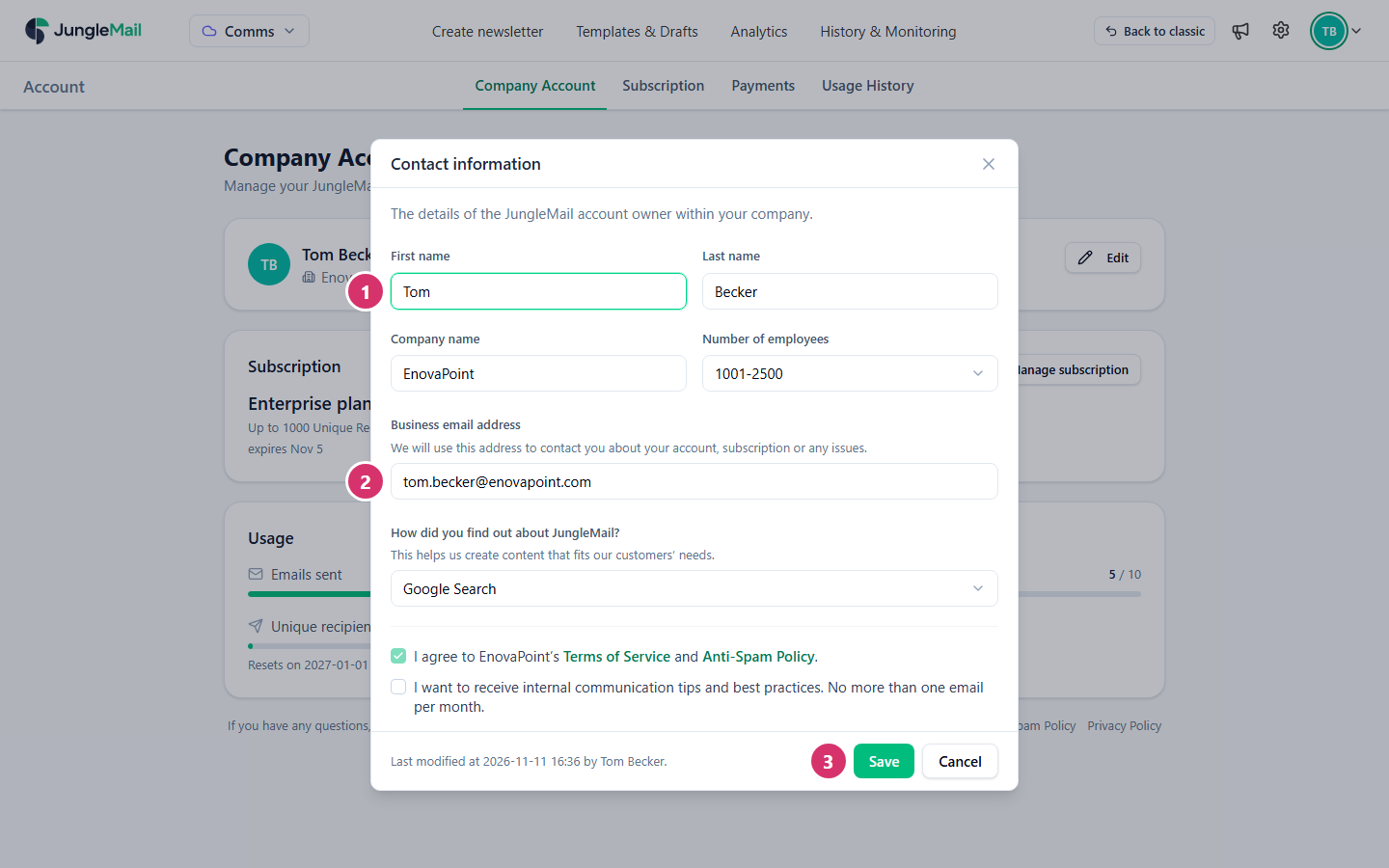
- Change the account owner’s First name, Last name, Company name and Number of employees as needed.
- In Business email address, type the address EnovaPoint should write to about your account, subscription or any issues. A personal address, such as one at gmail.com, isn’t accepted.
- Select Save. JungleMail shows Account information updated.
The first time the details are saved, the owner also ticks I agree to EnovaPoint’s Terms of Service and Anti-Spam Policy. Once they are accepted, the box stays ticked. If your organization has its own agreement with EnovaPoint, the dialog shows it instead, and Open document downloads it.
Update the billing information
Section titled “Update the billing information”- Select your initials at the top right and choose Subscription.
- Under Billing, select Update billing information.
- In Billing information, fill in Company Name, Billing email, Address, ZIP / postal code, City, State / province and Country. Only State / province can stay empty.
- For a country in the European Union, type your VAT number. EU companies with a valid VAT number aren’t charged VAT.
- Select Save. JungleMail shows Billing information updated.
JungleMail checks the billing email and the VAT number when you save. If it can’t verify one, it says so under the field: This email address is not valid. or This VAT number could not be verified.
Under Billing, Billing contact then shows the company name and billing email. An order or a payment card needs this billing contact first (Make and view payments).
- Change the account owner when they hand JungleMail over. EnovaPoint writes to the business email address about your account, subscription and issues. If the owner leaves, those messages go nowhere until someone updates it.
- Use a billing email your finance team reads. The Billing email can differ from the owner’s address: use the mailbox that receives your organization’s supplier invoices. JungleMail writes to it, and to the global administrators, when a payment fails.
- Enter your VAT number before the first payment. In the European Union, a valid VAT number means no VAT is charged. JungleMail checks it when you save, so a number it can’t verify shows up now rather than on an invoice.