

Set up Microsoft 365 for JungleMail
JungleMail 365 works with your Microsoft 365 organization through its applications in Microsoft Entra ID. People sign in with their Microsoft 365 accounts. JungleMail reads recipients and content from your directory, Exchange and SharePoint once someone connects them, and newsletters reach mailboxes through Exchange Online or through JungleMail’s own mail servers. This section is for the Microsoft 365 administrator who sets this up: you don’t need to use JungleMail yourself, but some steps start in JungleMail, where a JungleMail administrator can work with you.
In JungleMail, the connections to Microsoft 365 are on one page, Settings > Connections. Each JungleMail site has its own.
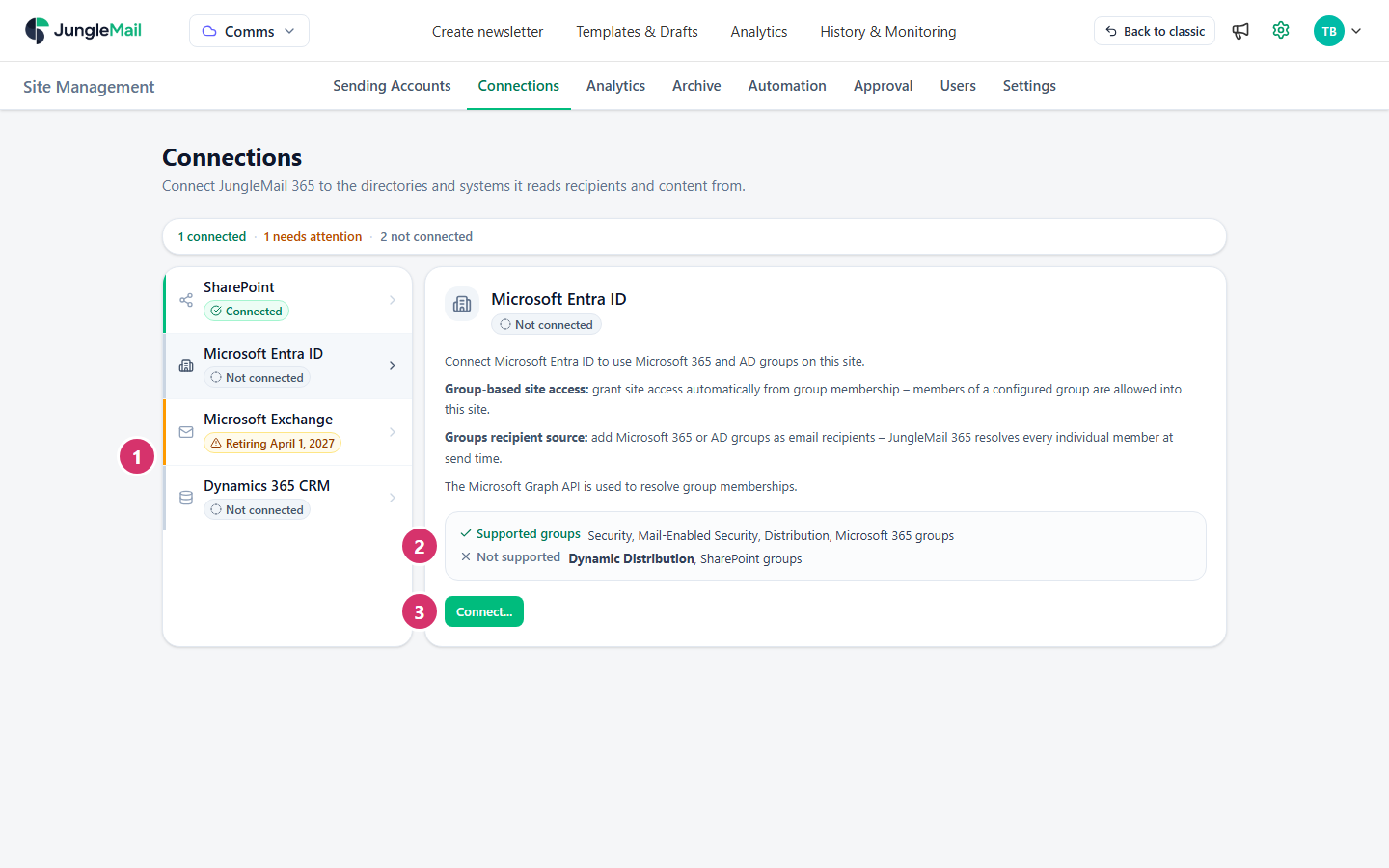
- The connections this site can use, each with its status.
- The selected connection: what it reads, and which kinds of group it can resolve.
- Connect… opens the connection’s setup. For Microsoft Entra ID it starts with an Entra admin’s consent: the JungleMail administrator can send you a consent link to open and accept, without signing in to JungleMail (Grant consent to JungleMail).
Where to start
Section titled “Where to start”- Grant consent for the whole organization, before people start. Then nobody meets a consent prompt or an Approval required page the first time they sign in, and you review JungleMail’s permissions once (Grant consent to JungleMail).
- Choose the SharePoint connection type with the JungleMail site administrator. Per site suits most organizations: people see only what they can open themselves. A service account suits those that prefer one account to set up and review. Settle it before editors need SharePoint lists, because per site takes a PowerShell grant for every site (SharePoint connection: service account or selected sites).
- Prepare mail delivery for the sending account the site uses. A Microsoft 365 sending account needs little more than Send As on a shared mailbox. A JungleMail mail server needs your spam filter, your domain and the “External” tag dealt with before its first large newsletter (Choose a sending account type).
If a SharePoint connection or list is still authorized through the SharePoint add-in, move it first: Microsoft retired SharePoint add-ins, and they no longer work in SharePoint Online (Move SharePoint connections off the add-in).
Consent and Microsoft Entra ID
Section titled “Consent and Microsoft Entra ID”JungleMail’s applications ask for consent the first time someone uses them. Grant it once for your whole organization, and decide who may use JungleMail.
SharePoint
Section titled “SharePoint”The SharePoint connection lets editors send to SharePoint lists and put SharePoint content in newsletters. Archiving newsletters to SharePoint and SharePoint subscribers use it too. You choose whose permissions it reads with.
- SharePoint connection: service account or selected sites
- Set up the SharePoint connection with a service account
- Set up the SharePoint connection for selected sites
- Install the JungleMail Modern Pack
- Move SharePoint connections off the add-in
Mail delivery and Outlook
Section titled “Mail delivery and Outlook”Newsletters sent through a Microsoft 365 sending account leave from a mailbox in your own Exchange Online. Newsletters sent through Bird Cloud Email Service or the JungleMail mail server arrive from outside your organization, so your spam filter, Exchange and Outlook need to trust them.
- Let users send as another mailbox
- Allowlist JungleMail’s mail servers
- Send from your own domain
- Remove the “External” tag from newsletters
- Load newsletter images automatically in Outlook
Power Automate
Section titled “Power Automate”Flows can react to newsletters, for example when one is submitted or finishes sending, and act on them, for example approve them.
Facts you may need
Section titled “Facts you may need”- IP addresses and domains: the mail servers, sender domains, and image and tracking domains for each cloud.
- Clouds and app addresses: which cloud your JungleMail runs in.
- Connections: the same connections from a JungleMail site administrator’s side.