

Manage users and licenses
Everyone who uses JungleMail 365 takes one user license, and your plan includes a set number of them. On Settings > All Users you see everyone who uses JungleMail, invite new people, and decide which sites each person can open and with which permission role.
Plans include only a few licenses, so give them to the people who write and send newsletters, design templates or read results (Plans and editions). The people who receive newsletters need none.
Before you begin
Section titled “Before you begin”- You need to be a global administrator (Global administrators).
- People sign in to JungleMail with their Microsoft 365 work account. Invite them with the address they sign in with.
The All Users page
Section titled “The All Users page”Go to Settings > All Users.
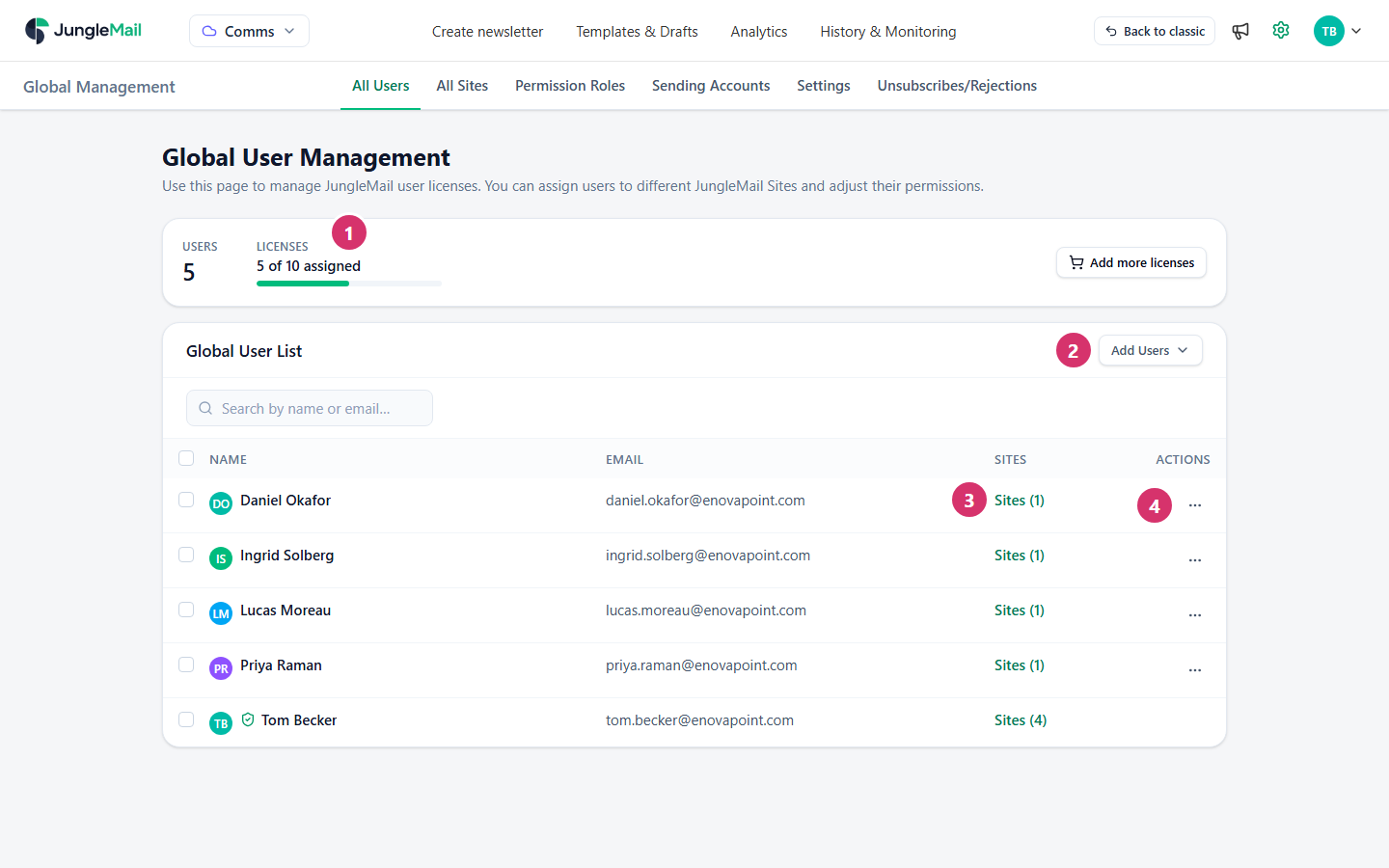
- Licenses: how many user licenses are assigned, of how many your plan includes. Add more licenses adds licenses to your subscription (Change your plan or add-ons).
- Add Users > Invite users by email invites people who don’t use JungleMail yet. Add users from SharePoint adds people from a SharePoint site, for JungleMail sites linked to SharePoint. On the Global site, the button is Invite users by email itself.
- Sites shows how many sites the person belongs to. Select it to see them, with the person’s role on each.
- ⋯ (More actions) has Edit user and Delete user.
Beside a name, a shield marks a global administrator, Invited a pending invitation, Invitation expired one that has expired, and Disabled someone who can’t use JungleMail.
Invite people by email
Section titled “Invite people by email”On All Users, select Add Users > Invite users by email. The example invites Sofia Alvarez, EnovaPoint’s brand designer, to the Global site as a Template Manager.
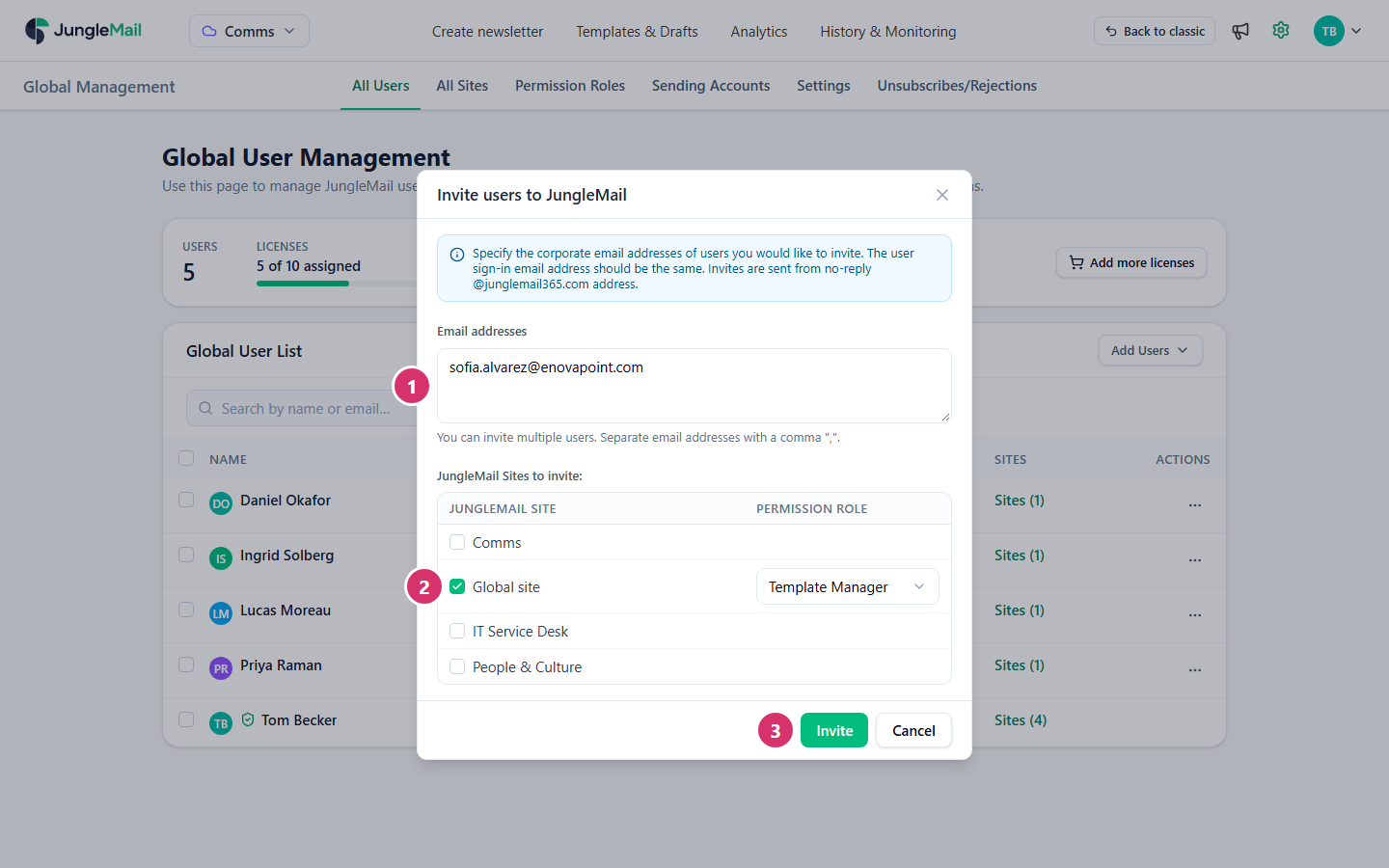
- In Email addresses, type the work addresses of the people to invite, separated by commas.
- Under JungleMail Sites to invite, tick each site they should be able to open, and choose their Permission Role on it. Tick only the sites they work on, with the narrowest role that lets them do their job: Editor to write and send, Viewer to read newsletters and results (Create permission roles).
- Select Invite.
JungleMail emails each person an invitation from no-reply@junglemail365.com and lists them as Invited until they
accept it. They have to sign in with the same address the invitation went to. An invitation expires after 14 days: to
send it again, select Resend invite, the circular arrow under the person’s name.
JungleMail refuses the invitation, and says why, when someone already uses JungleMail, here or in another JungleMail account of your organization, when an address isn’t in one of your organization’s sign-in domains, when no site is ticked, or when your user licenses would run out.
Change someone’s sites and roles
Section titled “Change someone’s sites and roles”On All Users, select Sites in the person’s row. User Sites lists their sites.
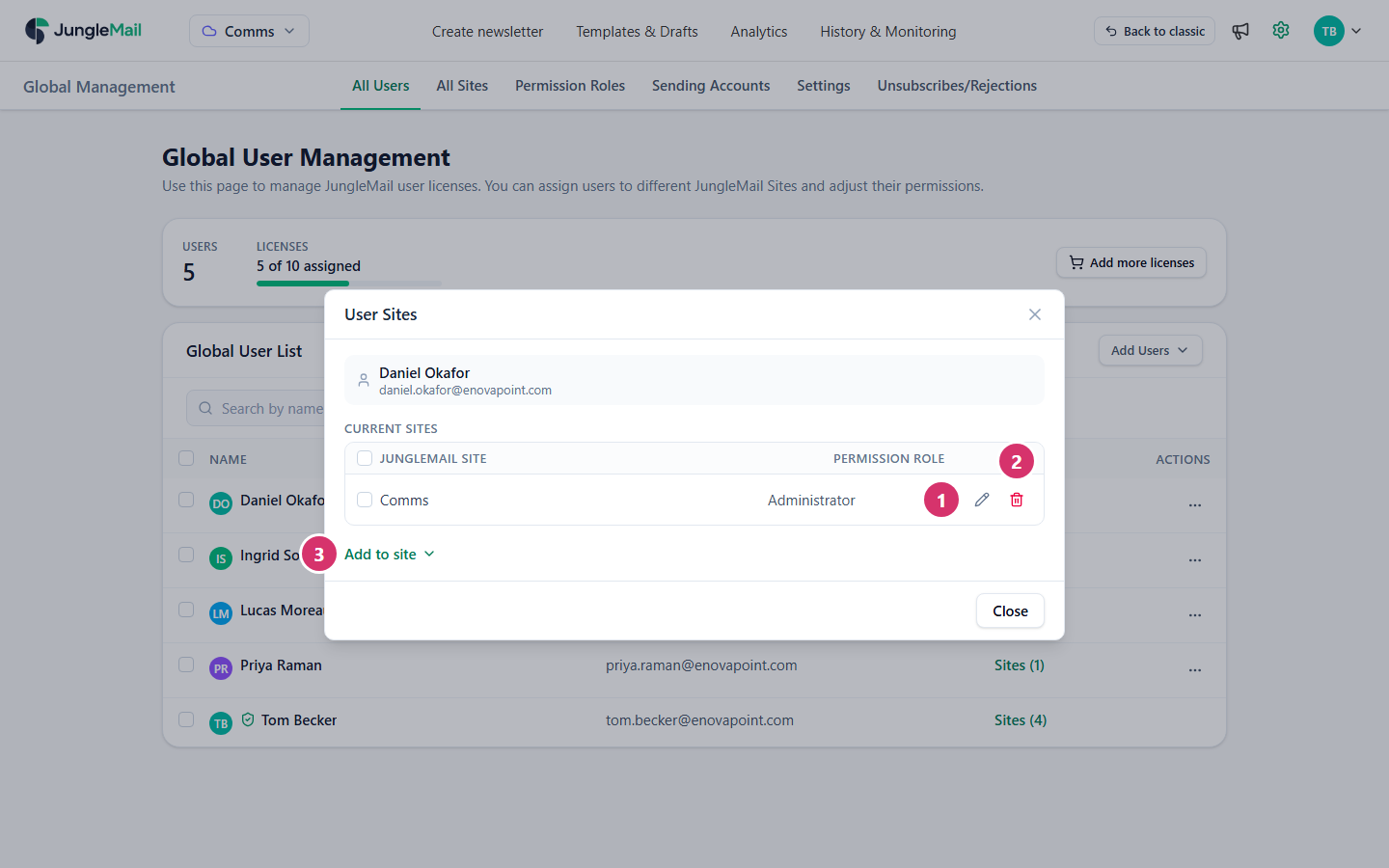
- To change their role on a site, select the pencil, choose the role, and select Save.
- To take them off a site, select the bin. To take them off several sites, tick the sites and select Remove.
- To add them to a site, select Add to site, tick the site, choose their role, and select Add.
A site’s administrators can also add people who already use JungleMail to their own site (Manage site users).
Disable or delete a user
Section titled “Disable or delete a user”- To stop someone from using JungleMail but keep their account, select ⋯ > Edit user, turn off Enabled, and select Save. A disabled user still takes a license, so disable only someone who will be back, such as a person on long leave.
- To remove someone completely, select ⋯ > Delete user and confirm. They are removed from every site, they are signed out, and their license becomes free. To delete several people, tick them and select Delete above the list.
What a deleted user made stays: their newsletters, drafts and templates remain available to the site, still shown with their name. Newsletters they scheduled aren’t sent. Microsoft 365 sending accounts and connections they authorized keep working as long as their account is still in your organization’s Microsoft 365, because these don’t need a JungleMail license.
You can’t edit or delete your own account; another global administrator can.
When you run out of licenses
Section titled “When you run out of licenses”When every license is in use, Licenses shows Limit reached, and JungleMail can’t add anyone else: invitations are refused, and people who sign in to JungleMail for the first time don’t get a license. Free a license by deleting someone who no longer needs JungleMail, or add licenses with Add more licenses.
- Delete people who leave. Their license becomes free at once, where disabling them keeps it taken, and what they made stays. Before you delete someone, ask their site’s administrator to check their scheduled newsletters: these won’t be sent, so someone else has to send them. If they authorized a Microsoft 365 sending account or a connection, replace it with one authorized by someone who stays before their Microsoft 365 account is removed: it stops working then (Newsletters stop sending after a password change).
- Keep new licenses with you. On sites where Allow site admins to invite new users is off, site administrators can still add people who already use JungleMail, but can’t invite new people by email, so new licenses go through you (Create and manage JungleMail sites).
- Add groups to a site with care. A group added on a site’s Users page lets all its members in. Adding it takes no license, but each member who signs in takes one. Add a small team’s group, such as EnovaPoint’s IT Champions, not All Employees (Manage site users).