

Add a JungleMail mail server sending account
JungleMail 365’s own mail servers send much faster than a mailbox: use one for newsletters to 2,000 people or more, or that must reach everyone quickly. Your cloud’s JungleMail mail server, such as JungleMail UAE Mail Server, is for internal newsletters; Bird Cloud Email Service, named with its region, such as Bird Cloud Email Service (EU Sparkpost), is for people outside your organization (Choose a sending account type). Both are added the same way, without signing in to a mailbox.
Before you begin
Section titled “Before you begin”- You need the Administrator role on the site, or a role with Manage Sending Accounts.
- To send from your own domain, such as
enovapoint.com, rather than a JungleMail one, the domain has to be authorized: you contact support, and your IT team adds a DKIM record to your DNS (Send from your own domain). - Ask your IT team to let JungleMail’s mail servers through your spam filter (Allowlist JungleMail’s mail servers).
Add the account
Section titled “Add the account”Go to Settings > Sending Accounts, select Create new sending account, then your cloud’s JungleMail mail server or Bird Cloud Email Service. In the New sending account dialog:
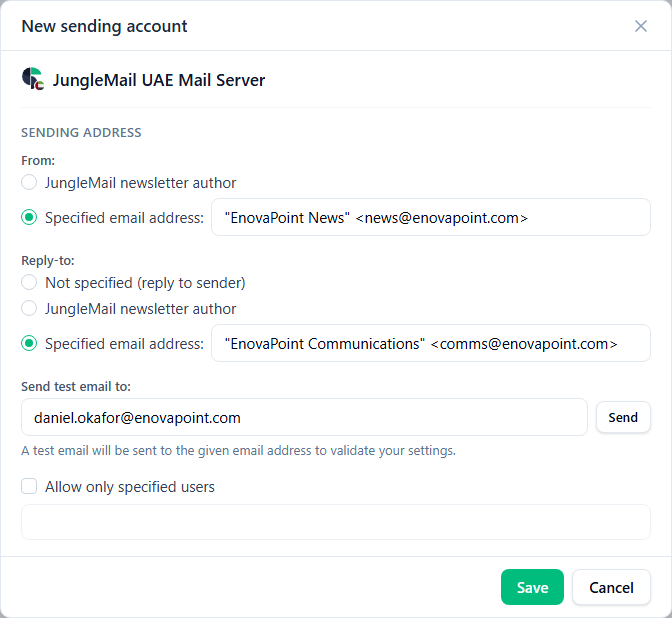
- From: for a site’s regular newsletters, choose Specified email address with a shared mailbox in your
authorized domain, such as
"EnovaPoint News" <news@enovapoint.com>: readers recognize one sender. - Reply-to: make sure replies reach a mailbox someone reads, the From address if it is one, or a Specified email address.
- Send test email to: send the test to a colleague’s work address rather than only your own, and check that it arrives in the inbox, without the External tag and with its pictures. Save sends a test too, and doesn’t create the account if the test can’t be sent.
Sending domains
Section titled “Sending domains”Each JungleMail mail server account lists its authorized domains under Sending Domains. Wait until yours shows as
Active before the first real newsletter. Until then, the server replaces the domain of your From address with its
own: news@enovapoint.com goes out as news@jmcloudpost.com from Bird Cloud Email Service, shown as Effective from
under the address. Recipients don’t know that address and may ignore or report it, so use the time for tests. With
Not specified (reply to sender), replies still go to your own address, shown as Effective reply-to.
- Check the rejections list after the first large newsletter. Both servers add addresses that bounce to the site’s rejections list, and later newsletters skip them. Many colleagues’ addresses there at once point to a spam filter that blocked JungleMail’s servers rather than to mailboxes that are gone: once your IT team has let the servers through, delete those addresses so that newsletters reach them again (Manage unsubscribes and rejections).