

Your subscription and usage
Your plan, its limits and what your organization has used of them are on the Subscription tab of your JungleMail 365 account. Usage History lists every period of your subscription, the current one included, with its limits and the emails sent in it.
Before you begin
Section titled “Before you begin”- You need to be a global administrator, or to have a permission role with Manage Subscription.
See your plan and this quarter’s usage
Section titled “See your plan and this quarter’s usage”Select your initials at the top right and choose Subscription.
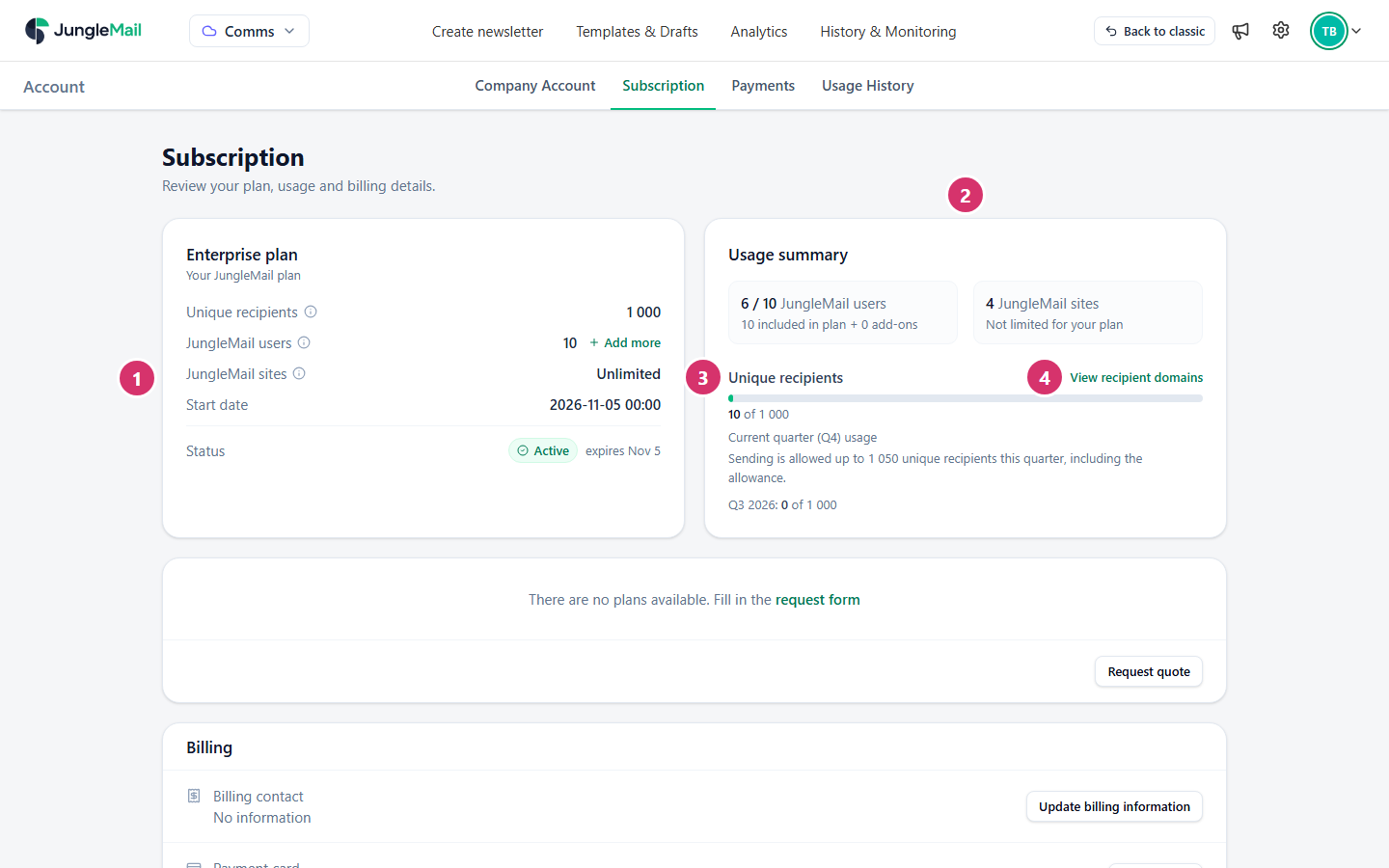
- Your plan and its limits: Unique recipients, JungleMail users and JungleMail sites, with the plan’s Start date and Status. The status is Active when all is well, with the date the plan expires or renews. The ⓘ beside a limit explains what counts as a recipient, a user or a site.
- Usage summary: the user licenses in use, of those your plan and its add-ons include, and the JungleMail sites you have, of those your plan allows.
- Unique recipients: the different addresses your newsletters went to this quarter, of your plan’s number. The line below says how far the allowance lets you go, and the last line gives last quarter’s count. The bar turns amber when you pass your plan’s number and red when you pass the allowance too.
- View recipient domains lists the domains your newsletters went to this quarter, with how many recipients and emails each had. Only global administrators can open it.
How unique recipients are counted explains the count and the allowance.
Usage at a glance
Section titled “Usage at a glance”- Company Account, the first tab, shows Usage: the emails sent in the current billing period, the licensed users, the sites (Teams) if your plan limits them, and this quarter’s unique recipients with the date the count starts again. Each bar compares what’s used with what your plan allows.
- The Account menu, under your initials, starts with this quarter’s Unique recipients. Review opens Subscription.
Usage in earlier periods
Section titled “Usage in earlier periods”Select your initials at the top right and choose Usage History.
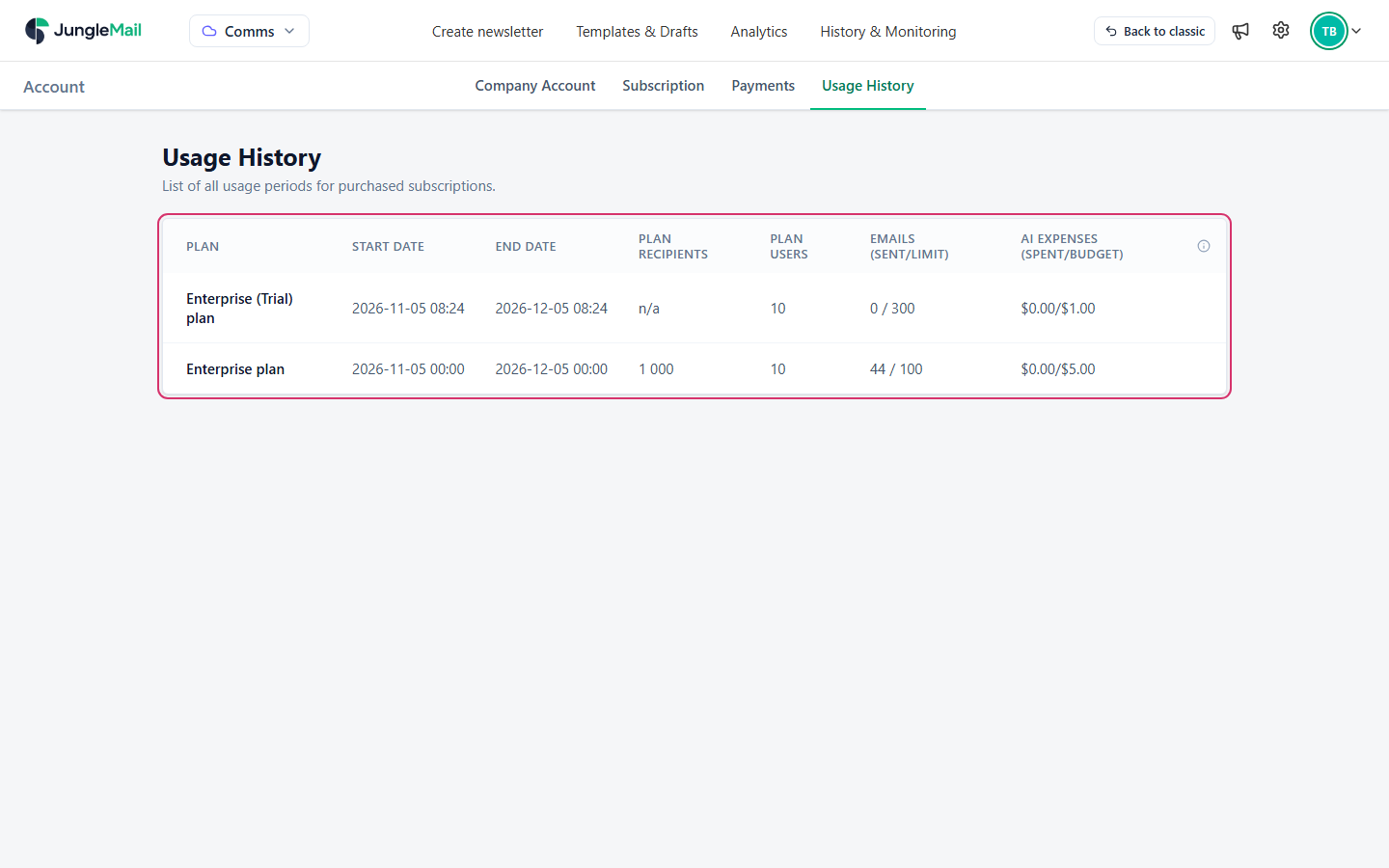
Each row is one period of your subscription:
| Column | What it shows |
|---|---|
| Plan | The plan in that period. A trial shows as (Trial) |
| Start Date, End Date | When the period began and ended |
| Plan Recipients | The unique recipients the plan included, or n/a for a plan not counted by them |
| Plan Users | The user licenses the plan included |
| Emails (sent/limit) | The emails sent in the period, and the plan’s email allowance |
| AI Expenses (spent/budget) | What the AI assistant used in the period, and its budget, in US dollars |
- Look at the count after the quarter’s first large newsletter. The first issue to your employees counts them all; later issues add only new addresses. What is left then is your room for newsletters to people outside your organization (How unique recipients are counted).
- Act when the bar turns amber. Amber means you have passed your plan’s number and are using the allowance. Order a larger plan, or hold back newsletters to new addresses until the reset date, before the bar turns red (When you reach your plan’s limit).
- Read View recipient domains for domains you don’t expect. A partner’s or a personal mail domain with many recipients points to a list or file of outside addresses, or to guests in a group. Find the newsletter and filter them out next time (Filter recipients).
- Review Usage History before you renew. It shows, period by period, the emails you sent against your plan’s allowance, so you can see whether a smaller or a larger plan fits (Change your plan or add-ons).